Tutorial
GPT Image 2.6 in Practice: Pixel GIFs, SVG Logos and Masked Edits
Copy-paste workflows for frame_size, frame_count, SVG output and mask_url — with the parameter traps that cause rejected jobs
本页内容
Pick the Line Before You Pick the Parameters
Two model lines serve GPT Image 2.6: gpt-image-2.6-flare and gpt-image-2.6-sunburst. They accept exactly the same parameters and cost exactly the same. The only difference is how the output is produced: Flare prioritizes speed, Sunburst prioritizes detail.
Choose Flare for iteration. Concept exploration, layout drafts, batch generation, and any loop where you expect to submit the same job more than once. When you are still deciding what the image should look like, latency is the cost that matters most.
Choose Sunburst for consistency. On medium quality and above, multi-round edits hold detail better — the same character, the same product, the same layout survive repeated passes. If you are refining a single asset through several mask_url edits, this is the line that keeps it from drifting.
Everything downstream — the request body, the pricing, the validation rules — is identical. You can develop against Flare and switch the model ID to Sunburst for the final run without touching a single other field. Routing is a one-line change:
{
  "model": "gpt-image-2.6-flare/text-to-image",
  "prompt": "..."
}
That said, the parameter traps in this article are the same on both lines, so it is worth reading the GIF, SVG, and mask sections regardless of which one you pick.
Workflow 1: Turning a Pixel Animation into a GIF
GIF output is text-to-image only. That means the frame logic is described in the prompt: a pixel-art walk cycle, a sprite sheet of a bouncing icon, a frame-by-frame loop. The API does not interpolate a video — it lays out the number of frames you request, sized the way you request them.
Here is a complete request that produces a GIF. The animation is described in the prompt; the frame geometry is controlled by three parameters:
{
  "model": "gpt-image-2.6-flare/text-to-image",
  "prompt": "pixel art of a small knight walking, looping walk cycle, flat 32-color palette, side view",
  "output_format": "gif",
  "frame_size": "512x512",
  "frame_count": 9,
  "frame_duration_ms": 200,
  "quality": "high"
}
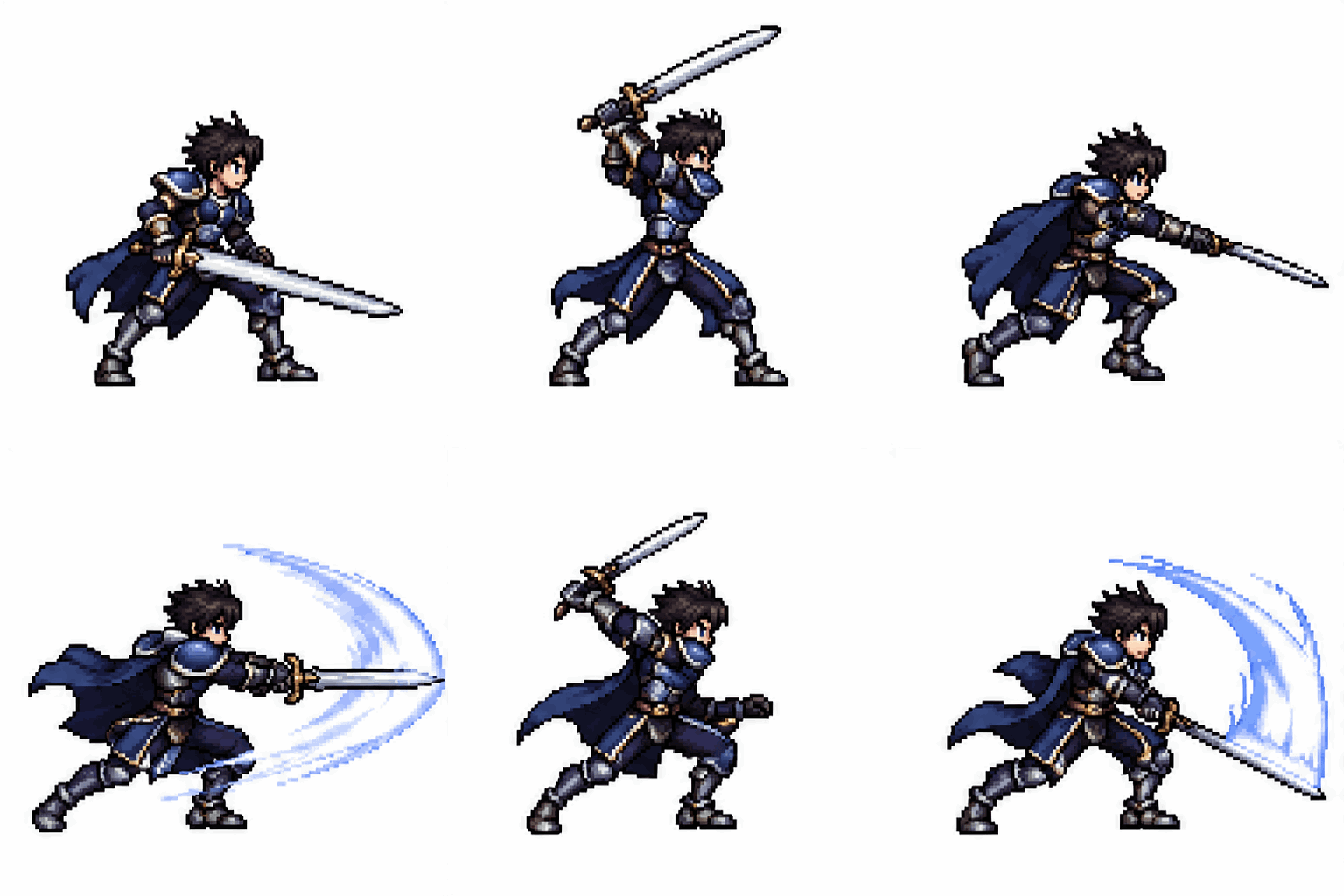
Here is a GIF GPT Image 2.6 Flare actually produced: 512×512, 12 frames, 120 ms per frame.
-
frame_sizeis a pixel pair written as512x512. Both sides must be multiples of 16. Do not pass1:1— that is not a valid value and the request is rejected. This value also sets the aspect ratio of the final GIF. Default is512x512. -
frame_countis the number of frames, from 2 to 16. Default is 9. If you use768x768frames, the cap drops to 12 frames. -
frame_duration_msis the time per frame in milliseconds, minimum 20, default 200, rounded to 10 ms automatically. This is what controls playback speed, so adjust it here rather than describing timing in the prompt.
One thing that trips people up: do not pass aspect_ratio when generating a GIF. Leave it out entirely, or set it to auto. The GIF's shape comes from frame_size. If you are reusing a request template that already has aspect_ratio: "16:9" in it, remove that field before adding output_format: "gif".
A 512×512 grid of 9 frames is comfortably inside the size limits. Larger frames buy you more per-frame detail, but see the next section for where the ceilings are.
GIF Cost and the Size Limits That Reject a Job
GIF pricing does not depend on resolution. It depends only on quality. You pay the same for a GIF at 1K, 2K, or 4K. Pick your quality tier and that is your bill:
low: $0.070medium: $0.124high: $0.150xhigh: $0.266max: $0.598
The Workflow 1 request at high costs $0.150. Because frame size does not affect cost, choosing a bigger frame_size for clarity is a free decision — up to the limits below.
The limits apply to the whole stitched frame sheet, not to individual frames:
-
Each side of the stitched sheet must be ≤3840 pixels.
-
Total pixels must be ≤8,294,400.
-
Aspect ratio must be ≤3:1.
All three are checked at submit time. A job that exceeds any of them is rejected before generation and you are not charged. That last part matters: a rejected submit costs you nothing, so you can test boundaries without burning budget. But it does cost you the round trip, so it is worth getting the arithmetic right before submitting.
A quick sanity check: 16 frames at 512x512 stitch into a 4×4 sheet of 2048×2048, about 4.19 million pixels — well under the cap. The same 16 frames at 1024x1024 make a 4096×4096 sheet, over 3840 per side, which is rejected. At 768x768, the most you can request is 12 frames.
If you are unsure whether a combination is legal, check the sheet, not the frame: the frames are laid out as a grid, and it is that grid's sides and total pixels the API checks.
Workflow 2: Getting a Real SVG Vector Logo
SVG output from GPT Image 2.6 returns an actual vector file, not a raster image renamed with an .svg extension. That distinction matters for logos: vector output scales to any size without pixelation, and the paths are editable in design tools.
SVG is text-to-image only, same as GIF. The request is minimal:
{
  "model": "gpt-image-2.6-sunburst/text-to-image",
  "prompt": "minimal geometric fox logo, single continuous line, two colors, suitable for a developer tools brand",
  "output_format": "svg",
  "quality": "high"
}
Here is an SVG logo GPT Image 2.6 Flare produced at low quality. The file is 3 KB and stays sharp at any size:

background: "transparent" to an SVG request. Transparent background works only with png or webp; leave the background field out of SVG requests.
SVG pricing is the same-tier PNG price plus $0.030. A low 1K SVG costs $0.053 against $0.023 for the PNG; a max 4K SVG costs $0.666 against $0.636. The request above (high, default 1K) costs $0.049 + $0.030 = $0.079. The add-on is fixed per image, so it is predictable on every tier.
Because SVG is text-to-image only, you cannot feed a raster logo in via image-to-image and ask for a vector version. Image-to-image returns only png, jpeg, or webp. If you need to vectorize an existing mark, the workflow is: describe the mark in text, generate as SVG, then refine the prompt until the paths look right.
For the full parameter surface, the GPT Image 2.6 Sunburst text-to-image documentation covers every field.
Workflow 3: Targeted Local Edits with mask_url
mask_url is the precise tool for changing one region of an existing image. The workflow is image-to-image: you provide one or more source images, plus a mask that marks the edit area.
The rules for the mask are strict:
-
Format: RGBA PNG. Not JPEG, not RGB PNG.
-
Size: identical to the first source image. Not same aspect ratio — same dimensions.
-
Semantics: transparent pixels mark the region to edit. Opaque pixels are left alone.
A request looks like this:
{
  "model": "gpt-image-2.6-flare/image-to-image",
  "prompt": "replace the sky with a warm sunset gradient",
  "image_urls": ["https://.../photo.png"],
  "mask_url": "https://.../sky-mask.png"
}
There is an alternative to mask_url called markup_url. A markup image is a transparent PNG with the target area circled or otherwise marked — the annotation itself does not appear in the result. Use markup_url when you want to point at a rough location without hand-building a pixel-perfect mask; use mask_url when you need exact boundaries.
The two cannot be combined. Pass mask_url or markup_url, never both. A request with both fields is rejected at submit time.
One expectation to set correctly: even with a mask, pixels outside the masked region can shift slightly. If absolute pixel-identity outside the mask is a hard requirement, you will need to composite the result back over your original image afterward.
For multi-round edits on the same asset, Sunburst at medium quality and above holds detail more consistently across passes. Flare is fine for a single quick swap. Parameters and price are the same on both, so the choice is about quality-per-round, not cost. The image-to-image reference lists every accepted field.
Traps That Cost You Time or Money
Almost every frustration with GPT Image 2.6 comes from one of four specific mistakes. Each is a compile-time failure — caught at submit, refunded in full — so the cost is latency and debugging time, not budget. But they are worth internalizing before you build a loop around this API.
Format restrictions per direction. gif and svg are text-to-image only. Image-to-image returns only png, jpeg, or webp. If you have a shared request builder that passes output_format through indiscriminately, it will fail the moment someone tries an image-to-image SVG. Validate direction against format before submitting.
Transparent background only on png or webp. Setting background: "transparent" with output_format: "gif", "jpeg", or "svg" is rejected. Keep transparent for png and webp requests only.
The reference-image surcharge. Image-to-image jobs add $0.012 per reference image on top of the base per-image price. Send 4 source images and you pay $0.048 extra; send 16 and it is $0.192. On a low 1K edit ($0.023), 16 references cost more than eight times the image itself. The full table is on the pricing page.
Rejected submits are free — but slow. A rejected job does not bill you. That is a genuine safety net. But each rejection is a round trip, and if you are running an unattended loop, a malformed frame_size (missing the x, a side not divisible by 16, 1:1 instead of 512x512) will burn through your retry budget. Validate locally where you can: frame_size as \d+x\d+ with both sides divisible by 16, frame_count in 2–16, frame_duration_ms ≥20. Similarly, check the stitched sheet: each side ≤3840, total pixels ≤8,294,400, aspect ratio ≤3:1.
Start on Flare for the tight loop, switch the model ID to Sunburst when you need the final to hold detail, and let the submit-time validation catch what you miss — just do not build a batch job that relies on it.
相关文章
查看全部文章 →-
Tutorial
GPT Image 2.6 API Tutorial: Flare vs Sunburst, GIF and SVG Output
Pick the right model ID, set the parameters that matter, and ship GIF and SVG output without wasting calls
8 min read -
Tutorial
Recraft Creative Upscale: Landscape Examples
Inspect cabin, lake and watercolor examples, identify redrawn detail, and distinguish previews from full-size results.
8 -

Tutorial
OpenAI Invalid API Key: Authentication Checks
Separate OpenAI 401, 403, and 429 errors. Check runtime variables, account context, and credentials with a read-only request.
3