
Guide
Veo 3.1 Fast Image-to-Video Prompt Recipes Developers Can Copy
First-frame motion cues, camera phrasing, and native audio prompts you can paste directly

Why prompt structure beats prompt wording
Most image-to-video prompts fail not because the words are wrong, but because too many variables change at once. You tweak an adjective, the camera drifts differently, and you have no idea which edit caused it. A fixed prompt skeleton fixes this by turning generation into a controlled experiment.
Treat every prompt as four separate blocks: subject, first-frame motion cue, camera phrasing, and audio cue, plus a short constraints block. When a clip misbehaves, you change one block and re-run. If the subject deformed, you touch only the motion cue. If the shot feels flat, you touch only the camera line. This is the difference between debugging and gambling.
The structure also makes your prompts portable. A recipe you tune for one first frame transfers to the next asset because the fields stay in place — only their values change.
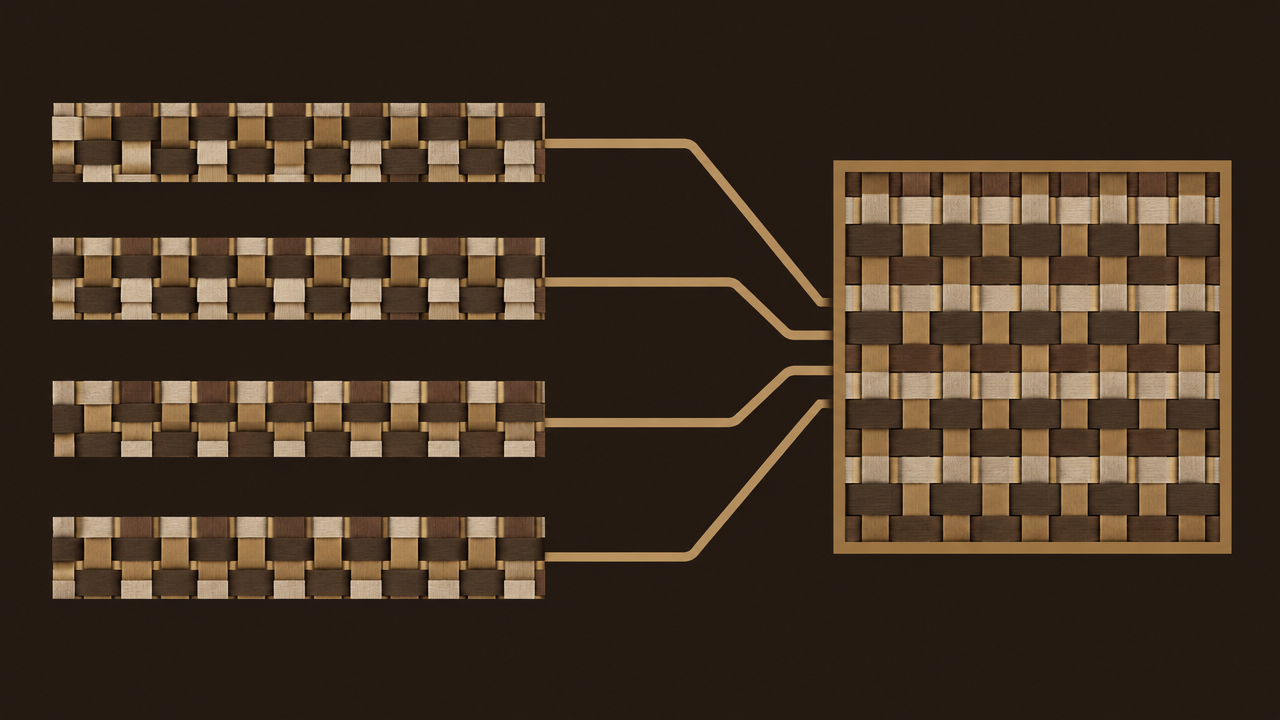
Recipe anatomy: the fields in every prompt
Every recipe in this guide uses the same five fields, in the same order. Learn what each one controls and you can compose your own variations without guessing.
Subject
A short, concrete description of what is already visible in the first frame. This is an anchor, not a re-imagining: name the object, its material, and its most stable visual trait. Keep it to one sentence. If the image already shows a red ceramic mug on a desk, say that — do not describe a kitchen.
First-frame motion cue
This is the field most people get wrong. It declares what should move out of frame zero: which element, in which direction, at what pace. Phrase it as a single action tied to a visible part of the image, not a general scene description.
Camera phrasing
One dedicated line for how the virtual camera behaves. Push-in, dolly, orbit, handheld drift. Camera language changes perceived energy more than most motion adjectives, so give it its own field rather than burying it inside the subject sentence.
Audio cue
A description of the sound that should accompany the visible action. Tie it to events you can see — a door closing, footsteps, wind across fabric — rather than mood words like "cinematic" or "epic."
Negative constraints
A short list of what to avoid: no text overlays, no extra limbs, no scene cuts. Keep it brief; a bloated negative list competes with your positive instructions.
Copy-paste recipes for first-frame motion
These patterns assume you are supplying a still image and want the animation to grow out of that image. Paste them as the motion-cue line and swap the bracketed parts for your subject.
Subject enters frame
The [subject] moves from the left edge into the frame, entering slowly and settling near center.
Use when your first frame shows empty space the subject can occupy. The motion is directional and easy to verify on the first watch.
Subject exits frame
The [subject] drifts toward the right edge and exits the frame at a steady walking pace.
Good for transitions and end-of-shot beats. Exits are easier to control than entrances because the destination is unambiguous.
Subject deforms or changes state
The [subject] slowly changes shape — [specific change, e.g. the fabric ripples and settles] — while staying in place.
Name the exact part that changes. Vague deformation requests produce melting artifacts; a named part keeps the model focused.
Subject reacts
The [subject] turns its head slightly toward the light, then holds still.
Reaction cues work well when the first frame already implies attention — a face, an animal, a character. Keep the reaction small and singular.
For all four patterns, keep the cue to one sentence and one primary motion. Stacking two motions in the same line is the most common reason a clip looks unstable.
Copy-paste recipes for camera phrasing
Camera phrasing deserves its own line because it shapes the feel of the clip independently of what the subject does. These patterns pair well with a still first frame.
Slow push-in
Camera: slow push-in toward the [subject], no lateral movement.
The safest default. It adds intention without introducing new geometry, so it rarely conflicts with a motion cue.
Dolly back
Camera: dolly back from the [subject], revealing the surrounding space.
Use when your first frame is tight and you want the environment to appear. Pair with a subject that stays still.
Arc orbit
Camera: gentle arc orbit around the [subject], roughly 30 degrees, constant speed.
Orbits give a three-dimensional read but can expose missing detail behind the subject. Use only when the first frame suggests a full environment.
Handheld drift
Camera: handheld drift with slight vertical bob, as if held at chest height.
Adds documentary energy. Keep the bob subtle — large handheld motion tends to smear fine detail.
A practical rule: one camera instruction per prompt. If you want a push-in and an orbit in the same clip, generate two shots and cut between them. Conflicting camera terms are the fastest way to get a drifting, undefined frame.
Copy-paste recipes for native audio
Audio prompts work best when they describe sounds caused by visible action. The model can only align what it can see, so tie every audio request to an event in the frame.
Action-locked ambience
Audio: soft room tone with the sound of [visible action, e.g. pages turning] matching the movement on screen.
This is the most reliable pattern. The action gives the audio a timing anchor.
Impact on a beat
Audio: a single soft impact when the [subject] settles into place, then quiet.
Use when the motion cue has a clear endpoint. One event, one sound.
Environmental bed
Audio: light outdoor ambience — distant birds, faint wind — continuous and low in the mix.
Good for establishing shots with slow camera moves. Keep the bed description generic enough that it does not fight the visual.
Audio requests that tend to be ignored
Abstract mood words — "epic," "cinematic," "emotional" — give the model nothing visible to sync to. Dialogue requests are similarly unreliable in short clips: without a visible mouth and a stated line, the result is usually mumbling. If you need speech, plan for a separate step. Keep each audio line under one sentence and reference something the camera can see.

Combining recipes into a per-shot pipeline
Once the fields are stable, chain them into a repeatable per-shot workflow.
Build one shot at a time
One image, one motion cue, one camera line, one audio line, one constraints line. Assemble the prompt in that order every time. Consistency here is what makes batch work possible.
Generate variations in parallel
Keep the subject and constraints fixed, then vary only the camera or motion line across a small batch — three to five runs per shot is usually enough to see a pattern. Because the other fields are frozen, differences in output are attributable to the field you changed.
Promote winning recipes
When a combination works, save the full prompt text as a named recipe. Over a few projects you build a personal library of motion, camera, and audio lines that you know behave well together.
Iterate on the weakest field
After each pass, ask which field produced the worst artifact and change only that one. Two or three refinement passes per asset is a realistic budget; expecting a final clip on the first generation is not.
The same pipeline runs through the veo-3.1-fast image-to-video endpoint, so a prompt you validate once stays valid as you scale up volume.
Common failure modes and how to debug them
Most bad clips trace back to a handful of prompt problems. Each has a single-change fix.
Overstuffed prompts
Symptom: the subject melts or the scene rearranges itself. Cause: too many instructions competing in one line. Fix: cut the prompt to the five fields and delete every adjective that is not doing work. If a sentence describes two actions, split it.
Conflicting camera terms
Symptom: undefined drift, jitter, or a shot that never commits to a direction. Cause: two or more camera instructions in the prompt. Fix: keep exactly one camera line. Save the second move for a separate shot.
Unanchored audio
Symptom: audio that feels disconnected or generic. Cause: mood words instead of action-linked sounds. Fix: rewrite the audio line around a visible event — a settle, a turn, a footstep.
Motion cue describing the whole scene
Symptom: everything moves a little and nothing moves convincingly. Cause: the cue names the scene rather than one element. Fix: pick one subject and one direction, and state it explicitly.
Bloated negatives
Symptom: the model seems to ignore half your instructions. Cause: a long negative list diluting the positive prompt. Fix: trim negatives to two or three items that address artifacts you have actually seen.
Debug one field at a time, and keep a note of what changed. The recipes here are starting points — expect to spend two or three passes tuning them to your specific first frames before they feel reliable.
Related articles
View all articles →-

Guide
Getting Started with seedream-5.0-pro/image-to-image: Capabilities, Pricing, and Integration Essentials
Capability boundaries, billing model, and engineering integration practices for ByteDance's image editing model
-

Guide
seedream-5.0-pro Text-to-Image Getting Started Guide: Capability Boundaries, API Integration, and Cost Control
A hands-on developer perspective: from key parameters to a cost estimate of $0.05 per image
-

Guide
Hailuo 2.3 Fast Image-to-Video Getting Started Guide: Capability Boundaries, Pricing, and Integration Practices
MiniMax image-to-video model selection and integration key points for developers