
Guide
Ideogram V3 Character Edit for E-commerce Product Images via the hiAPI API
A developer guide to consistent subjects, clean background swaps, and a working hiAPI request

On this page
What ideogram-v3-character/edit is for
Text-to-image models are built around a prompt: you describe what you want, the model invents a scene, and every call produces something new. That works when you need a fresh concept, but it breaks down the moment you have a specific subject that must survive the edit. ideogram-v3-character/edit is the other half of that workflow. It treats an existing subject as an input anchor and applies an instruction to it, so the identity of that subject stays recognizable while the surrounding context changes.
Edit versus generate
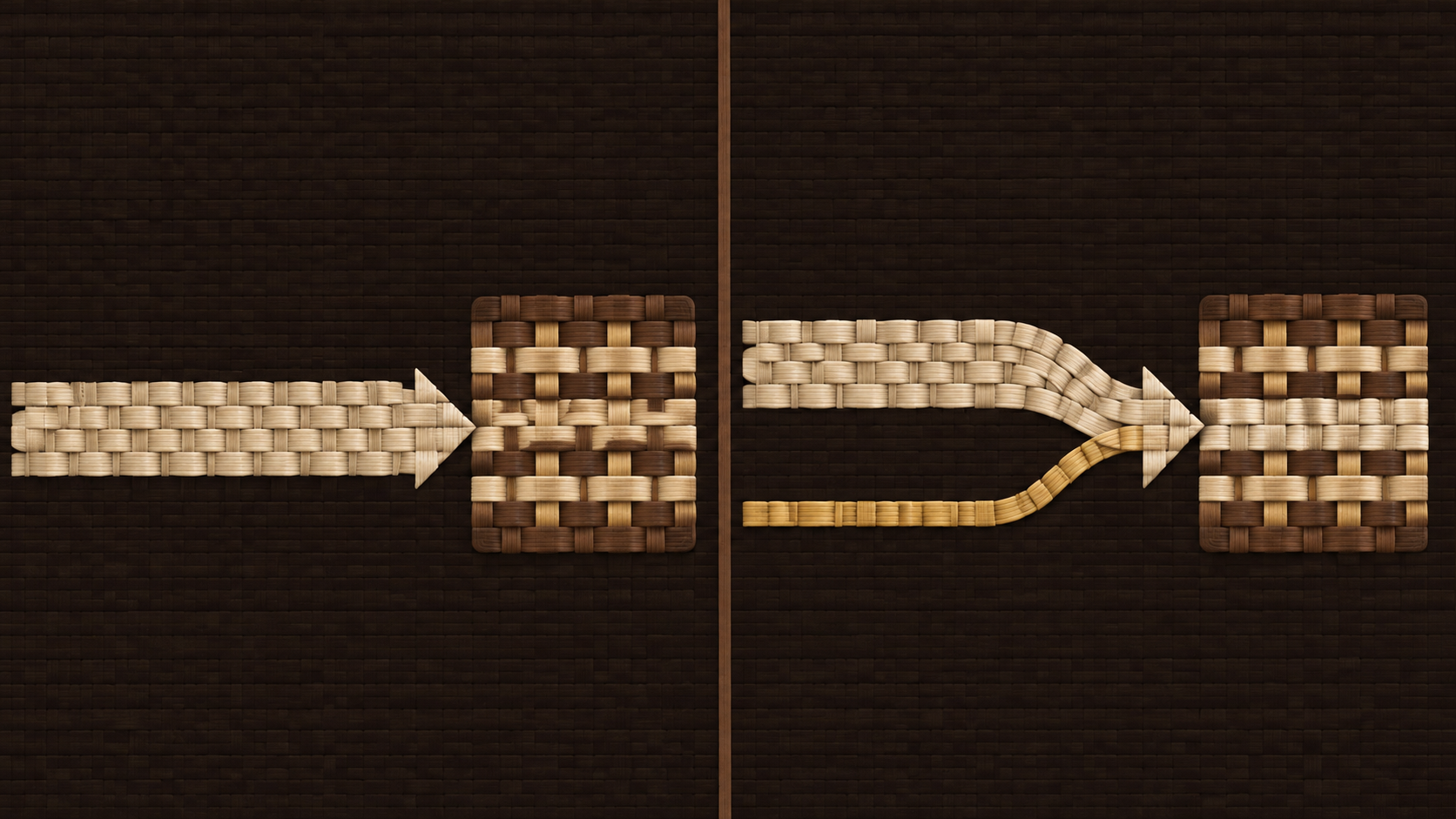
The clearest way to decide which call you need is to ask what must not change. If the product, character, or mascot is the fixed point and only the setting, framing, or styling should move, you want the edit model. If you are exploring concepts and have no subject to protect, a standard text-to-image call is cheaper and more flexible. The diagram in your head should be two columns: on one side, prompt in, invented image out; on the other, subject plus instruction in, subject-preserving image out.
What makes an edit call different in practice
The output quality of an edit depends less on describing what exists and more on describing what should differ. Because the subject is already established, the useful part of your instruction is the delta: light it differently, place it against a new backdrop, shift the camera angle. This is also why edit calls deserve a tighter review loop than generation calls — you are not just asking whether the image looks good, you are asking whether it is still the same subject.
Reach for ideogram-v3-character/edit on hiAPI when you have a recurring visual subject and a set of controlled variations to produce from it. Reach for generation when the subject itself is still an open question.
Where character consistency matters in e-commerce
Not every e-commerce image needs a consistency model. It helps to sort your image needs into two piles before you write a single prompt.
Scenarios that benefit
- Catalog variant sets. One product shown against a studio white, a lifestyle interior, and an outdoor scene, with the product itself unchanged.
- Seasonal or campaign reskins. The same hero product carried through multiple campaign backdrops while the item stays identical.
- Brand characters and mascots. A recurring illustrated or costumed subject placed into new contexts without a redesign each time.
- Multi-angle or multi-context listings. Additional shots that must read as the same physical item, not a similar-looking one.
In all of these, the value is that a reviewer scrolling a product page recognizes the subject as one item. If the model reinvents the subject on each call, you get a set that feels assembled from different products.
Scenarios that do not need it
Concept exploration, mood boards, and single one-off illustrations do not need a preserved subject, and forcing an edit call adds constraints you do not want. Similarly, if your variation is purely in layout — crop, text overlay, composition of a collage — that is a post-processing concern, not an edit-model concern.
The consistency contract
The practical framing for a developer is a contract: the subject is stable, the context is swappable. Every prompt you write for an e-commerce set should make it obvious which parts belong to the contract and which parts are free to vary. That single discipline carries through the rest of this guide.
Structuring a hiAPI request
This section stays conceptual on purpose. The goal is the shape of the call, not a list of parameters you should copy blindly, since the authoritative field list lives in the hiAPI model documentation.
The anatomy
A request to ideogram-v3-character/edit through the hiAPI API generally has four conceptual parts:
- The subject input. The existing image that anchors identity. Everything else is interpreted relative to it.
- The instruction. A text prompt describing the change you want applied.
- Model selection. Naming
ideogram-v3-character/editexplicitly so the routing lands on the edit model. - Output handling. Where the returned image goes in your pipeline — a signed URL, a storage write, a queue message.
Client code sends this to the hiAPI endpoint; the platform routes it to the model; the model returns an edited image; your code validates it before anything downstream consumes it.
Getting the shape right before the details
Two structural decisions matter more than any individual field. First, treat the subject input as immutable in your code — load it from a fixed reference, never from the previous output, so errors cannot compound across a chain. Second, keep the instruction as a single explicit string rather than concatenating fragments from several sources, because a mangled instruction is the most common cause of a confusing result.
Validation at the boundary
Before you build on top of a response, confirm you received an image and that the request was actually accepted by the edit model rather than silently degraded. A thin validation layer here — check response type, check the image is retrievable, log the request identifier — saves hours once you move from one test call to a batch.

Prompting for subject-first edits
The prompting pattern that works best for this model separates three things that beginners usually mash into one paragraph: the subject, the instruction, and the desired scene. Writing them as distinct blocks makes edits easier to reason about and much easier to revise one at a time.
Block one: the subject description
This is a short, stable statement of what the subject is and its defining visual traits. For a product, that might be material, color, and silhouette; for a character, facial structure, hair, and outfit. Keep this block identical across every prompt in a set. If you find yourself editing it, something else is probably wrong.
Block two: the instruction
One imperative sentence describing the change. "Place the subject against a soft neutral studio backdrop with even lighting" is better than a paragraph that also re-describes the subject. The instruction should assume the subject already exists and only say what to do with it.
Block three: the scene or constraints
Any remaining context, plus what to preserve. A useful closing line is an explicit preservation cue: keep the subject's proportions, colors, and details unchanged. Naming what must stay is often as effective as naming what must change.
Common prompting mistakes
- Repeating the subject description in the instruction. It competes with the anchor instead of complementing it.
- Stacking multiple unrelated changes. One edit per call keeps failures attributable.
- Descriptive fluff. Words that do not map to a visual decision add noise; a prompt is a specification, not marketing copy.
Write the three blocks, keep block one frozen, and vary only what the call is meant to vary.
Planning background swaps and variants
Once one base subject is approved, the efficient path is a branching tree: one approved source image, multiple background or scene variants derived from it in parallel. Planning that tree before you run anything is what keeps a batch reviewable.
Start from one approved base
Do not branch from an unapproved subject. Get a single edited image that passes your quality bar first, then treat it as the canonical input for all variants. This prevents you from producing a dozen images that all inherit the same defect.
Define the variant axis
List the dimensions you actually need: backdrop type, lighting mood, camera framing, seasonal context. Change one axis per variant set, not several at once. A catalog might need three backdrops at a fixed framing before it needs new lighting at all. Ordering the work this way means the first variants validate the framing, and later variants reuse that confidence.
Keep the set comparable
Give each variant a predictable identifier and store the instruction alongside the output. When a reviewer flags one image, you can trace it back to the exact instruction that produced it. In practice, a small manifest — subject reference, instruction, output reference — is enough.
When to stop branching
If a background swap repeatedly drags the subject's colors or edges with it, the problem is the instruction or the base image, not the model. Stop the branch, fix the root, and restart. Producing more variants on a shaky base only multiplies the review work.
Reviewing output before you scale
The gap between a promising demo and a shippable image set is review discipline. Before you batch, run every edited image through the same short checklist. This is the cheapest place to catch problems.
Subject fidelity
Compare the edited image to the source subject. Check silhouette and proportions first, then distinctive details: logos, hardware, product colors, distinctive character features. Ask the blunt question — would a customer believe this is the same item? Subtle drift in hue or shape is easy to miss in a thumbnail and obvious on a product page.
Edge artifacts
Look closely at the boundary between subject and new background. Common issues are halos, fringing, smeared detail along the silhouette, and shadows that do not match the new lighting direction. Edges are where a background swap most often gives itself away.
Background seams and lighting consistency
A swapped backdrop should feel like one photograph. Check that the horizon or surface plane is coherent, that the subject's shadow lands plausibly, and that the color temperature of the new environment matches the subject's own lighting.
Contact sheet review
Review variants as a set, not one by one. Place them side by side and look for the odd one out — that is usually a drift or a seam issue. Approve the set, reject individual images with the failing check noted, and only then scale to a batch.
Cost and iteration discipline
Image models are billed per generation, and repeatedly regenerating with rewritten prompts is the fastest way to burn through a budget without learning anything. The discipline that prevents this is changing one variable per run.
One variable per iteration
Lock the subject block, lock the instruction, change only the scene line. Run it. Change only the lighting phrase. Run it. This makes every result attributable to a single decision and means you keep your working prompt as you narrow toward the right one. Rewriting the whole prompt on every attempt resets your knowledge each time.
Cache and reuse approvals
Once an instruction produces an image you approve, store that instruction and its output together as a reusable unit. Future variants branch from it rather than re-deriving it. Over a catalog project this turns into a library of known-good instructions you can assemble quickly.
Test before you batch
Run a small pilot on the exact instruction set you plan to scale. A handful of representative calls will reveal drift or seam problems before a large batch amplifies them. Validate and review the pilot with the same checklist you will use on the full run.
Track spend against value
Because hiAPI bills per generation and real-time pricing lives on the site's pricing panel, the right planning move is to estimate how many calls a set requires and whether each is likely to pass review. If a variant axis keeps failing, fix the prompt or the base image instead of retrying with the same instruction — retries on a known-bad prompt are the most expensive habit in this workflow.
Keep the iteration loop tight, approve a base subject early, and ideogram-v3-character/edit on hiAPI becomes a predictable part of your product image pipeline rather than an experiment.
Related articles
View all articles →-

Guide
Using happyhorse-1.1/reference-to-video via the HiAPI API: Prompt Recipes and a Short-Form Video Workflow
A developer's guide to organizing reference images, wording identity-preserving prompts, and pacing short-form clips through HiAPI
10 min read -

Guide
Using qwen-image-2.1-pro for E-commerce Product Images: API Usage and Prompt Recipes
An end-to-end developer guide: transparent PNGs, image editing, text rendering and copy-paste prompts with curl and Python requests
10 min read -
Guide
Image-to-Image Prompt Recipes for gpt-image-2.5-sunburst
13 min read