

Bria
FIBO 2.0
fibo-2.0/image-to-image
A unified image model from Bria that handles text-to-image generation and instruction-based image editing within a single model, accepting up to four input images for editing; trained only on licensed data, it is suitable for concept art, marketing stills, and e-commerce product images
Try fibo-2.0/image-to-image
Input
Showcases
View all showcasesOutput
image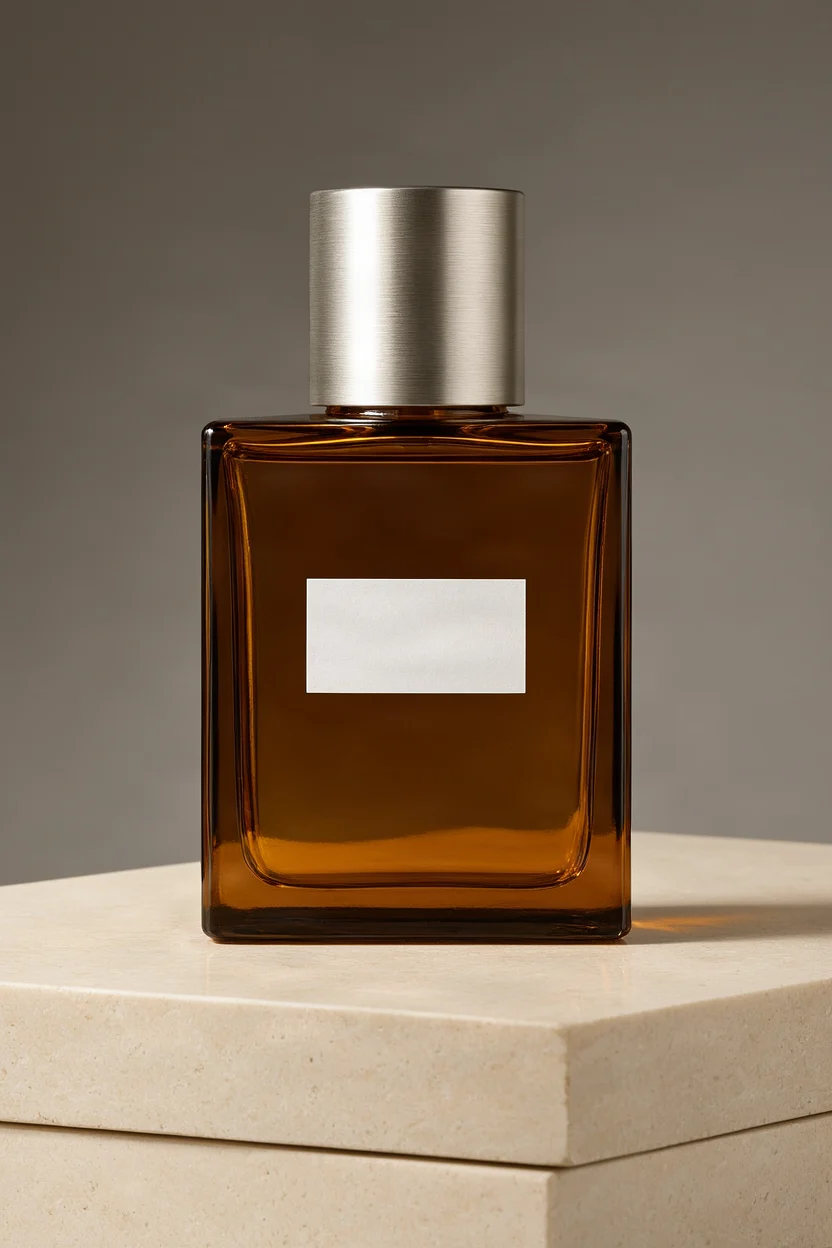
Amber perfume bottle · E-commerce textured studio still life
Style Product Image · Studio lighting · Still Life
Reference inputs
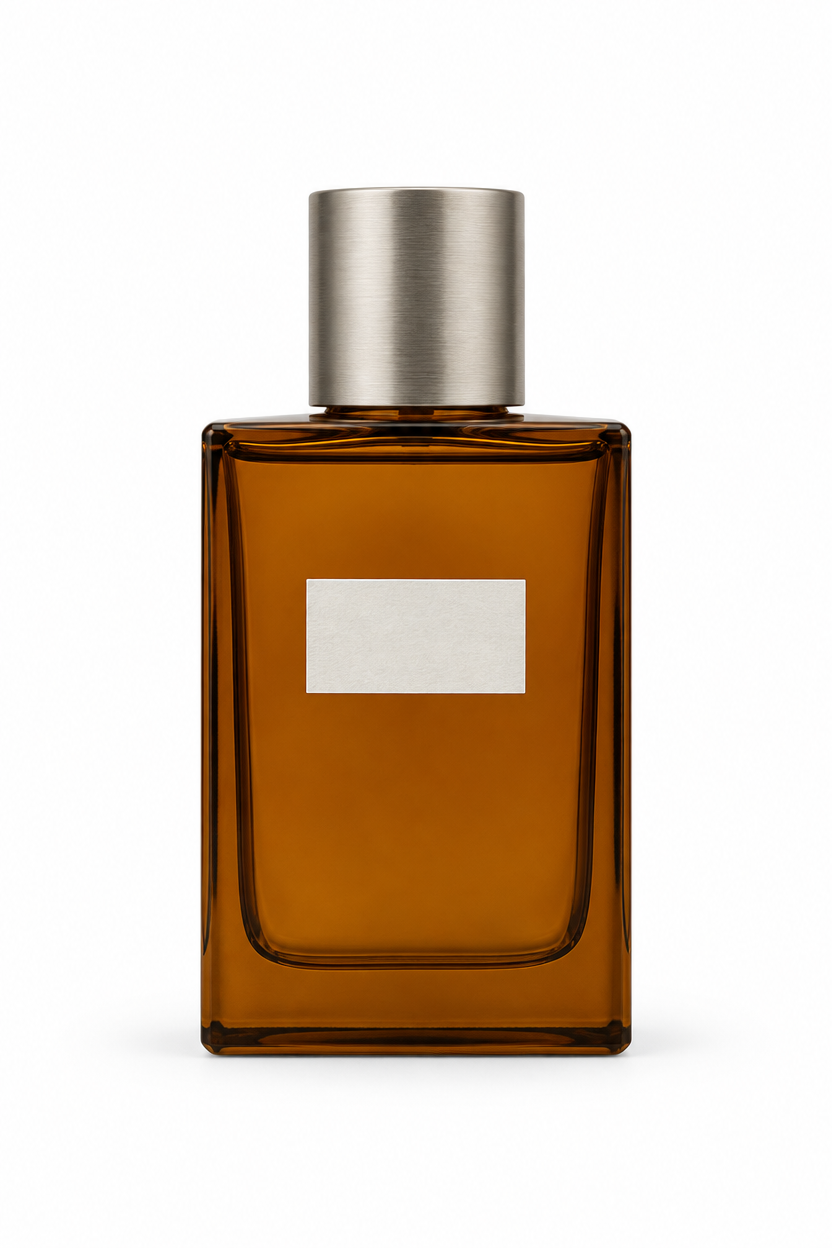
Input images
Prompt
Copy the full prompt and adapt it for your own generation.
Tags
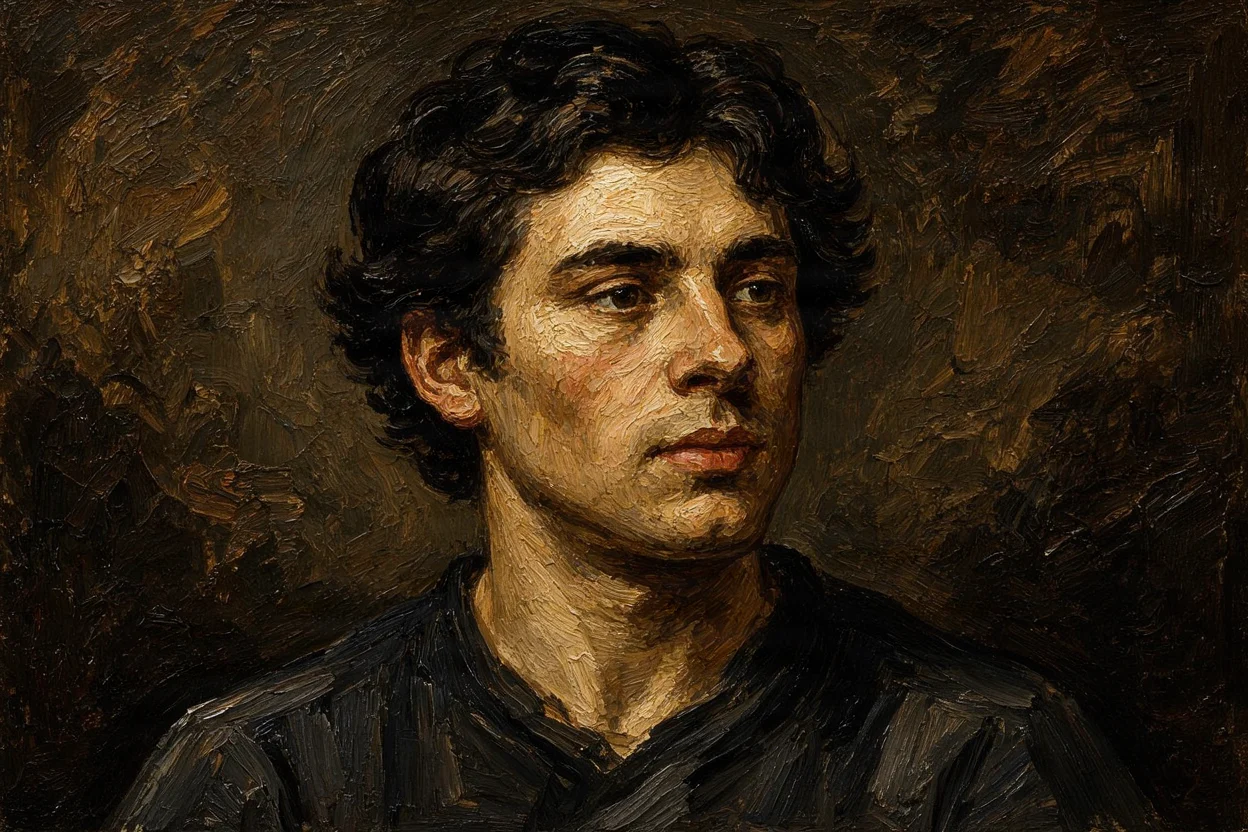
Rembrandt Side Lighting · Oil Painting Texture Portrait Reimagining
Style Freehand Portrait · Studio lighting · Old Master
Reference inputs
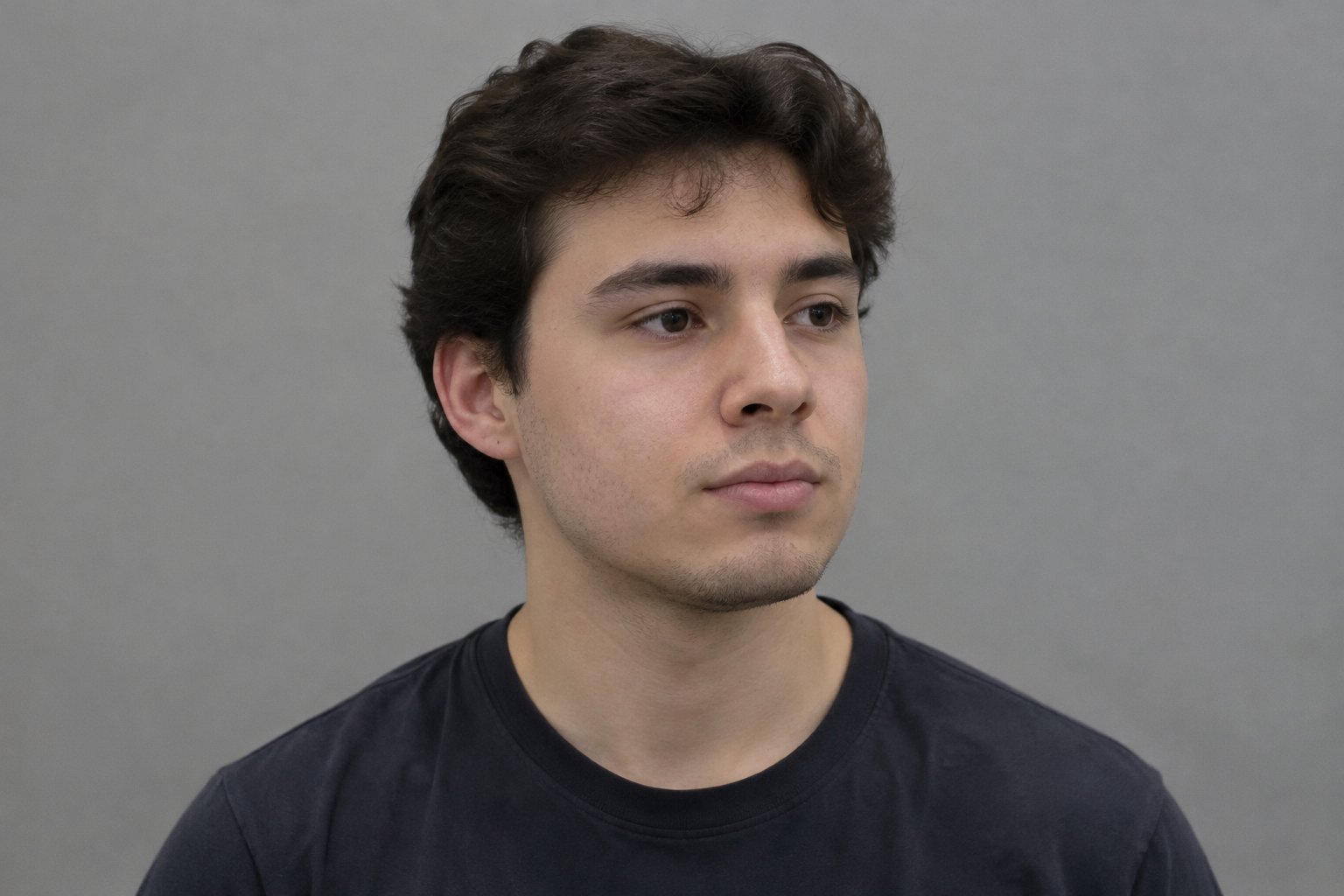
Input images
Prompt
Copy the full prompt and adapt it for your own generation.
Tags
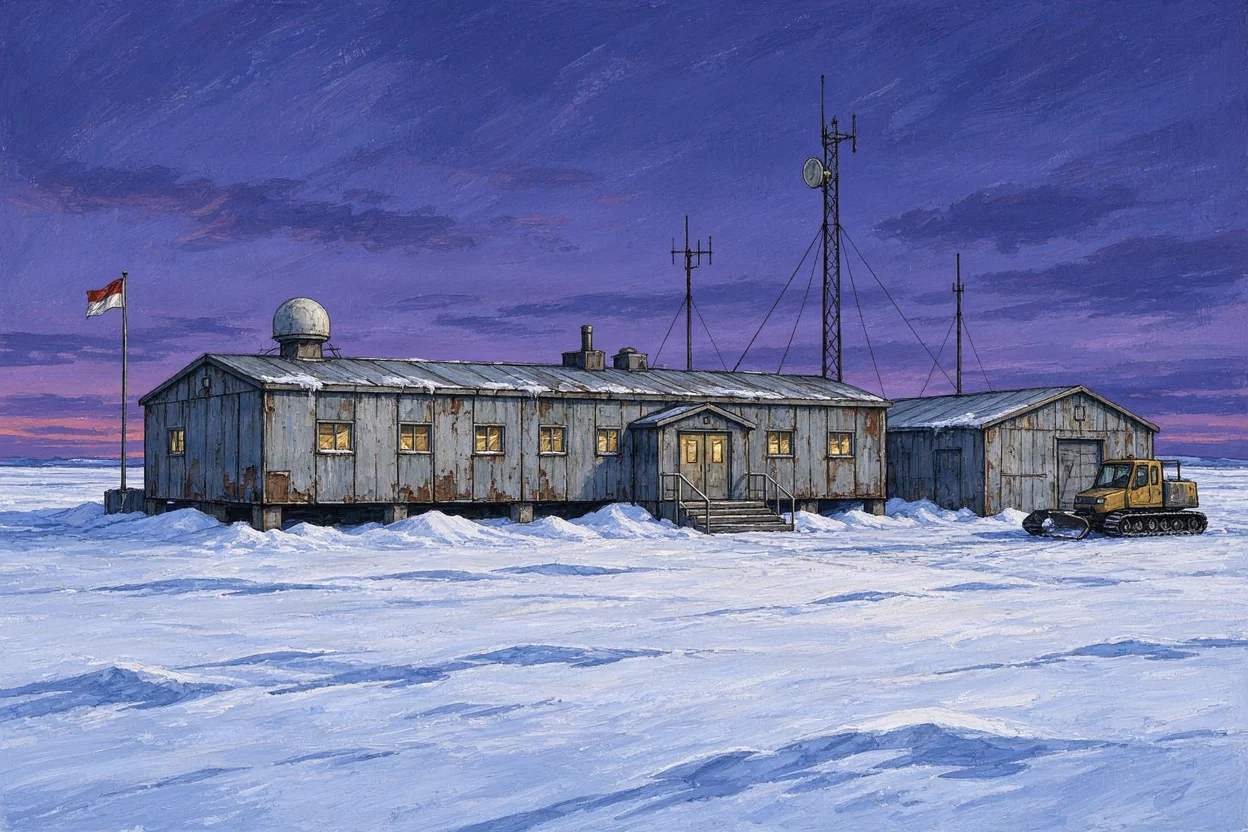
Polar Research Station · Ice Field Worldbuilding Concept Art
Style Sci-Fi · Environmental Concept · Atmosphere
Reference inputs
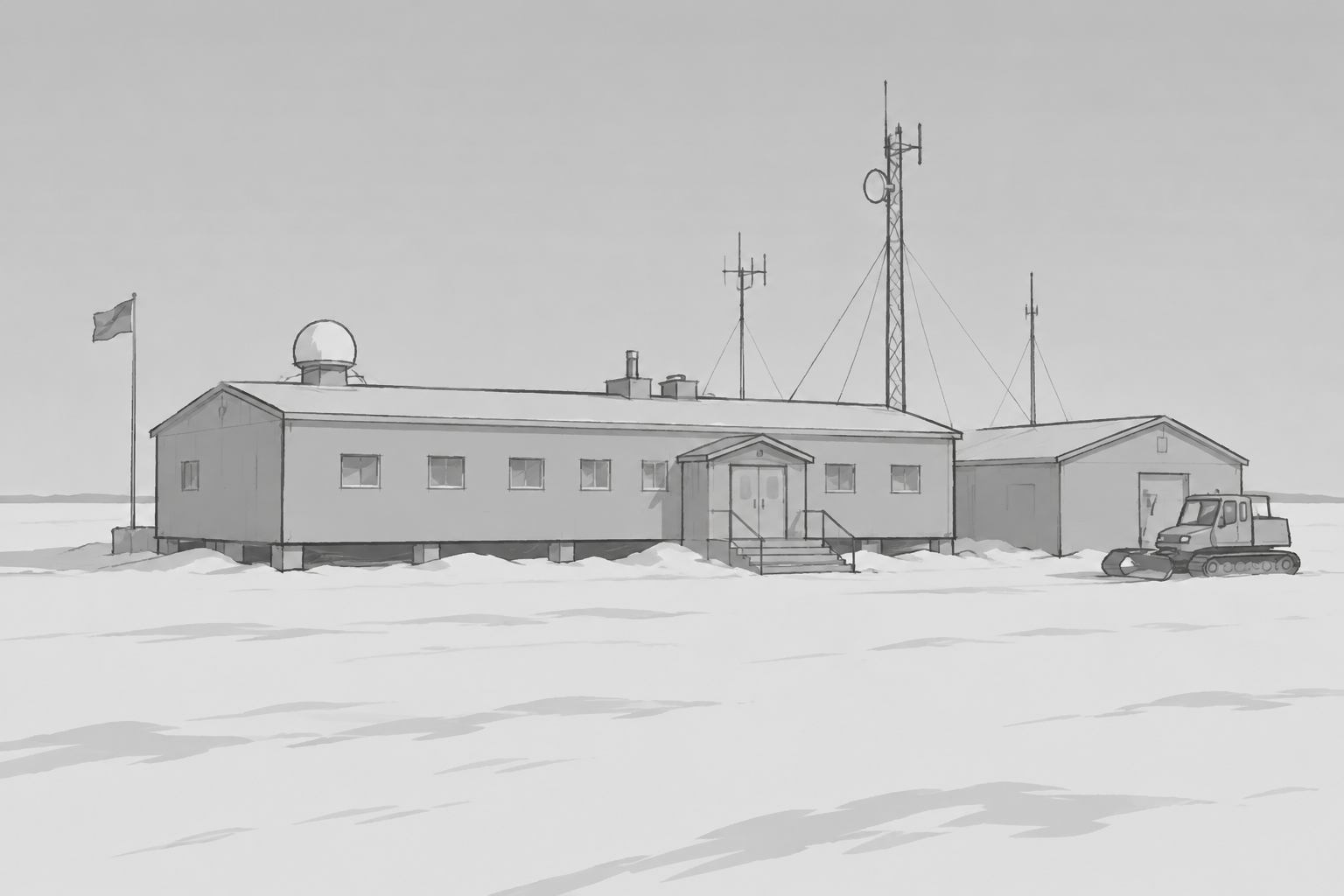
Input images
Prompt
Copy the full prompt and adapt it for your own generation.
Tags
Pricing
fibo-2.0/image-to-image per image
| Unit Price | $0.0572 |
|---|
Positioning Overview
This image-to-image model supports image modification or composition based on one image to be edited, combined with up to three reference images and natural-language instructions. Prompts can be up to 10,000 characters, and inputs can be referenced by index such as <image_1>; output is approximately one million pixels, and the aspect ratio can be specified from among 21 presets. It is suitable for designers and developers who need to make targeted adjustments to an image according to instructions, blend multiple assets, and control composition ratios, for scenarios such as concept iteration and marketing asset production.
Core Highlights
- Instruction-driven multi-image editing and composition — Based primarily on one image to be edited, with up to three additional reference images that can be referenced by index in the instructions, enabling local modifications or multi-image blending.
- Flexible output ratio options — Provides 21 aspect ratio presets; with multi-image input, the output ratio can be specified as needed, while single-image editing preserves the original image ratio.
- Seed control enables reproducible results — Pass a random seed between 0 and 2147483647; the same seed with the same input produces consistent output, facilitating A/B comparisons.
- Masks constrain local editing scope — An optional mask image specifies the editing region: white areas are modified and black areas are preserved; supported only for single-image editing, and the mask must match the original image dimensions.
Capability Description
Multi-image instruction editing and composition: Input 1 to 4 public image URLs; the first is the image to be edited and the remaining up to three are reference images. Instructions can reference each image in order using <image_1>, <image_2>, etc., to achieve local modifications or cross-image element blending.
Mask-constrained local modification: When a mask image is provided, only single-image editing is supported (image_urls may contain only 1 image); white areas are the regions to modify and black areas are preserved. The mask must match the original image dimensions, making it suitable for precise local replacement.
Output ratio specified as needed: With multi-image input, choose one output aspect ratio from 1:1, 2:3, 3:2, 3:4, 4:3, 4:5, 5:4, 9:16, 16:9, 16:10, 10:16, 2:1, 1:2, 21:9, 9:21, 3:1, 1:3, 4:1, 1:4, 5:1, or 1:5; single-image editing always preserves the original image ratio.
Ample instruction character capacity: Prompts can be up to 10,000 characters, allowing detailed descriptions of modification requirements and references to multiple input assets by image index, making it easy to express complex editing instructions.
Seed reproduces editing results: Fix the random seed via the seed parameter; the same seed with the same input reproduces the same result, making it convenient to compare parameters or roll back versions on the same editing task.
Use Cases
- Designers making targeted modifications to concept images — Input a concept design image with modification instructions, specify the local areas or attributes to adjust, and output the modified image for concept iteration and review presentations.
- Multi-image composition for e-commerce scenarios — Use a product image as the main image together with up to three scene or style reference images, and generate lifestyle scene images through instructions for product detail pages or advertising assets.
- Marketing asset ratio adaptation — With multi-image input, specify output ratios such as 1:1, 16:9, or 9:16 to quickly generate marketing stills suited to different placements, reducing secondary cropping.
- Precise local replacement with masks — Provide a mask for a single image to modify only the white-marked area while preserving the rest of the image, suitable for replacing parts of a product or removing unwanted elements.
Limitations and Selection Advice
Each request accepts at most 4 input images; when using a mask with single-image editing, only 1 image is supported, and the mask dimensions must match the original image. Prompts can be up to 10,000 characters; longer prompts cannot be submitted. The output aspect ratio can only be selected from the 21 presets, and single-image editing fixes the original image ratio and cannot specify otherwise. Seeds only guarantee reproducibility under identical input and do not promise consistent results across different parameter combinations.
What's new
View changelog →- New model FIBO 2.0 Image Editing Now Live
- New model FIBO 2.0 Text-to-Image Now Live
Frequently asked questions
View all FAQs →-
How do I fix the composition to reproduce the same image?
To reproduce the same result, simply fix the seed and keep the prompt unchanged. The seed defaults to 5555 and accepts values from 0 to 2147483647; as long as the seed and prompt stay the same, the output stays the same. Changing the seed yields a different composition on the same subject.
-
Which aspect ratios can I choose? What is the resolution?
Pick an aspect ratio from the presets based on your composition; the output is approximately 1 megapixel. Available values include 1:1, 2:3, 3:2, 3:4, 4:3, 4:5, 5:4, 9:16, 16:9, 16:10, 10:16, 2:1, 1:2, 21:9, 9:21, as well as elongated ratios such as 3:1, 1:3, 4:1, 1:4, 5:1, 1:5; if not provided, the default is 1:1.
-
Can a reference image and a style preset be used together in text-to-image?
They cannot be used at the same time; you can only choose one of the two. In text-to-image, if you pass style, you cannot also pass image_url, and vice versa; if you want a reference image to set the scene, give up the style preset, and if you want film, hard flash, hazy, or gritty realistic feel, use only text prompts. Image-to-image editing has no style preset parameter; the visual tone is written directly in the instruction.
-
What photography style presets are available for text-to-image?
Text-to-image supports four photographic looks: Kodak Film, Hard Flash, Hazy Dreamy, and Rough Realism. They serve only as an optional overall photo tone and are mutually exclusive with reference images; when precise control of lighting and camera position is needed, you should still specify it in the prompt rather than relying solely on presets. Image-to-image editing does not offer style presets.
Create a generation task
https://api.hiapi.ai/v1/tasks Headers
AuthorizationstringRequiredAccount API key. Required on every request. Example: Bearer YOUR_HIAPI_API_KEY. Get your API key
Content-TypestringOptionalThe request body is always parsed as JSON; when sent, only application/json (optionally with charset) is accepted — any other value returns 415. Example: application/json.
Idempotency-KeystringOptionalIdempotency key, up to 255 bytes. Retries with the same key from the same account create the task only once; replays return the original taskId.
On network timeouts or client retries, the same key creates the task only once — no double charges (scope: the API key's account). Use a business-unique identifier as the key (e.g. "order-42"); replays return the original taskId, and keys expire 24 hours after the first request. See the Unified Async API overview for the full scenario matrix.
Body
modelstringRequiredCurrent fixed value: fibo-2.0/image-to-image
routestringOptionalCurrent fixed value: default
inputobjectRequired
Business parameters for fibo-2.0/image-to-image and route default — see the parameter table below.
seedintegerOptionalDefault: 5555min 0max 2147483647Random seed, default 5555. The same seed with the same input reproduces consistent results.
mask_urlstringOptionalminLength 1pattern ^https?://Optional mask image URL, only supports single-image editing, meaning image_urls must contain exactly 1 image; white areas are the parts to be edited, black areas remain unchanged, and the mask dimensions must match the image.
image_urlsarrayRequiredminItems 1maxItems 4Array of image URLs, containing 1–4 public image addresses: the first is the image to be edited, followed by up to 3 reference images; in the instruction, they can be referenced in this order as <image_1>, <image_2>, etc.
Array [ string ]
instructionstringRequiredminLength 1maxLength 10000Text instruction describing the content to be modified in the image.
aspect_ratiostringOptionalOutput aspect ratio, approximately one million pixels; when omitted, it follows the first image, and single-image editing always preserves that image's aspect ratio.
1:12:33:23:44:34:55:49:16Show all (13)Show less
16:916:1010:162:11:221:99:213:11:34:11:45:11:5callbackobjectOptional
Terminal-state notification config. When omitted, no callback is delivered — poll the task yourself. See the callback note below.
Provide callback.url when creating a task and HiAPI POSTs to your service once the task reaches a terminal state — no polling needed. The callback payload mirrors the task detail structure; signature verification, delivery retries and idempotency are documented on the Unified Async API overview page.
urlstringRequiredRequired when callback is present. A POST is sent to this URL once the task reaches a terminal state; must be a valid http(s) URL.
whenstringOptionalDefault: "final"Only final is supported today — notified on both success and fail.
finalstoragestringOptionalDefault: "temp"Artifact storage tier: temp (default, retained about 7 days) or persistent (long-term, billed by size). Insufficient balance or exceeding the storage cap silently downgrades to temp; the effective tier is shown in the task detail response.
temppersistentRequest examples
# Submit an async task; returns a taskId immediately (no waiting for generation)
curl -X POST "https://api.hiapi.ai/v1/tasks" \
  -H "Authorization: Bearer $HIAPI_API_KEY" \
  -H "Content-Type: application/json" \
  -d '{
  "model": "fibo-2.0/image-to-image",
  "input": {
    "seed": 5555,
    "image_urls": "…",
    "instruction": "…"
  }
}'
const res = await fetch("https://api.hiapi.ai/v1/tasks", {
method: "POST",
headers: {
Authorization: `Bearer ${process.env.HIAPI_API_KEY}`,
"Content-Type": "application/json",
},
body: JSON.stringify({
model: "fibo-2.0/image-to-image",
input: {
"seed": 5555,
"image_urls": "…",
"instruction": "…"
}
}),
});
const task = await res.json();
// { code: 200, message: "success", data: { taskId } }import os, requests
res = requests.post(
"https://api.hiapi.ai/v1/tasks",
headers={"Authorization": f"Bearer {os.environ['HIAPI_API_KEY']}"},
json={
"model": "fibo-2.0/image-to-image",
"input": {
"seed": 5555,
"image_urls": "…",
"instruction": "…"
}
},
)
print(res.json()) # { code, message, data: { taskId } }200 OK
{
  "code": 200,
  "message": "success",
  "data": {
    "taskId": "tk-hiapi-01HZTQ8BX2N3GM3YFK4Z9D7VQR"
  }
}
400 Bad Request
{
  "code": 400,
  "message": "invalid request",
  "data": null,
  "error_code": "INVALID_REQUEST"
}
Get task detail
https://api.hiapi.ai/v1/tasks/:id Response fields
taskIdstringRequiredTask ID, always prefixed with tk-hiapi-.
modelstringRequiredResolved full model name. Tasks submitted with the route parameter return base@route (e.g. gpt-image-2/text-to-image@ext); otherwise identical to the name passed at creation.
routestringOptionalPresent only when the task was submitted with an explicit route parameter; echoes the submitted value.
statusstringRequiredTask status.
queued Queued, not started yet.
handling Being processed.
archiving Processing finished, artifacts being prepared.
success Terminal: completed, artifacts available (output returned).
fail Terminal: failed (error returned).
After submission, check status: success and fail are terminal, everything else is non-terminal. Poll every 1–3 seconds until terminal. On success, download artifacts from output[].url and transfer them before expireAt; pass storage: "persistent" at creation time when long-term retention is needed.
creatednumberRequiredTask creation time (Unix seconds).
completednumberRequiredUnix seconds when the task reached a terminal state; fixed to 0 while not terminal.
outputarrayOptional
Present only when status == success. Artifact list — always an array; a single task may return multiple types at once (e.g. video + first_frame).
Array [ object ]
Array items
urlstringRequiredArtifact URL, directly downloadable.
typestringRequiredCurrent possible values: video, image, audio, first_frame, last_frame, thumbnail; more may be added later.
expireAtnumberRequiredUnix seconds until which the artifact remains accessible; download or transfer before it expires.
errorobjectOptional
Present only when status == fail.
codestringRequiredBusiness error code.
messagestringRequiredError description.
Response examples
Success
{
  "code": 200,
  "message": "success",
  "data": {
    "taskId": "tk-hiapi-01HZTQ8BX2N3GM3YFK4Z9D7VQR",
    "model": "happyhorse-1-0",
    "status": "success",
    "created": 1777282033,
    "completed": 1777282099,
    "output": [
      {
        "url": "https://cdn.hiapi.ai/tasks/.../video.mp4",
        "type": "video",
        "expireAt": 1777886899
      }
    ]
  }
}
Processing (non-terminal)
{
  "code": 200,
  "message": "success",
  "data": {
    "taskId": "tk-hiapi-...",
    "model": "happyhorse-1-0",
    "status": "archiving",
    "created": 1777282033,
    "completed": 0
  }
}
Failed
{
  "code": 200,
  "message": "success",
  "data": {
    "taskId": "tk-hiapi-...",
    "model": "happyhorse-1-0",
    "status": "fail",
    "created": 1777282033,
    "completed": 1777282099,
    "error": {
      "code": "TASK_FAILED",
      "message": "task failed"
    }
  }
}Articles
View all articles →
Related Models
View all models →Same Type
-
 Seedream 4.5 ByteDance $0.045 /image
-
 Grok Imagine Image 2.0 xAI $0.052 /image
-
 FLUX 3 Image Black Forest Labs $0.041 /image
-
 MiniMax H3 Image MiniMax $0.013 /image
-
 Nano Banana Pro Google $0.029 /image
-
 BRIA Product Shot Bria $0.058 /image
-
 FLUX.1 Schnell Black Forest Labs $0.005 /image
-
 FIBO 1.5 Bria $0.058 /image
-
 FLUX 3 Image Klein Black Forest Labs $0.0092 /image
-
 Qwen Image 3.0 Alibaba $0.036 /image
-
 Ideogram V4.5 Ideogram $0.011 /image
-
 FLUX.1 Kontext Max Black Forest Labs $0.071 /image