
Guide
Nano Banana Basic Text-to-Image Guide: Aspect Ratio, Negative Space, and Prompt Usage
Use the task API's aspect_ratio and prompt fields to generate clearly composed images for banners and social cards
On this page
Positioning and boundaries of this route
On HiAPI, nano-banana is a text-to-image route submitted as an asynchronous task: the input fields in the request body are all placed under the input object, and results are retrieved as a task after submission. It suits scenarios with batch image needs, such as campaign banners, social cards, and draft base images for articles. This article discusses only the basic version and does not cover other models in the same series.
The available fields are few, so let's clarify the contract first: prompt is a required string with a length of 1–5000 characters; aspect_ratio is optional, defaults to auto, and its enum is auto, 1:1, 16:9, 9:16, 3:4, 4:3, 3:2, 2:3, 5:4, 4:5, 21:9; output_format is optional and can be png or jpeg, defaulting to png. The old field image_size is deprecated; to specify the target aspect ratio, use aspect_ratio instead.
It must be clear that this route does not expose fields such as resolution, quality, width, height, seed, or reference image upload. Do not stuff these keys into input based on habits from other image models, and do not assume they will be silently ignored. Likewise, aspect_ratio is used to specify the target aspect ratio; it does not promise a fixed pixel size. For the actual aspect ratio and pixels, refer to the returned image and check before delivery.
Field contract and a minimal input snippet
Below is an input snippet containing only the above fields, used to illustrate the field hierarchy. It is not a complete HTTP request: the endpoint, authentication headers, and task polling method are not given here; please refer to HiAPI's API documentation for those.
{
  "input": {
    "prompt": "Flat geometric illustration in landscape composition, warm sand-colored background, stepped color blocks on the right third, negative space on the left, no text in the image.",
    "aspect_ratio": "16:9",
    "output_format": "png"
  }
}
How you write the prompt affects how controllable the image is. A practical order is: first write the subject and scene, then the composition and subject position, then the negative space areas, and finally color, lighting, and style. If no text is needed in the image, explicitly write "no text, letters, or numbers appear in the image"; this is easier than retouching afterward. You do not need to fill all 5000 characters; just state the key constraints clearly. Excessive stacking can dilute the priorities.
Choose output_format according to the delivery pipeline: png suits lossless saving and later editing, while jpeg suits lossy-compressed delivery. The default is png; if downstream is sensitive to file size, remember to explicitly change it to jpeg. Note that being able to choose png does not mean the model generates an alpha transparency channel; this route has no capability declaration or field for transparent backgrounds and does not promise background removal or transparent output.
Aspect ratio and negative space: define the layout first, then write the prompt
Negative space is not "empty"; it is space reserved for titles, buttons, and corner badges. Different aspect ratios have different negative-space strategies, and when writing prompts you should describe negative space as part of the composition.
- 16:9 banner: common for site hero images and article covers. It is recommended to offset the subject to the right or left third and leave a continuous low-information area on the other side, so the subject does not cover the title. In the prompt, you can write "reserve a low-contrast negative-space area about one-third of the width on the left side of the image."
- 1:1 social card: center the subject and leave a ring of breathing room above and below; do not let surrounding elements touch the edges, to avoid being cropped in feed crops.
- 9:16 vertical: leave a band area at the top and bottom for the title and byline; place the subject in the middle section to avoid overlapping the text areas at both ends.
- 4:5 and 3:4: common ratios close to print and feeds; negative space can be smaller, but it is still recommended to keep a safe margin around the edges.
- 21:9 ultra-wide: ample horizontal space, suitable for arranging multiple elements with rhythm, but both ends are easy to crop, so do not place important subjects against the edges.
- auto: the server decides the ratio, suitable for early exploration; once in batch production, it is recommended to specify the ratio explicitly to reduce layout rework.
It must be emphasized again: ratio is not pixels. aspect_ratio sets the target aspect ratio; 16:9 does not mean a fixed pixel size (such as 1920×1080). After receiving the image, check whether the actual aspect ratio meets expectations; if downstream has hard size requirements, resize or crop yourself, and leave enough safe margin at the prompt stage.
Two prompt examples you can rewrite directly
The following two passages are phrasings to be verified, not tested conclusions. It is recommended to call each once first, observe whether the subject position and negative space meet expectations, and then adjust for the project.
Banner negative space (16:9):
"Flat geometric illustration in landscape composition, warm sand-colored background. On the right third of the image, place a stepped structure made of terracotta, ochre, and dark brown squares, descending step by step from left to right, with clean edges; keep the left two-thirds as a low-contrast, detail-free negative-space area, with only a very faint horizontal color band as a transition. The overall tone is restrained, no gradient noise, no text, letters, numbers, or logos, balanced composition, suitable as an article header image."
Social card (1:1):
"Minimalist illustration in square composition, light beige background. In the center of the image, place an abstract mark formed by three overlapping arcs, in deep ink green and ochre, with even line weight; keep even negative space around the mark, with slightly more space above and below than left and right, for later title overlays. The background is pure, with no texture, no shadows, no text, letters, numbers, or logos; the overall feel is quiet and restrained."
Both prompts describe "negative space" as an executable spatial description rather than a vague "more negative space." If the subject still touches the edge in one generation, adjust the directional words and proportions in the description first, rather than constantly adding adjectives.
Iterating step by step: change only one variable at a time
The most common mistake in batch image generation is changing the prompt, ratio, and format all at once, then being unable to tell which change caused the difference. A steadier approach is to converge step by step.
- Step one: fix aspect_ratio and output_format, and use a short prompt to confirm whether the subject is understood correctly.
- Step two: add composition description: subject position, proportion of the frame, and negative-space areas.
- Step three: add color, lighting, and style, and observe whether they squeeze the negative space.
- Step four: organize the stabilized description into a template; during batch runs, replace only the subject and palette, and no longer change the structural sentences.
After each call, record the prompt, aspect_ratio, output_format, and differences in the results. The record itself is an asset: when systematic drift appears in the same batch of tasks, you can quickly identify from the record whether the ratio was chosen incorrectly, the prompt structure changed, or there was a field spelling issue.
Delivery self-check and failure handling
After receiving the image, self-check the following: whether the aspect ratio matches the target ratio of aspect_ratio; whether the subject is complete and uncropped; whether the reserved text area is clean enough; whether unwanted text or watermark-like elements appear in the image; whether the output format meets downstream requirements. If used for a banner, also preview it at the actual page size to confirm that the title overlay does not cover the subject.
When a task fails or the result deviates, troubleshoot in order: whether prompt is empty or exceeds 1–5000 characters; whether aspect_ratio is within the enum values; whether output_format uses only png or jpeg; whether the deprecated image_size was used by mistake; whether fields not exposed by this route were passed in. After confirming the parameters are correct, simplify the prompt and retry, rather than resubmitting the same input repeatedly. If it deviates several times in a row, first reduce the image elements to the minimum, then add them back one by one.
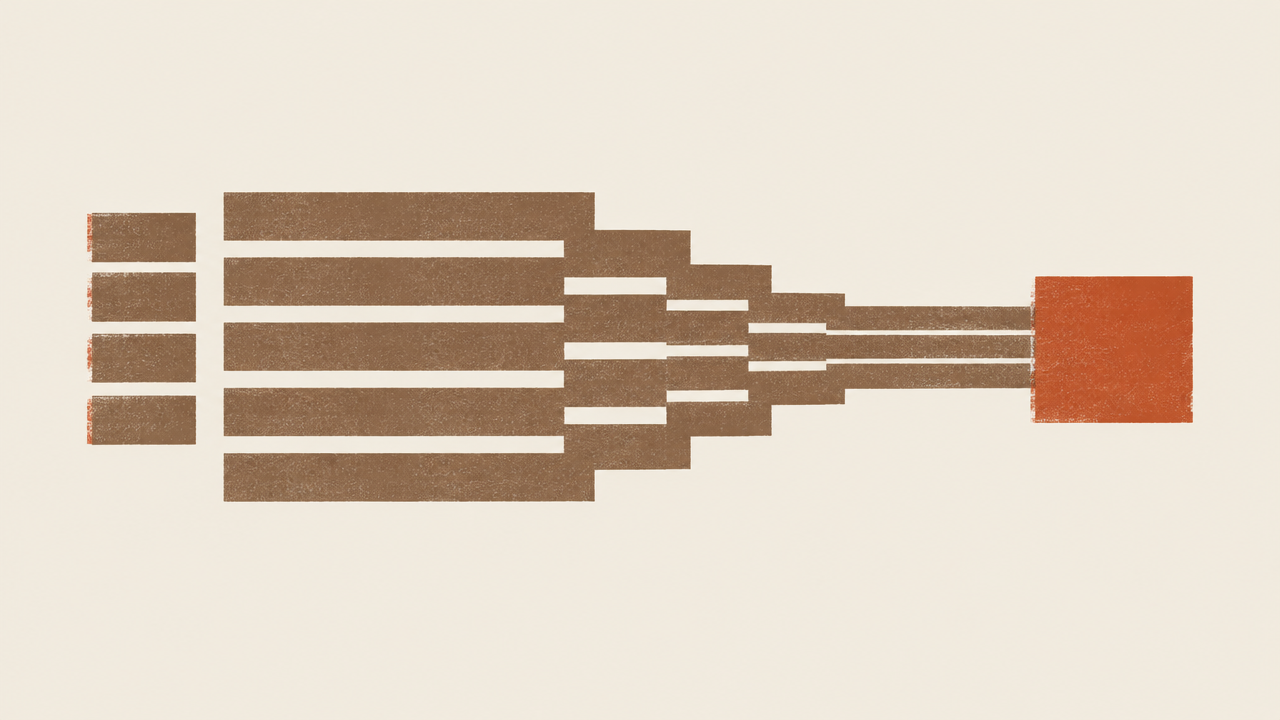
Final reminder: the illustrations in this article are conceptual only, used to explain the process of "input goes through the task channel to produce an image," and are not real outputs from nano-banana. All prompt and field combinations should be verified by your own calls before entering the production pipeline. For model details, see /models/nano-banana.
Related articles
View all articles →-
Guide
Kimi K3 Response Handling in Practice: Complete JSON, Stream Interruption, and Retry Boundaries
-
Guide
GLM 5.3 Structured Extraction in Practice: Give Every JSON Field Textual Grounding
Use JSON object mode for field extraction, and use missing values, quotations, and business validation to stop errors before they enter the database
-

Guide
MiniMax Music 3 Short Song Production Guide: How to Separate Lyrics, Section Tags, and Arrangement Brief
Based on the dual required inputs of the current contract, design a reproducible short song request