
Ideogram
Ideogram 4.6
ideogram-v4.6/text-to-image
An image generation and editing model released by Ideogram, supporting text-to-image and image editing based on up to five reference images; there is also a Precise Edit endpoint for localized refinements, and it offers native output tiers of up to 4K
Try ideogram-v4.6/text-to-image
Input
Showcases
View all showcases
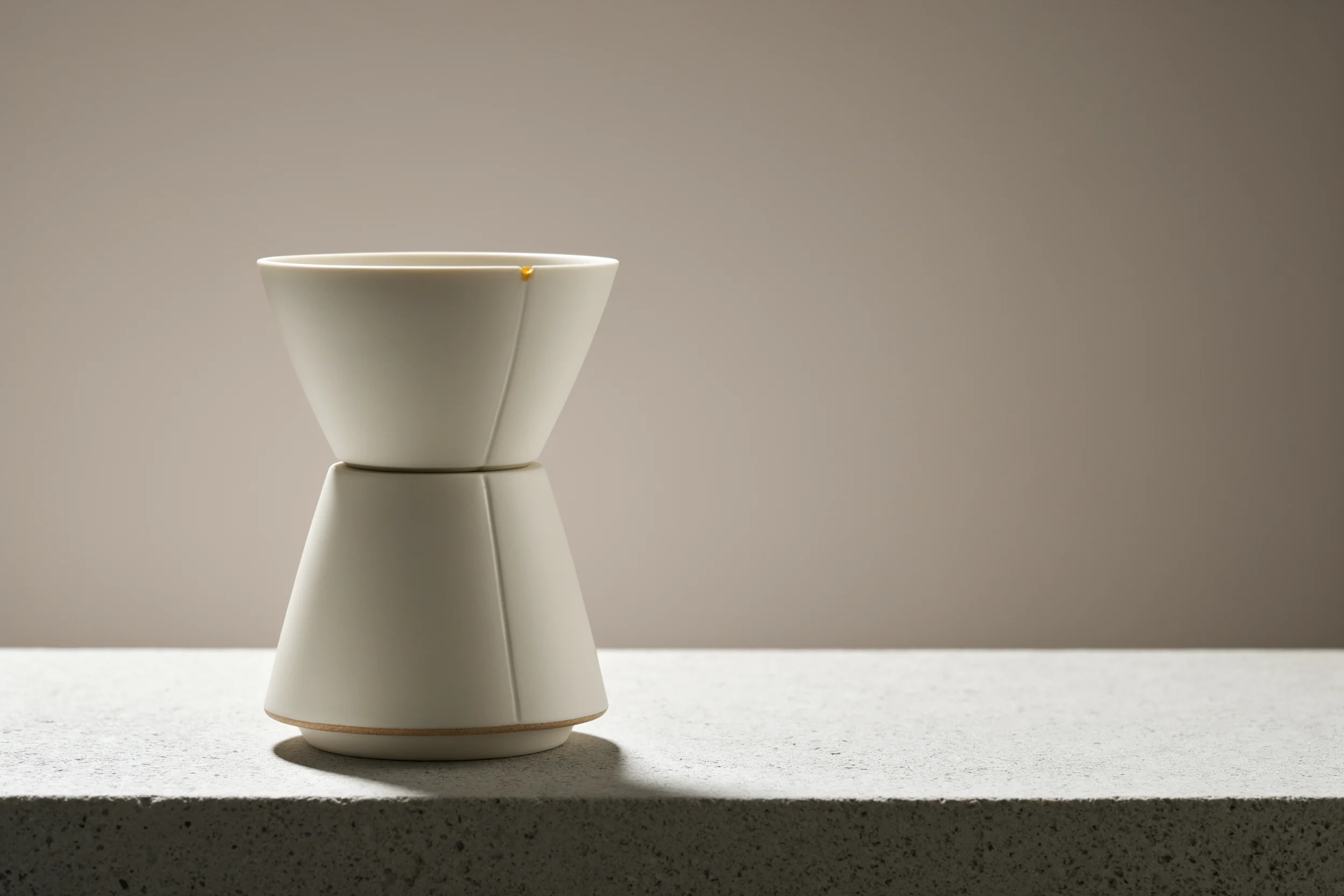

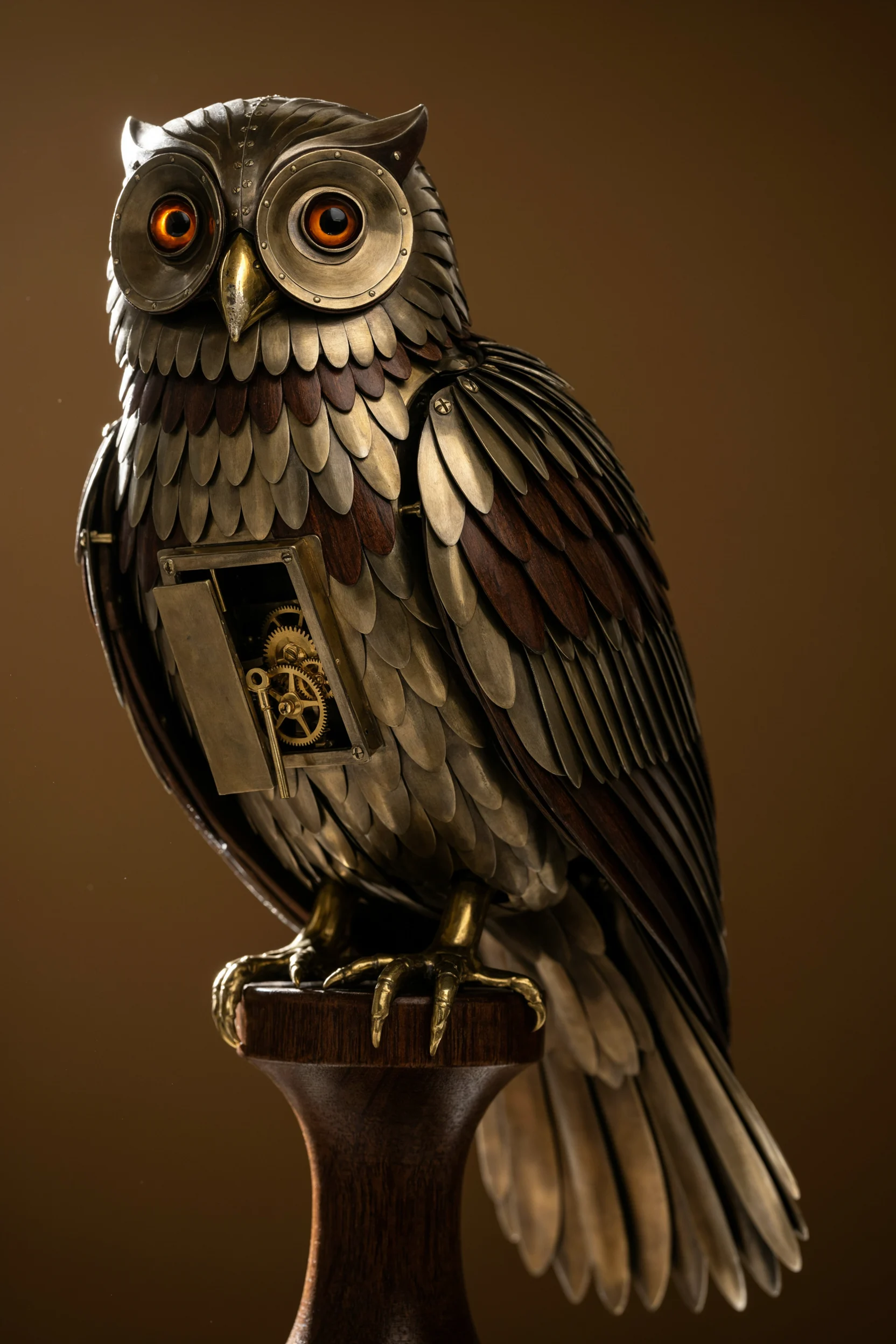
Output
imagePricing
ideogram-v4.6/text-to-image per image
| Specifications | Unit Price |
|---|---|
| very_low | $0.0115 |
| low | $0.0429 |
| high | $0.1429 |
Overview
An image generation model for text-to-image scenarios: input a prompt and get a static image, with support for multiple preset sizes and quality levels. Developers can describe the image content, style, and structure via a prompt and choose automatic or a specified aspect ratio, generating one to eight candidate images per request. It suits design, marketing, and content teams that need to quickly turn textual ideas into visual assets, for concept drafts, social media images, and visual direction exploration.
Key highlights
- Prompt-driven generation — just submit a text prompt to generate the corresponding image; prompts can be up to 2000 characters.
- Multiple size ratios available — provides square, portrait, landscape, ultra-wide, and other preset sizes, plus an automatic matching option.
- Batch candidate images — one request can generate 1 to 8 images, making it easy to compare and filter within the same prompt direction.
- Adjustable quality level — quality is divided into four levels: very_low, low, medium, and high; the default is medium, and you can choose by use case.
Capabilities
- Text-to-image generation: after submitting a prompt, generate a static image, suitable for turning image descriptions, style requirements, and composition intent into a previewable visual result.
- Flexible size selection: choose from auto, auto_2k, and various 1024-level and 2K-level aspect ratios, using one per request to match portrait, landscape, or square layouts.
- Batch candidate generation: num_images can be set from 1 to 8, obtaining multiple candidate images in one request for easy comparison of the usability of different images.
- Quality level control: quality offers four levels, defaulting to medium; adjust the level according to the need for draft exploration or more refined presentation.
Use cases
- Social media image drafts for marketers — enter the campaign theme and style description, select a portrait or square size, and generate multiple candidates for content scheduling and image selection.
- Concept direction exploration for designers — use text to describe the image atmosphere and composition, generate different candidates in batches, and use them as reference material for visual direction discussions.
- Blog and article images for content teams — write prompts based on the article theme, choose a landscape size to generate static images, and use them for web pages or news card images.
- UI visual references for product teams — enter scene descriptions and style keywords, generate square images, and use them for UI placeholders or visual style alignment.
Limitations and selection advice
The prompt is required, with a length limit between 1 and 2000 characters. Size and quality are enum values selected one per request and cannot be applied simultaneously in one generation. A single request returns at most 8 images. Lower quality levels offer limited support for detail rendering; choose a higher level when more refined results are needed. The output is a static image and does not include text or other output formats.
Ideogram text-to-image · Static image output
Generate multi-size candidates with prompts
For text-to-image scenarios, enter a text prompt to get a static image. Choose automatic or a specified aspect ratio, generate 1 to 8 candidates per request, and switch quality levels — suitable for concept exploration, image drafts, and visual direction comparison.
- Output typeStatic image
- Input methodText prompt
- Prompt lengthUp to 2000 characters
- Candidates per request1 to 8
First validate the direction with a short prompt and the default size, then choose the specific aspect ratio and quality level based on the layout.
01
Capabilities
How it performs: four verifiable capabilities
The following capabilities all center on generating static images from text prompts; focus on checking whether the size, quality, and quantity settings match the goals of this image generation.
Prompt-to-image generation
Submit the image description, style, and composition requirements, and the model outputs the corresponding static image. The prompt is required, with a length limit between 1 and 2000 characters. It is suitable for first confirming the subject and atmosphere, then gradually adding details.
Multiple sizes and aspect ratios
Size can be selected from auto, auto_2k, 1024x1024, 2048x2048, 1664x2496, 2496x1664, 1792x2240, 2240x1792, 1440x2560, and 2560x1440. Portrait, landscape, and square images can be used in different layout positions, and only one size is applied per request.
Batch candidate images
num_images can be set from 1 to 8, defaulting to 1. Generate multiple candidates with the same prompt in one request, making it easy for teams to quickly compare composition and style differences before choosing images for further processing.
Quality level selection
quality offers four levels: very_low, low, medium, and high, defaulting to medium. You can switch between the draft stage and the more refined presentation stage, deciding the level based on the current use.
The text prompt, size, quality, and quantity make up one text-to-image request; generate candidates first, then adjust settings according to layout and precision needs.
02
Getting started
From prompt to static image
Try it →Start by clarifying the image goal, then fix the prompt and adjust size, quality, and quantity one by one, making it easy to judge the changes each adjustment brings.
- PromptSubject + scene + style + composition
Get a prompt ready to submit
01
Write the image prompt
Use a piece of text to describe the subject, scene, style, and composition, keeping the prompt within 2000 characters and focusing first on the core image information.
- SizeChoose one based on layout
- Qualitymedium or adjusted as needed
Determine the image specifications for this request
02
Choose size and quality
Choose portrait, landscape, or square images based on where they will be used; select auto when automatic matching is needed. Set quality to medium or a higher level according to the stage's needs.
- Number of candidates1 to 8 images
Obtain usable static image assets
03
Generate and filter candidates
Set num_images to generate multiple candidates, check whether the subject, composition, and style match expectations against the prompt, and then keep the usable images.
03
Scenarios
Where to use it: three typical image asset types
Quick social media image drafts
Operations staff enter the campaign theme and style keywords, select a portrait size, and generate multiple candidates at once. Suitable for quickly selecting images during content scheduling and checking whether the subject is clear and the style is consistent.
Article and web page images
The content team writes prompts based on the article theme and chooses a landscape or square size to generate static images. Used for blog header images, news cards, or section images, with a focus on checking how well the image matches the text theme.
Visual direction exploration
Designers use text to describe the atmosphere and composition and generate candidates in batches as discussion material. Suitable for comparing multiple image directions before formal design, and using them to refine the prompt or determine the layout.
04
Integration
Integration: call ideogram-v4.6 in your product or AI tool
One HiAPI API Key is all you need; all methods share the same account and billing.
- Create an API Key
- Choose an integration method
Pick any one on the right and copy it
- AI coding tools Recommended
Connect via MCP with commands for Claude Code, Cursor, Codex, etc.
- Direct API
Your own product, backend services, automation workflows
- Not sure which to choose
Copy a message to an AI and let it help you choose and provide the steps
Terminal · Claude Code
claude mcp add --transport http hiapi https://mcp.hiapi.ai/mcp \
  --header "Authorization: Bearer YOUR_API_KEY"
Once connected, just tell the AI your goal and have it call ideogram-v4.6, check task progress, and get the results. For configuration steps for Cursor, Codex, and other tools, see the tutorial below.
View the Agent integration tutorial →Integrate into your product via API
Use the API Key to submit a task for the current model and query the status by the returned task ID. The request parameters use the same line data as the API description on this page; replace the input content in the examples with your actual assets.
# Submit an async task; returns a taskId immediately (no waiting for generation)
curl -X POST "https://api.hiapi.ai/v1/tasks" \
  -H "Authorization: Bearer $HIAPI_API_KEY" \
  -H "Content-Type: application/json" \
  -d '{
  "model": "ideogram-v4.6/text-to-image",
  "input": {
    "size": "auto",
    "prompt": "…",
    "quality": "medium",
    "num_images": 1
  }
}'Let AI help you choose an integration method
Please read the HiAPI documentation index https://hiapi.ai/llms.txt. I want to use ideogram-v4.6 in my project. First, based on my use case, determine whether Remote MCP, Agent Skills, or the direct API is suitable; if necessary, ask me one key question first, then give the minimal integration steps and the configuration to fill in.
Copy this message to the AI tool you use, and add your project language, input assets, and expected results. It can then explain the integration method and next steps.
What's new
View changelog →- Parameter change ideogram-v4.6/image-to-image parameter update
- New model New model available: ideogram-v4.6/text-to-image-4k
- New model New model available: ideogram-v4.6/text-to-image
Frequently asked questions
View all FAQs →-
How many reference images can I upload for image-to-image at most?
Up to 5 images, minimum 1, all must be publicly accessible HTTPS image URLs. Put the main image first and use the rest as style or detail references. If you have more than 5, you'll need to choose which ones to keep.
-
Which resolutions can I choose for image-to-image?
You can choose auto, auto_2k, or fixed sizes such as 1024x1024 and 2048x2048. Portrait and landscape orientations each offer multiple options, with the longest edge reaching 2560. If you are unsure about the composition, use auto or auto_2k; if you need to match the specifications of existing assets, specify a concrete size directly.
-
How do I choose between this model and precise-edit?
To generate a new image based on a reference image, use image-to-image; to change only part of the source image while keeping the rest unchanged, use precise-edit. precise-edit output keeps the source image size, and the size cannot be changed in this mode. If you need a different size, first regenerate with image-to-image.
-
To keep a character's appearance consistent, how should I write the prompt?
First write the parts to keep, then the parts to change. The suggested order is: subject and appearance features (hairstyle, clothing, color scheme), the elements that remain unchanged, the local areas to be replaced this time, and the output aspect ratio and texture; put constraints such as "keep the character's face and clothing unchanged" before the description of changes, and repeat them once in each round of multi-round editing.
Create a generation task
https://api.hiapi.ai/v1/tasks Headers
AuthorizationstringRequiredAccount API key. Required on every request. Example: Bearer YOUR_HIAPI_API_KEY. Get your API key
Content-TypestringOptionalThe request body is always parsed as JSON; when sent, only application/json (optionally with charset) is accepted — any other value returns 415. Example: application/json.
Idempotency-KeystringOptionalIdempotency key, up to 255 bytes. Retries with the same key from the same account create the task only once; replays return the original taskId.
On network timeouts or client retries, the same key creates the task only once — no double charges (scope: the API key's account). Use a business-unique identifier as the key (e.g. "order-42"); replays return the original taskId, and keys expire 24 hours after the first request. See the Unified Async API overview for the full scenario matrix.
Body
modelstringRequiredCurrent fixed value: ideogram-v4.6/text-to-image
routestringOptionalCurrent fixed value: default
inputobjectRequired
Business parameters for ideogram-v4.6/text-to-image and route default — see the parameter table below.
sizestringOptionalDefault: "auto"Controls the size specification of the output image, passed in as a string; defaults to auto, in which case the server automatically selects a suitable size based on the prompt.
autoauto_2k1024x10242048x20481664x24962496x16641792x22402240x1792Show all (2)Show less
1440x25602560x1440promptstringRequiredminLength 1maxLength 2000The prompt text for text-to-image, describing the image content to be generated; serves as the main basis for the model to generate the image.
qualitystringOptionalDefault: "medium"Controls the quality level of the generated image, passed in as a string; defaults to medium.
very_lowlowmediumhighnum_imagesintegerOptionalDefault: 1min 1max 8Specifies the number of images to generate for this request, as an integer; defaults to 1.
callbackobjectOptional
Terminal-state notification config. When omitted, no callback is delivered — poll the task yourself. See the callback note below.
Provide callback.url when creating a task and HiAPI POSTs to your service once the task reaches a terminal state — no polling needed. The callback payload mirrors the task detail structure; signature verification, delivery retries and idempotency are documented on the Unified Async API overview page.
urlstringRequiredRequired when callback is present. A POST is sent to this URL once the task reaches a terminal state; must be a valid http(s) URL.
whenstringOptionalDefault: "final"Only final is supported today — notified on both success and fail.
finalstoragestringOptionalDefault: "temp"Artifact storage tier: temp (default, retained about 7 days) or persistent (long-term, billed by size). Insufficient balance or exceeding the storage cap silently downgrades to temp; the effective tier is shown in the task detail response.
temppersistentRequest examples
# Submit an async task; returns a taskId immediately (no waiting for generation)
curl -X POST "https://api.hiapi.ai/v1/tasks" \
  -H "Authorization: Bearer $HIAPI_API_KEY" \
  -H "Content-Type: application/json" \
  -d '{
  "model": "ideogram-v4.6/text-to-image",
  "input": {
    "size": "auto",
    "prompt": "…",
    "quality": "medium",
    "num_images": 1
  }
}'
const res = await fetch("https://api.hiapi.ai/v1/tasks", {
method: "POST",
headers: {
Authorization: `Bearer ${process.env.HIAPI_API_KEY}`,
"Content-Type": "application/json",
},
body: JSON.stringify({
model: "ideogram-v4.6/text-to-image",
input: {
"size": "auto",
"prompt": "…",
"quality": "medium",
"num_images": 1
}
}),
});
const task = await res.json();
// { code: 200, message: "success", data: { taskId } }import os, requests
res = requests.post(
"https://api.hiapi.ai/v1/tasks",
headers={"Authorization": f"Bearer {os.environ['HIAPI_API_KEY']}"},
json={
"model": "ideogram-v4.6/text-to-image",
"input": {
"size": "auto",
"prompt": "…",
"quality": "medium",
"num_images": 1
}
},
)
print(res.json()) # { code, message, data: { taskId } }200 OK
{
  "code": 200,
  "message": "success",
  "data": {
    "taskId": "tk-hiapi-01HZTQ8BX2N3GM3YFK4Z9D7VQR"
  }
}
400 Bad Request
{
  "code": 400,
  "message": "invalid request",
  "data": null,
  "error_code": "INVALID_REQUEST"
}
Get task detail
https://api.hiapi.ai/v1/tasks/:id Response fields
taskIdstringRequiredTask ID, always prefixed with tk-hiapi-.
modelstringRequiredResolved full model name. Tasks submitted with the route parameter return base@route (e.g. gpt-image-2/text-to-image@ext); otherwise identical to the name passed at creation.
routestringOptionalPresent only when the task was submitted with an explicit route parameter; echoes the submitted value.
statusstringRequiredTask status.
queued Queued, not started yet.
handling Being processed.
archiving Processing finished, artifacts being prepared.
success Terminal: completed, artifacts available (output returned).
fail Terminal: failed (error returned).
After submission, check status: success and fail are terminal, everything else is non-terminal. Poll every 1–3 seconds until terminal. On success, download artifacts from output[].url and transfer them before expireAt; pass storage: "persistent" at creation time when long-term retention is needed.
creatednumberRequiredTask creation time (Unix seconds).
completednumberRequiredUnix seconds when the task reached a terminal state; fixed to 0 while not terminal.
outputarrayOptional
Present only when status == success. Artifact list — always an array; a single task may return multiple types at once (e.g. video + first_frame).
Array [ object ]
Array items
urlstringRequiredArtifact URL, directly downloadable.
typestringRequiredCurrent possible values: video, image, audio, first_frame, last_frame, thumbnail; more may be added later.
expireAtnumberRequiredUnix seconds until which the artifact remains accessible; download or transfer before it expires.
errorobjectOptional
Present only when status == fail.
codestringRequiredBusiness error code.
messagestringRequiredError description.
Response examples
Success
{
  "code": 200,
  "message": "success",
  "data": {
    "taskId": "tk-hiapi-01HZTQ8BX2N3GM3YFK4Z9D7VQR",
    "model": "happyhorse-1-0",
    "status": "success",
    "created": 1777282033,
    "completed": 1777282099,
    "output": [
      {
        "url": "https://cdn.hiapi.ai/tasks/.../video.mp4",
        "type": "video",
        "expireAt": 1777886899
      }
    ]
  }
}
Processing (non-terminal)
{
  "code": 200,
  "message": "success",
  "data": {
    "taskId": "tk-hiapi-...",
    "model": "happyhorse-1-0",
    "status": "archiving",
    "created": 1777282033,
    "completed": 0
  }
}
Failed
{
  "code": 200,
  "message": "success",
  "data": {
    "taskId": "tk-hiapi-...",
    "model": "happyhorse-1-0",
    "status": "fail",
    "created": 1777282033,
    "completed": 1777282099,
    "error": {
      "code": "TASK_FAILED",
      "message": "task failed"
    }
  }
}Articles
View all articles →-

Guide
ideogram-v4.6/text-to-image Getting Started Guide: Model Capabilities, Pricing, and Integration Practices
-

Comparison
ideogram-v4.6/text-to-image Model Selection Comparison: Capabilities, Pricing, and Migration Key Points
Using $0.0858 per image as an anchor to build a reusable evaluation framework for text-to-image models
Related Models
View all models →Same Type
-
 Nano Banana 2 Google $0.018 /image
-
 BRIA Eraser Bria $0.058 /image
-
 Wan 2.7 Image Alibaba $0.035 /image
-
 Imagen 4 Google $0.030 /image
-
 Seedream 5.5 ByteDance $0.019 /image
-
 FASHN Tryon v1.6 FASHN $0.107 /image
-
 Recraft V4.1 Recraft $0.010 /image
-
 Recraft Creative Upscale Recraft $0.357 /image
-
 Z-Image Alibaba $0.008 /image
-
 Midjourney $0.064 per call
-
 Nano Banana Google $0.011 /image
-
 Muse Image 1.0 Meta $0.015 per task