

Black Forest Labs
FLUX 3 Image Klein
flux-3-image-klein
Try flux-3-image-klein
Input
Showcases
View all showcasesOutput
image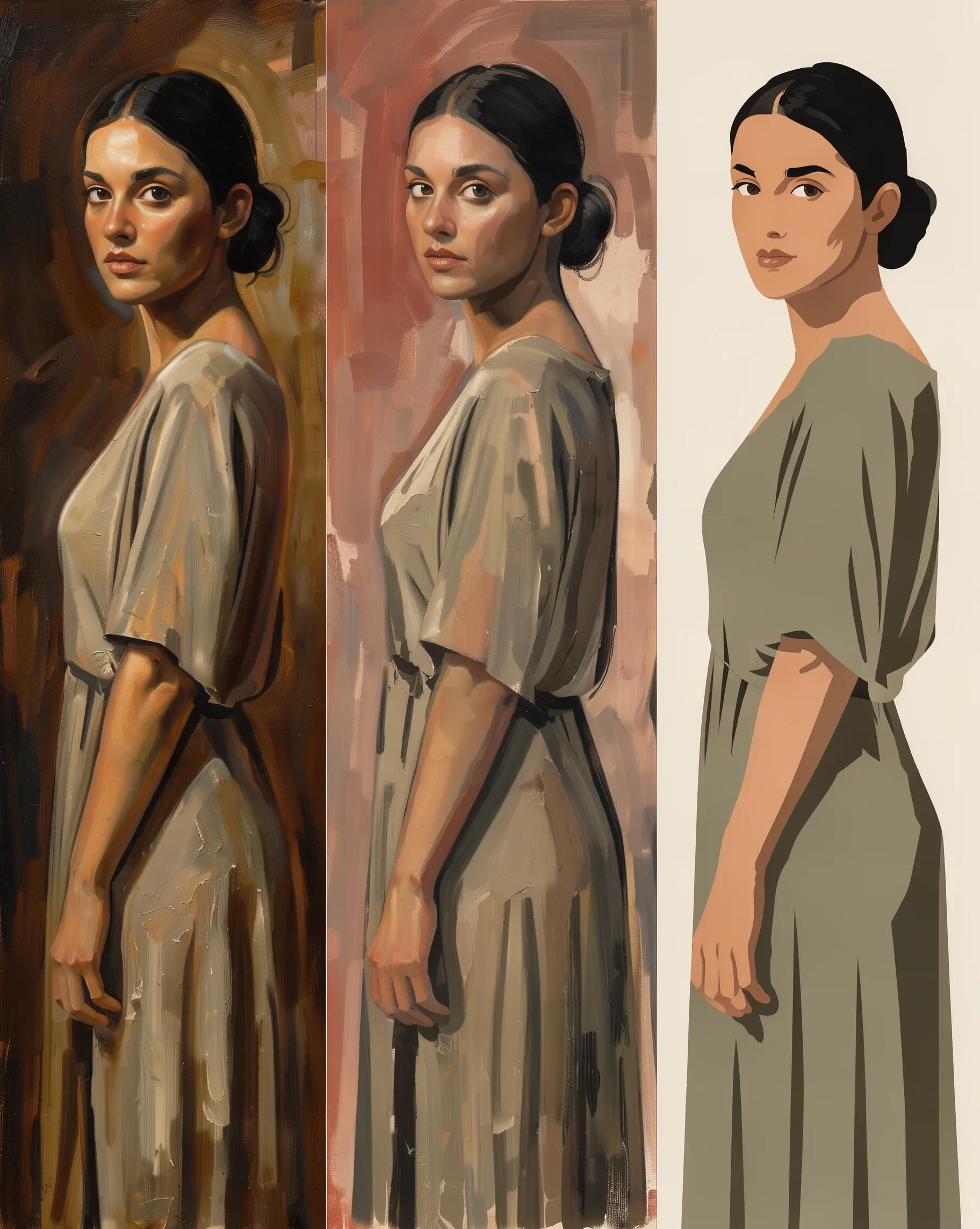
The Same Woman · A Three-Panel Style Evolution from Realistic Oil Painting to Flat Illustration
Style Style Evolution · Portrait & Photography · Flat illustration
Prompt
Present a triptych composition within a single image: the same young woman, standing in profile with her body turned as she looks back over her shoulder, repeated three times side by side, with an almost identical pose and framing each time. The left panel is a richly textured realist oil painting, with delicate layers of skin tone, soft chiaroscuro, visible impasto brushstrokes on the folds of the fabric, and a deep, warm-toned background. The middle panel shifts to modern semi-abstract painting: the same figure is built from broader color blocks, facial details are simplified, the brushwork is looser, and the palette is low-saturation earth tones. The right panel becomes fully flat vector illustration: the figure is reduced to clean solid-color shapes, with no shading, no texture, and only two or three saturated colors on a solid background. The gradual progression from textured realism to flat graphic style is clearly legible across the horizontal arrangement.
Copy the full prompt and adapt it for your own generation.
Tags
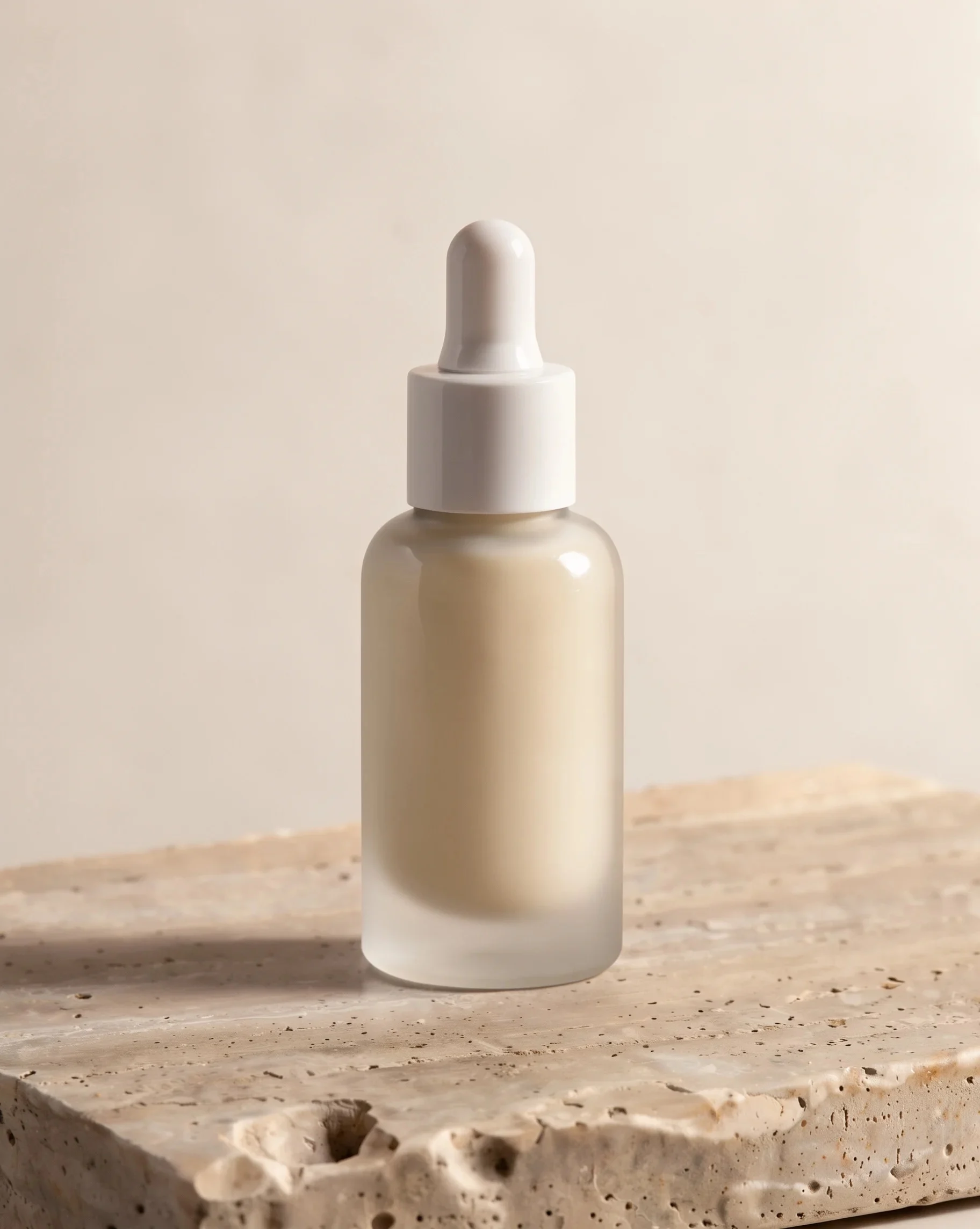
Frosted Glass Serum Bottle on Travertine Pedestal
Style Product Image · Still Life · minimal
Prompt
A frosted glass skincare serum bottle with a matte white dropper cap stands upright on a beige travertine slab, whose surface shows fine pores and soft horizontal veining. The background is a warm off-white seamless backdrop with ample empty space around the bottle. Soft directional light from the upper right rakes across the frosted surface, revealing a warm milky translucency and a smooth gradient from highlight to shadow; a short, diffused shadow falls on the slab. Subtle reflections appear on the shoulders of the glass bottle, edges are crisp and sharp, materials are realistically textured, and the overall palette is a calm neutral range of cream, sand, and pale warm gray—high-end cosmetic still-life photography.
Copy the full prompt and adapt it for your own generation.
Tags
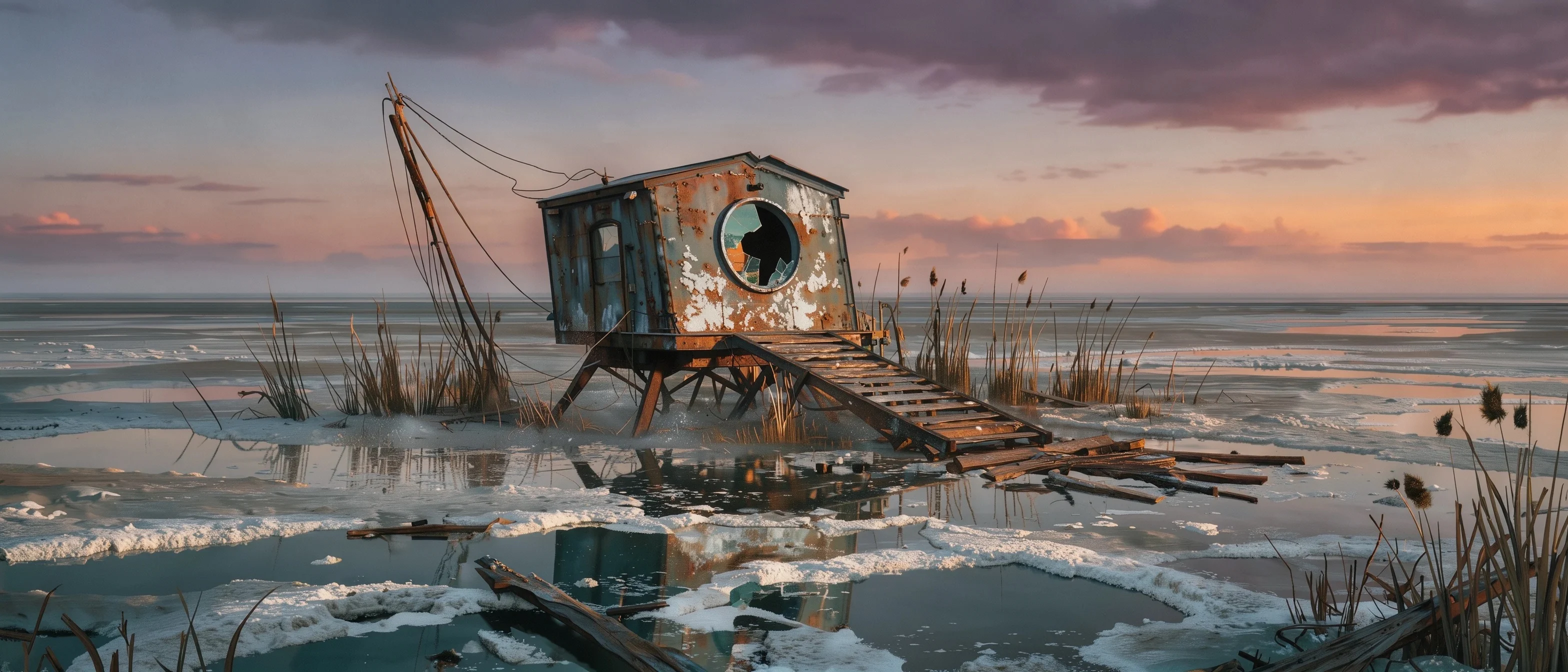
Twilight Salt Marsh · Distant View of an Abandoned Tidal Observatory
Style Concept Art · Worldbuilding · wide-shot
Prompt
A wide cinematic panoramic shot at dusk of an abandoned tidal observatory standing alone over a vast salt marsh. The observatory is a low, slightly tilted structure made of rusted steel legs and corroded panels covered in a white salt crust, its circular observation window open toward the distant sea, with a broken wooden boardwalk extending into the shallow water. Around it, pale salt flats and dark tidal pools reflect the sky; low clouds burn orange at the horizon and fade to violet overhead. Scattered dead reeds, a leaning weather mast, slender antenna cables. Soft twilight rakes across the corroded metal, fine salt dust hangs in the air, and distant sea mist compresses the horizon. A soft teal-and-rust palette contrasts with the warm sky, painterly concept art rendering with crisp material detail, wide 21:9 composition, the observatory small and centered within the vast wetland.
Copy the full prompt and adapt it for your own generation.
Tags
Pricing
flux-3-image-klein per image
| Specifications | Unit Price |
|---|---|
| 768 | $0.0092 |
| 1K | $0.0103 |
| 1.5K | $0.0126 |
| 2K | $0.016 |
| 4K | $0.0412 |
Positioning Overview
This is a model designed for image generation and editing scenarios. It supports generating images from prompts alone, and can also modify or composite a scene according to instructions when given reference images. Input can include up to 10 reference images, and tags together with bounding boxes can be used to describe layout and local regions. The output is a static image, with optional 768 to 4K pixel tiers and a variety of landscape and portrait aspect ratios. It is suitable for developers and design teams that need to produce visual assets in batches, continue the style of reference images, or control layout.
Key Highlights
- Text-to-image and reference-image editing combined — The same model accepts both pure prompt-based generation and reference images plus instructions for modification and compositing.
- Combine up to ten reference images — Multiple reference images can be passed in a single request, for multi-image compositing or assigning different subject and style roles to different images.
- Output tiers up to 4K — Resolution can be selected from 768, 1K, 1.5K, 2K, and 4K, with width and height changing according to the selected aspect ratio.
- Bounding-box layout control — In the prompt, tags together with bounding-box JSON can specify element positions and edit local regions.
Capability Description
Image generation from prompts alone: Submit only a prompt to produce an image; prompts can be up to 5000 characters. When no reference image is passed, it is text-to-image mode, suitable for building a scene from scratch.
Instruction-based editing with reference images: Pass reference images and describe in the prompt what should be modified and preserved to make targeted adjustments to the scene; up to 10 reference images are supported.
Multiple reference images and layout control: Multiple reference images can serve as subject, style, or composition references, and tags plus bounding-box JSON can specify element placement, making it easier to organize complex scenes.
Aspect ratio and format selection: Aspect ratios can be selected from 21:9 to 9:21 across multiple landscape and portrait compositions, or automatic mode; output formats are jpeg or png.
Adjustable steps and random seed: Diffusion steps are adjustable from 1 to 16; fewer steps generate faster but may reduce detail. Specifying a seed from 0 to 4294967295 helps reproduce results under the same parameters as closely as possible.
Use Cases
- E-commerce and marketing asset retouching — Operations staff upload product reference images with modification instructions to obtain adjusted main images or variants for product detail pages and campaign asset slots.
- Multi-reference style compositing — Designers pass in a subject image and style reference images to composite visual drafts with a unified tone for brand promotional images and social media visuals.
- Poster generation with layout control — Marketing teams use prompts together with bounding boxes to describe title and element positions, producing horizontal or vertical ad images for delivery and print previews.
- High-resolution final image output — Content teams select 2K or 4K tiers to generate final images for display pages and material output that require higher pixel dimensions.
- Batch image prototype validation — Developers use fixed seeds and lower step counts to quickly generate multiple sets of sketches for creative direction screening and early concept comparison.
Limitations and Selection Advice
Input prompts must be 1 to 5000 characters, and reference images must be accessible http or https image links, up to 10. The resolution, aspect ratio, and output format of each request are each selected as one option. The maximum diffusion step count is 16; lower step counts may reduce detail. The resolution tier describes the output pixel tier, and the specific width and height vary with the aspect ratio. The seed is only used to reproduce results under the same parameters as closely as possible and is not guaranteed to be completely identical; the content safety tolerance ranges from 0 to 4, with 0 being the strictest.
What's new
View changelog →- New model FLUX 3 Image Klein Now Available: Text-to-Image and Reference Editing
Frequently asked questions
View all FAQs →-
Why do short prompts produce generic images?
Short prompts give the model too little information, so it can only fill in the gaps based on common interpretations, which makes the results feel generic. Writing the prompt as a complete description is far more reliable: ① subject and appearance details ② scene and environment ③ lighting and color tone ④ composition and viewpoint ⑤ style and image-quality requirements. The prompt limit is 5000 characters, which is enough to spell out each item clearly.
-
How do I switch between text-to-image and image editing?
The same model supports two usage modes; the only difference is whether reference images are passed. Omitting image_urls means text-to-image, generating solely from the prompt; passing image_urls switches to instruction-based editing, where the prompt must clearly state which parts of the reference image need to be modified and which need to be preserved. When editing, it is recommended to list each part to be changed and the desired effect one by one, rather than writing just a single sentence about the overall style.
-
How many reference images can be used at most?
image_urls supports a maximum of 10 images and a minimum of 1; once reference images are passed in, it enters edit mode or multi-reference composition mode. For each image, you need to explain its role in the prompt, for example, the first image is the character, the second is the product, and the third is the background style. This upper limit is suitable for composition scenarios that require cross-image consistency of characters or products.
-
How do I control layout composition?
Use the labels in the prompt together with the bbox JSON to specify element positions. In the prompt, write placeholders in the form <label> and attach the corresponding bounding-box JSON to state which region each element goes in, then write the specific description into the content corresponding to each label. This is suitable for images such as posters and banners that require fixed layout positions.
Create a generation task
https://api.hiapi.ai/v1/tasks Headers
AuthorizationstringRequiredAccount API key. Required on every request. Example: Bearer YOUR_HIAPI_API_KEY. Get your API key
Content-TypestringOptionalThe request body is always parsed as JSON; when sent, only application/json (optionally with charset) is accepted — any other value returns 415. Example: application/json.
Idempotency-KeystringOptionalIdempotency key, up to 255 bytes. Retries with the same key from the same account create the task only once; replays return the original taskId.
On network timeouts or client retries, the same key creates the task only once — no double charges (scope: the API key's account). Use a business-unique identifier as the key (e.g. "order-42"); replays return the original taskId, and keys expire 24 hours after the first request. See the Unified Async API overview for the full scenario matrix.
Body
modelstringRequiredCurrent fixed value: flux-3-image-klein
routestringOptionalCurrent fixed value: default
inputobjectRequired
Business parameters for flux-3-image-klein and route default — see the parameter table below.
seedintegerOptionalmin 0max 4294967295Random seed used to reproduce the same result as closely as possible under identical parameters; takes an integer, randomly generated when omitted.
stepsintegerOptionalDefault: 16min 1max 16Number of diffusion steps, ranging from 1 to 16, default 16; lower values generate faster and may reduce detail, without affecting price.
promptstringRequiredminLength 1maxLength 5000Describe the image you want to generate, or explain what needs to be modified and preserved in the reference images; can be combined with <tags> and bbox JSON to specify layout and local editing regions.
image_urlsarrayOptionalminItems 1maxItems 10Array of reference images, each element being an image URL; the subject, style, or compositional role of each image must be explained in the prompt; omitted means text-to-image.
Array [ string ]
resolutionstringOptionalDefault: "1K"Output pixel tier; the specific width and height vary with the aspect ratio; default 1K.
7681K1.5K2K4Kaspect_ratiostringOptionalDefault: "auto"Output aspect ratio, can be landscape, portrait, or square; default auto, where automatic mode determines the aspect ratio based on the prompt and reference images.
21:92:116:93:27:54:35:41:1Show all (8)Show less
4:53:45:72:39:161:29:21autooutput_formatstringOptionalDefault: "jpeg"Output image format, default jpeg.
jpegpngsafety_toleranceintegerOptionalDefault: 2min 0max 4Content safety tolerance, takes an integer, 0 being the strictest; default 2.
callbackobjectOptional
Terminal-state notification config. When omitted, no callback is delivered — poll the task yourself. See the callback note below.
Provide callback.url when creating a task and HiAPI POSTs to your service once the task reaches a terminal state — no polling needed. The callback payload mirrors the task detail structure; signature verification, delivery retries and idempotency are documented on the Unified Async API overview page.
urlstringRequiredRequired when callback is present. A POST is sent to this URL once the task reaches a terminal state; must be a valid http(s) URL.
whenstringOptionalDefault: "final"Only final is supported today — notified on both success and fail.
finalstoragestringOptionalDefault: "temp"Artifact storage tier: temp (default, retained about 7 days) or persistent (long-term, billed by size). Insufficient balance or exceeding the storage cap silently downgrades to temp; the effective tier is shown in the task detail response.
temppersistentRequest examples
# Submit an async task; returns a taskId immediately (no waiting for generation)
curl -X POST "https://api.hiapi.ai/v1/tasks" \
  -H "Authorization: Bearer $HIAPI_API_KEY" \
  -H "Content-Type: application/json" \
  -d '{
  "model": "flux-3-image-klein",
  "input": {
    "steps": 16,
    "prompt": "…",
    "resolution": "1K",
    "aspect_ratio": "auto",
    "output_format": "jpeg",
    "safety_tolerance": 2
  }
}'
const res = await fetch("https://api.hiapi.ai/v1/tasks", {
method: "POST",
headers: {
Authorization: `Bearer ${process.env.HIAPI_API_KEY}`,
"Content-Type": "application/json",
},
body: JSON.stringify({
model: "flux-3-image-klein",
input: {
"steps": 16,
"prompt": "…",
"resolution": "1K",
"aspect_ratio": "auto",
"output_format": "jpeg",
"safety_tolerance": 2
}
}),
});
const task = await res.json();
// { code: 200, message: "success", data: { taskId } }import os, requests
res = requests.post(
"https://api.hiapi.ai/v1/tasks",
headers={"Authorization": f"Bearer {os.environ['HIAPI_API_KEY']}"},
json={
"model": "flux-3-image-klein",
"input": {
"steps": 16,
"prompt": "…",
"resolution": "1K",
"aspect_ratio": "auto",
"output_format": "jpeg",
"safety_tolerance": 2
}
},
)
print(res.json()) # { code, message, data: { taskId } }200 OK
{
  "code": 200,
  "message": "success",
  "data": {
    "taskId": "tk-hiapi-01HZTQ8BX2N3GM3YFK4Z9D7VQR"
  }
}
400 Bad Request
{
  "code": 400,
  "message": "invalid request",
  "data": null,
  "error_code": "INVALID_REQUEST"
}
Get task detail
https://api.hiapi.ai/v1/tasks/:id Response fields
taskIdstringRequiredTask ID, always prefixed with tk-hiapi-.
modelstringRequiredResolved full model name. Tasks submitted with the route parameter return base@route (e.g. gpt-image-2/text-to-image@ext); otherwise identical to the name passed at creation.
routestringOptionalPresent only when the task was submitted with an explicit route parameter; echoes the submitted value.
statusstringRequiredTask status.
queued Queued, not started yet.
handling Being processed.
archiving Processing finished, artifacts being prepared.
success Terminal: completed, artifacts available (output returned).
fail Terminal: failed (error returned).
After submission, check status: success and fail are terminal, everything else is non-terminal. Poll every 1–3 seconds until terminal. On success, download artifacts from output[].url and transfer them before expireAt; pass storage: "persistent" at creation time when long-term retention is needed.
creatednumberRequiredTask creation time (Unix seconds).
completednumberRequiredUnix seconds when the task reached a terminal state; fixed to 0 while not terminal.
outputarrayOptional
Present only when status == success. Artifact list — always an array; a single task may return multiple types at once (e.g. video + first_frame).
Array [ object ]
Array items
urlstringRequiredArtifact URL, directly downloadable.
typestringRequiredCurrent possible values: video, image, audio, first_frame, last_frame, thumbnail; more may be added later.
expireAtnumberRequiredUnix seconds until which the artifact remains accessible; download or transfer before it expires.
errorobjectOptional
Present only when status == fail.
codestringRequiredBusiness error code.
messagestringRequiredError description.
Response examples
Success
{
  "code": 200,
  "message": "success",
  "data": {
    "taskId": "tk-hiapi-01HZTQ8BX2N3GM3YFK4Z9D7VQR",
    "model": "happyhorse-1-0",
    "status": "success",
    "created": 1777282033,
    "completed": 1777282099,
    "output": [
      {
        "url": "https://cdn.hiapi.ai/tasks/.../video.mp4",
        "type": "video",
        "expireAt": 1777886899
      }
    ]
  }
}
Processing (non-terminal)
{
  "code": 200,
  "message": "success",
  "data": {
    "taskId": "tk-hiapi-...",
    "model": "happyhorse-1-0",
    "status": "archiving",
    "created": 1777282033,
    "completed": 0
  }
}
Failed
{
  "code": 200,
  "message": "success",
  "data": {
    "taskId": "tk-hiapi-...",
    "model": "happyhorse-1-0",
    "status": "fail",
    "created": 1777282033,
    "completed": 1777282099,
    "error": {
      "code": "TASK_FAILED",
      "message": "task failed"
    }
  }
}Articles
View all articles →
Related Models
View all models →Same Type
-
 Recraft Creative Upscale Recraft $0.357 /image
-
 BRIA Product Shot Bria $0.058 /image
-
 Nano Banana 2 Lite Google $0.033 /image
-
 Recraft V4.1 Recraft $0.010 /image
-
 FIBO 1.5 Bria $0.058 /image
-
 851 Labs Background Remover 851 Labs $0.002 /image
-
 Seedream 5.5 ByteDance $0.019 /image
-
 FLUX.2 Black Forest Labs $0.035 /image
-
 Google Virtual Try-On Google $0.107 /image
-
 Ideogram V3 Character Ideogram $0.090 /image
-
 Krea 2 Medium Turbo Krea $0.021 /image
-
 GPT Image 2.5 OpenAI $0.017 /image
Same Provider
-
 FLUX 3 Video Black Forest Labs $0.090 /second
-
 FLUX 1.1 Pro Black Forest Labs $0.050 /image
-
 FLUX.2 Klein 4B Black Forest Labs $0.0004 /image
- FLUX.2 Black Forest Labs $0.035 /image
-
 FLUX 3 Max Black Forest Labs $0.121 /second
-
 FLUX.1 Kontext Max Black Forest Labs $0.071 /image
-
 FLUX 3 Image Black Forest Labs $0.041 /image
-
 FLUX.1 Fill Pro Black Forest Labs $0.071 /image
-
 FLUX.2 Klein 9B Black Forest Labs $0.0086 /image
-
 FLUX.1 Schnell Black Forest Labs $0.005 /image