

ByteDance
Seedance 2.5 Flash
seedance-2.5-flash/reference-to-video
The ByteDance Seedance 2.5 series video model supports text-to-video, first-frame-based generation, and multimodal reference generation, producing 4 to 30 seconds per output with a choice of 480p or 720p and synchronized audio, making it ideal for rapidly producing short advertising clips and e-commerce product videos
Try seedance-2.5-flash/reference-to-video
Input
Showcases
View all showcasesOutput
videoRainy Night Phone Booth · The Moment She Turns Back
Style Narrative · Rainy Night · City
Reference inputs

Reference images

Reference images
Prompt
A young woman in a rain-soaked olive trench coat stands on a rain-drenched city street at night, facing a lit retro phone booth. She picks up the receiver, hesitates, then puts it back, and turns to walk toward the camera as neon signs flicker behind her. The camera pushes in slowly from a low angle, following her turn, with a shallow depth of field focused on the reflective wet pavement; raindrops streak thin lines through the light, soft teal-green contrasts with warm sodium lamps, subtle handheld camera shake, and a quiet cinematic rhythm.
Copy the full prompt and adapt it for your own generation.
Tags
Amber Essence · Morning Light Skincare Texture Short Film
Style beauty · Product Film · Macro Texture
Reference inputs

Reference images

Reference images
Prompt
A macro product short film of an amber essence bottle. It opens with a drop of viscous honey-colored essence falling from a glass dropper into a pool of liquid, with backlighting making the droplet glow translucently. The camera glides low across a white ceramic countertop scattered with fine water beads, then follows the fingertips as they spread the essence onto skin, drawing out a slender, lustrous thread that finally melts into a dewy sheen. It closes on a still-life shot: the frosted glass bottle standing among layered off-white linen, morning light slanting in from the side, tracing a soft highlight along the bottle's edge and casting a long shadow. Shallow depth of field, natural window light, warm neutral tones, tactile macro textures, a calm and premium rhythm, paired with a slow push-in camera move and soft focus shifts.
Copy the full prompt and adapt it for your own generation.
Tags
Clay Fox Cub · Running in the Meadow by the Brook
Style Reference-driven · Nature · character-animation
Reference inputs
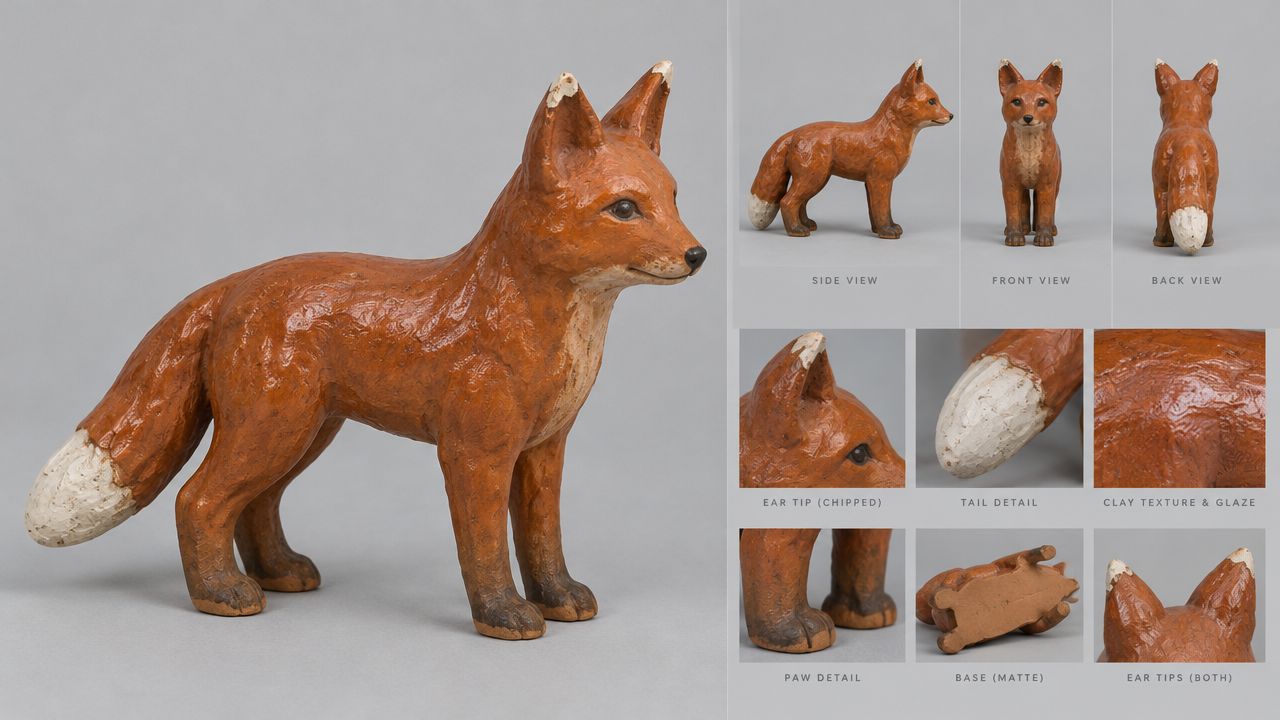
Reference images
Prompt
A small handmade clay fox figurine comes to life on a forest meadow: its body is glazed, glossy russet clay, its ear tips have the chipped ceramic texture, and it has a tiny white clay tail. It lifts its head from the pale mint-green grass by a narrow brook, shakes water droplets off its ears, then leaps over the shallow water and runs toward the open meadow. A low-angle tracking shot glides along the grass surface, moving at the same speed as the fox; tiny splashes glisten in the light, and blades of grass bend and spring back. Warm late-afternoon sunlight slants through tall trees, soft mist and floating pollen, shallow depth of field, a tangible stop-motion clay texture with natural imperfections.
Copy the full prompt and adapt it for your own generation.
Tags
Umbrella Silhouette and Puddle Reflections at a Rainy Night Intersection Traffic Light
Style Cinematic · Urban Nightscape · Atmosphere
Reference inputs

Reference images
Prompt
A fixed camera observes the corner of a city intersection on a rainy night. The wet asphalt road surface and a broad shallow puddle occupy the lower half of the frame, reflecting the halos of traffic lights and convenience store signs. A pedestrian holding a dark umbrella walks past from one side, raindrops sliding down the umbrella canopy and striking the puddle surface, sending out ripples that spread in rings; the reflected lights are stretched, shattered, and then slowly settle back to calm. In the distance, car headlights drive past in the background, dragging soft streaked light and shadow across the wet slippery road, steam rises curling from a vent, raindrops catch the ambient light and turn into fine, bright specks. The shadows present a cool-toned cyan, while the highlights are warm orange, with stable framing that carries an observational feel, accompanied by a subtle handheld breathing sensation.
Copy the full prompt and adapt it for your own generation.
Tags
Pricing
seedance-2.5-flash/reference-to-video per second
| Specifications | Unit Price |
|---|---|
| 480P | $0.0679 |
| 720P | $0.1525 |
Overview
For developers who need to drive video creation with reference assets: enter a prompt and reference images or audio in order to generate a video with continuous imagery. You can choose 480p or 720p resolution, aspect ratio, a duration of 4 to 30 seconds, and mp4 or mov output as needed. It suits scenarios such as ad clips, product showcases, and social short videos that need to carry over the style of existing assets.
Key Highlights
- Multi-asset reference-driven generation — reference up to 10 images and 5 audio clips, naming them in order in the prompt as @image1, @audio1, and so on.
- Images define the visuals, audio defines the rhythm — reference images constrain the appearance of people, products, and scenes, while reference audio provides music, beats, or voiceover; the two can be used separately or together.
- Flexible duration and aspect ratio — duration can be selected from 4 to 30 seconds in one-second increments, and aspect ratios cover landscape, portrait, square, and widescreen, or can adapt to the reference assets.
- Output suits post-production workflows — in addition to the more compatible mp4, you can also choose mov format for professional post-production.
Capability Details
Reference images constrain visual content: you can submit up to 10 reference images in jpeg, png, webp, bmp, tiff, and gif, with each image no larger than 30MB and 300 to 6000 pixels per side; reference them in the prompt as @image1, etc.
Set duration as needed: duration can be an integer from 4 to 30 seconds, or -1 to let the model decide automatically based on the content; billing is by the number of seconds in the final video.
Audio references assist generation: you can submit up to 5 reference audio clips in wav or mp3, each 2 to 30 seconds and no larger than 15MB, totaling no more than 30 seconds; audio can also be used alone without reference images.
Aspect ratio, resolution, and format settings: output resolution can be 480p or 720p; aspect ratios support 16:9, 4:3, 1:1, 3:4, 9:16, 21:9, and adaptive; output can be mp4 or mov.
Use Cases
- Short-video production for brand and advertising teams — use existing product images and brand music as references to generate continuous shots with an opening, camera movement, and ending, for comparing creative versions before launch.
- E-commerce product showcase shots — input multiple product images and name them one by one in the prompt to generate showcase or usage-scene videos for product detail pages or feed ads.
- Vertical short videos for social platforms — choose a 9:16 or 1:1 aspect ratio and use image and audio references to generate short videos for daily content updates on short-video platforms and social media.
- Music or voiceover short videos — submit images of people or products plus a reference audio clip so that on-screen action follows the audio rhythm, for showcase videos with music or voiceover short videos.
Limitations and Selection Advice
At most 10 reference images and at most 5 reference audio clips totaling no more than 30 seconds; anything beyond that must be split into multiple generations. Output resolution is limited to 480p and 720p, and aspect ratios do not include ultra-wide or custom ratios. A single generation lasts at most 30 seconds; longer content must be generated in segments and edited together. Reference assets are subject to format, size, and pixel-range limits; files that do not meet the requirements cannot be submitted.
ByteDance reference-driven video model
Drive continuous video generation with reference assets
Submit a prompt along with image or audio references, and the model understands the assets in the order they are referenced to generate a video clip with coherent imagery. Output supports 480p and 720p, multiple aspect ratios, and mp4 or mov format.
- Output typeVideo
- Resolution480p / 720p
- Duration4–30 seconds, or -1 for auto
- Reference assetsUp to 10 images / 5 audio clips
Name assets in the prompt in the order @image1, @audio1, and state clearly what role each asset plays.
01
Capabilities
How it performs: three verifiable capabilities
The three capabilities below correspond to image references, audio references, and output specifications; you can check the input limits for each before organizing your prompt.
Image references establish the visual foundation
Upload up to 10 images as content references, covering common bitmap formats with limits on individual file size and pixel range. Reference them in order in the prompt as @image1, etc., so you can specify which image corresponds to which subject or scene. The key check is that reference numbers match the order of assets.
Audio references guide generation
You can submit up to 5 audio clips in wav or mp3, each 2 to 30 seconds and totaling no more than 30 seconds. Audio can be used alone or combined with images, referenced in the prompt as @audio1. The key check is that each clip's size and duration are within limits.
Output specifications and format selection
Choose resolution between 480p and 720p; aspect ratios cover landscape, portrait, square, and widescreen, or can be set to adaptive to follow the assets. Output format can be the more compatible mp4 or post-production-oriented mov. When checking, confirm the aspect ratio matches the distribution channel.
The number, format, and duration of reference assets determine the range you can submit, and the order of references in the prompt determines how the assets participate in building the visuals.
02
Getting started
From reference assets to a video clip
Try it →Start by clarifying the purpose, prepare compliant reference assets, then organize a prompt with reference numbers, and finally check the final video against the output specifications.
- Reference imagesjpeg/png/webp/bmp/tiff/gif, each ≤30MB
- Reference audiowav/mp3, 2–30 seconds, total ≤30 seconds
A set of reference assets that meet the limits
01
Prepare reference assets
First determine whether you need image or audio references, and filter files according to their respective format, size, pixel, and duration requirements to avoid uploading unsupported types.
- PromptUp to 5000 characters, reference assets in order
A prompt that maps assets to instructions
02
Write a prompt with references
Name assets in order using @image1, @audio1, and describe the visual content and actions, as well as which part of the audio the visuals should sync to.
✓Verify
→
03
Set output parameters and verify
Choose duration, resolution, aspect ratio, and output format, then check that the number of reference assets and the total audio duration are within limits.
03
Scenarios
Where to use it: three typical short videos
Comparing creative versions of ad short videos
Use product images and brand music as references to generate continuous shots that include camera movement and an action ending. Suitable for preparing multiple creative directions before launch; the key check is whether the product appearance from the reference assets stays consistent on screen.
Product showcases for e-commerce detail pages
Submit multiple product images and reference each one in the prompt to generate showcase or usage-scene videos. The final video can go directly into product detail pages or feed ads; the key check is whether the subject is clearly recognizable in the shot.
Voiceover or music short videos with reference images plus audio
Use reference images to define the person or product and reference audio to define the rhythm or voiceover, generating a short video whose visuals advance along with the audio. Suitable for voiceover introductions and showcase videos with music; the key check is whether the action syncs with the audio beat.
04
Integration
Integration: call seedance-2.5-flash in your product or AI tool
A single HiAPI API Key is all you need; all methods share the same account and billing.
- Create an API Key
- Choose an integration method
Pick any one on the right and copy it
- AI coding tools Recommended
Connect via MCP with commands for Claude Code, Cursor, Codex, etc.
- Direct API
Your own product, backend services, automation workflows
- Not sure which to choose
Copy a message to an AI and let it choose for you and give the steps
Terminal · Claude Code
claude mcp add --transport http hiapi https://mcp.hiapi.ai/mcp \
  --header "Authorization: Bearer YOUR_API_KEY"
Once connected, just tell the AI your goal and let it call seedance-2.5-flash, check task progress, and get results. Configuration steps for Cursor, Codex, and other tools are in the tutorial below.
View the Agent integration tutorial →Integrate into your product via API
Use the API Key to submit tasks for the current model and query status by the returned task ID. The request parameters use the same route data as the API documentation on this page; replace the input content in the examples with your actual assets.
# Submit an async task; returns a taskId immediately (no waiting for generation)
curl -X POST "https://api.hiapi.ai/v1/tasks" \
  -H "Authorization: Bearer $HIAPI_API_KEY" \
  -H "Content-Type: application/json" \
  -d '{
  "model": "seedance-2.5-flash/reference-to-video",
  "input": {
    "prompt": "…",
    "duration": 5,
    "resolution": "480p",
    "aspect_ratio": "adaptive",
    "output_format": "mp4",
    "generate_audio": true,
    "omni_reference_task_type": "reference"
  }
}'Let AI help you choose an integration method
Please read the HiAPI documentation index at https://hiapi.ai/llms.txt. I want to use seedance-2.5-flash in my project. First, based on my usage scenario, determine whether Remote MCP, Agent Skills, or the direct API is more suitable; if necessary, ask me one key question first, then give the simplest integration steps and the configuration to fill in.
Copy this message to the AI tool you use, and then add your project language, input assets, and expected results. It can use that to explain the integration method and next steps.
What's new
View changelog →- New model seedance-2.5-flash/reference-to-video is live
- New model seedance-2.5-flash/image-to-video is live
- New model seedance-2.5-flash/text-to-video is live
Frequently asked questions
View all FAQs →-
What is the maximum length of a video that can be generated from an image?
A single generation can be set to a maximum of 30 seconds, a minimum of 4 seconds, and defaults to 5 seconds. The duration field directly determines the length and is also billed by the requested duration; for longer finished videos, you can only generate segments and stitch them together.
-
What format and size requirements apply to the first-frame image?
Supported formats are jpeg, png, webp, bmp, tiff, gif, heic, and heif, with a maximum of 30 MB per image, 300 to 6000 pixels per side, and an aspect ratio of 0.4 to 2.5. Images outside these ranges will fail outright, so it is recommended to resize and transcode them before uploading.
-
Which resolutions and aspect ratios are supported?
There are two resolutions, 480p and 720p, with 480p as the default. Text-to-video and reference-to-video accept 16:9, 4:3, 1:1, 3:4, 9:16, 21:9, or adaptive to let the model decide. Image-to-video is always adaptive and follows the first frame, so upload a portrait first frame if you want 9:16. This model does not offer 1080p.
-
What are the requirements for uploaded images and audio?
For image-to-video, first and last frames can be jpeg, png, webp, bmp, tiff, gif, heic or heif, under 30 MB, 300 to 6000 pixels per side, with an aspect ratio between 0.4 and 2.5. A last frame with a different ratio is center-cropped to match. Reference-to-video takes up to 10 reference images in the same formats except heic, heif and svg, and up to 5 audio clips in wav or mp3, each under 15 MB and 2 to 30 seconds, 30 seconds combined. Audio can be used without any image.
Create a generation task
https://api.hiapi.ai/v1/tasks Headers
AuthorizationstringRequiredAccount API key. Required on every request. Example: Bearer YOUR_HIAPI_API_KEY. Get your API key
Content-TypestringOptionalThe request body is always parsed as JSON; when sent, only application/json (optionally with charset) is accepted — any other value returns 415. Example: application/json.
Idempotency-KeystringOptionalIdempotency key, up to 255 bytes. Retries with the same key from the same account create the task only once; replays return the original taskId.
On network timeouts or client retries, the same key creates the task only once — no double charges (scope: the API key's account). Use a business-unique identifier as the key (e.g. "order-42"); replays return the original taskId, and keys expire 24 hours after the first request. See the Unified Async API overview for the full scenario matrix.
Body
modelstringRequiredCurrent fixed value: seedance-2.5-flash/reference-to-video
routestringOptionalCurrent fixed value: default
inputobjectRequired
Business parameters for seedance-2.5-flash/reference-to-video and route default — see the parameter table below.
promptstringRequiredminLength 1maxLength 5000A prompt that guides how the reference materials are used; reference material items in order of appearance as @image1, @audio1, and clearly state what role each material plays in the scene.
durationintegerOptionalDefault: 5Output video duration (seconds); accepts an integer from 4 to 30, or -1 for automatic duration; default 5 seconds.
-145678910Show all (20)Show less
1112131415161718192021222324252627282930resolutionstringOptionalDefault: "480p"Output video resolution; Seedance 2.5 Flash supports 480p and 720p; default 480p.
480p720paspect_ratiostringOptionalDefault: "adaptive"Output frame aspect ratio; when set to adaptive, the model decides by following the reference materials; default adaptive.
16:94:31:13:49:1621:9adaptiveoutput_formatstringOptionalDefault: "mp4"File format of the output video; mp4 is the compatibility default, mov is intended for professional post-production; default mp4.
mp4movgenerate_audiobooleanOptionalDefault: trueWhether to generate dialogue, sound effects, and background audio synchronized with the visuals; default true.
reference_audio_urlsarrayOptionalmaxItems 5Array of reference audio URLs, up to 5 clips; each clip must be wav or mp3, under 15 MB, 2 to 30 seconds long, and the total duration of all audio must not exceed 30 seconds. Audio can be used alone without images; provide at least one of reference images or reference audio.
Array [ string ]
reference_image_urlsarrayOptionalmaxItems 10Array of reference image URLs, up to 10 images; supports jpeg, png, webp, bmp, tiff, gif formats, each under 30 MB, with a single side of 300 to 6000 pixels and an aspect ratio of 0.4 to 2.5; SVG, HEIC, and HEIF are not supported.
Array [ string ]
omni_reference_task_typestringOptionalDefault: "reference"Reference task type; currently only reference (generate a new clip based on reference images or audio) is supported; default reference, may be omitted.
referencecallbackobjectOptional
Terminal-state notification config. When omitted, no callback is delivered — poll the task yourself. See the callback note below.
Provide callback.url when creating a task and HiAPI POSTs to your service once the task reaches a terminal state — no polling needed. The callback payload mirrors the task detail structure; signature verification, delivery retries and idempotency are documented on the Unified Async API overview page.
urlstringRequiredRequired when callback is present. A POST is sent to this URL once the task reaches a terminal state; must be a valid http(s) URL.
whenstringOptionalDefault: "final"Only final is supported today — notified on both success and fail.
finalstoragestringOptionalDefault: "temp"Artifact storage tier: temp (default, retained about 7 days) or persistent (long-term, billed by size). Insufficient balance or exceeding the storage cap silently downgrades to temp; the effective tier is shown in the task detail response.
temppersistentRequest examples
# Submit an async task; returns a taskId immediately (no waiting for generation)
curl -X POST "https://api.hiapi.ai/v1/tasks" \
  -H "Authorization: Bearer $HIAPI_API_KEY" \
  -H "Content-Type: application/json" \
  -d '{
  "model": "seedance-2.5-flash/reference-to-video",
  "input": {
    "prompt": "…",
    "duration": 5,
    "resolution": "480p",
    "aspect_ratio": "adaptive",
    "output_format": "mp4",
    "generate_audio": true,
    "omni_reference_task_type": "reference"
  }
}'
const res = await fetch("https://api.hiapi.ai/v1/tasks", {
method: "POST",
headers: {
Authorization: `Bearer ${process.env.HIAPI_API_KEY}`,
"Content-Type": "application/json",
},
body: JSON.stringify({
model: "seedance-2.5-flash/reference-to-video",
input: {
"prompt": "…",
"duration": 5,
"resolution": "480p",
"aspect_ratio": "adaptive",
"output_format": "mp4",
"generate_audio": true,
"omni_reference_task_type": "reference"
}
}),
});
const task = await res.json();
// { code: 200, message: "success", data: { taskId } }import os, requests
res = requests.post(
"https://api.hiapi.ai/v1/tasks",
headers={"Authorization": f"Bearer {os.environ['HIAPI_API_KEY']}"},
json={
"model": "seedance-2.5-flash/reference-to-video",
"input": {
"prompt": "…",
"duration": 5,
"resolution": "480p",
"aspect_ratio": "adaptive",
"output_format": "mp4",
"generate_audio": True,
"omni_reference_task_type": "reference"
}
},
)
print(res.json()) # { code, message, data: { taskId } }200 OK
{
  "code": 200,
  "message": "success",
  "data": {
    "taskId": "tk-hiapi-01HZTQ8BX2N3GM3YFK4Z9D7VQR"
  }
}
400 Bad Request
{
  "code": 400,
  "message": "invalid request",
  "data": null,
  "error_code": "INVALID_REQUEST"
}
Get task detail
https://api.hiapi.ai/v1/tasks/:id Response fields
taskIdstringRequiredTask ID, always prefixed with tk-hiapi-.
modelstringRequiredResolved full model name. Tasks submitted with the route parameter return base@route (e.g. gpt-image-2/text-to-image@ext); otherwise identical to the name passed at creation.
routestringOptionalPresent only when the task was submitted with an explicit route parameter; echoes the submitted value.
statusstringRequiredTask status.
queued Queued, not started yet.
handling Being processed.
archiving Processing finished, artifacts being prepared.
success Terminal: completed, artifacts available (output returned).
fail Terminal: failed (error returned).
After submission, check status: success and fail are terminal, everything else is non-terminal. Poll every 1–3 seconds until terminal. On success, download artifacts from output[].url and transfer them before expireAt; pass storage: "persistent" at creation time when long-term retention is needed.
creatednumberRequiredTask creation time (Unix seconds).
completednumberRequiredUnix seconds when the task reached a terminal state; fixed to 0 while not terminal.
outputarrayOptional
Present only when status == success. Artifact list — always an array; a single task may return multiple types at once (e.g. video + first_frame).
Array [ object ]
Array items
urlstringRequiredArtifact URL, directly downloadable.
typestringRequiredCurrent possible values: video, image, audio, first_frame, last_frame, thumbnail; more may be added later.
expireAtnumberRequiredUnix seconds until which the artifact remains accessible; download or transfer before it expires.
errorobjectOptional
Present only when status == fail.
codestringRequiredBusiness error code.
messagestringRequiredError description.
Response examples
Success
{
  "code": 200,
  "message": "success",
  "data": {
    "taskId": "tk-hiapi-01HZTQ8BX2N3GM3YFK4Z9D7VQR",
    "model": "happyhorse-1-0",
    "status": "success",
    "created": 1777282033,
    "completed": 1777282099,
    "output": [
      {
        "url": "https://cdn.hiapi.ai/tasks/.../video.mp4",
        "type": "video",
        "expireAt": 1777886899
      }
    ]
  }
}
Processing (non-terminal)
{
  "code": 200,
  "message": "success",
  "data": {
    "taskId": "tk-hiapi-...",
    "model": "happyhorse-1-0",
    "status": "archiving",
    "created": 1777282033,
    "completed": 0
  }
}
Failed
{
  "code": 200,
  "message": "success",
  "data": {
    "taskId": "tk-hiapi-...",
    "model": "happyhorse-1-0",
    "status": "fail",
    "created": 1777282033,
    "completed": 1777282099,
    "error": {
      "code": "TASK_FAILED",
      "message": "task failed"
    }
  }
}Articles
View all articles →-

Guide
Seedance 2.5 Flash Image-to-Video: First Frame, Last Frame and Per-Second Billing
Making a still image move: parameters, price and the usual failure modes
7 min read -

Guide
Seedance 2.5 Flash Text-to-Video: Parameters, Per-Second Billing and Production Practice
From the first request to a stable pipeline: how to set parameters and how the bill adds up
8 min read -

Guide
Seedance 2.5 Flash Reference-to-Video: Reference Images, Audio and How the Bill Is Counted
9 min read
Related Models
View all models →Same Type
-
 Muse Video 1.0 Meta $0.034 /video
-
 OmniHuman 2.0 ByteDance $0.100 /second
-
 Kling 3.0 Kuaishou $0.100 /second
-
 Wan 2.6 Flash Alibaba $0.043 /second
-
 PixVerse V6 Max PixVerse $0.030 /second
-
 Kandinsky 6.0 Pro $1.93 /video
-
 Seedance 2.5 Flash ByteDance $0.068 /second
-
 Kling 4.0 Kuaishou $0.204 /second
-
 HeyGen Avatar V HeyGen $0.150 /second
-
 Veo 3.1 Lite Google $0.060 /second
-
 Grok Imagine 1.5 Lite xAI $0.029 /second
-
 HappyHorse 1.1 Alibaba $0.160 /second