On this page
Cherry Studio
Add a HiAPI custom provider in Cherry Studio, fill the three endpoints according to each model's protocol, and use Claude, GPT and DeepSeek through HiAPI.
Cherry Studio can connect to HiAPI through a custom provider. One provider can hold three endpoints at once — OpenAI, Anthropic and OpenAI Responses — each for a different protocol, and you pick the endpoint that matches the protocol a model supports. The steps below use claude-opus-5-5, gpt-6-astra and deepseek-v4.1-flash as examples; this tutorial was verified on Cherry Studio 2.1.7.
1. Prepare a HiAPI API key
Prepare a key as described in Get an API Key, click the copy icon next to the key, and copy the full HiAPI API key to fill into Cherry Studio below.
2. Choose the protocol
| Protocol | Endpoint in Cherry Studio | Suitable models |
|---|---|---|
| Anthropic Messages | Anthropic endpoint | Claude series |
| OpenAI Chat Completions | OpenAI endpoint | Most models, such as GPT and DeepSeek |
| OpenAI Responses | OpenAI Responses endpoint | Models that need Responses features |
The example models on this page have all been tested with the table above. For another model, choose the endpoint from the table first and send a message to try it; if you get 400 does not support this endpoint, switch to another endpoint.
3. Add the provider
3.1 Where to start
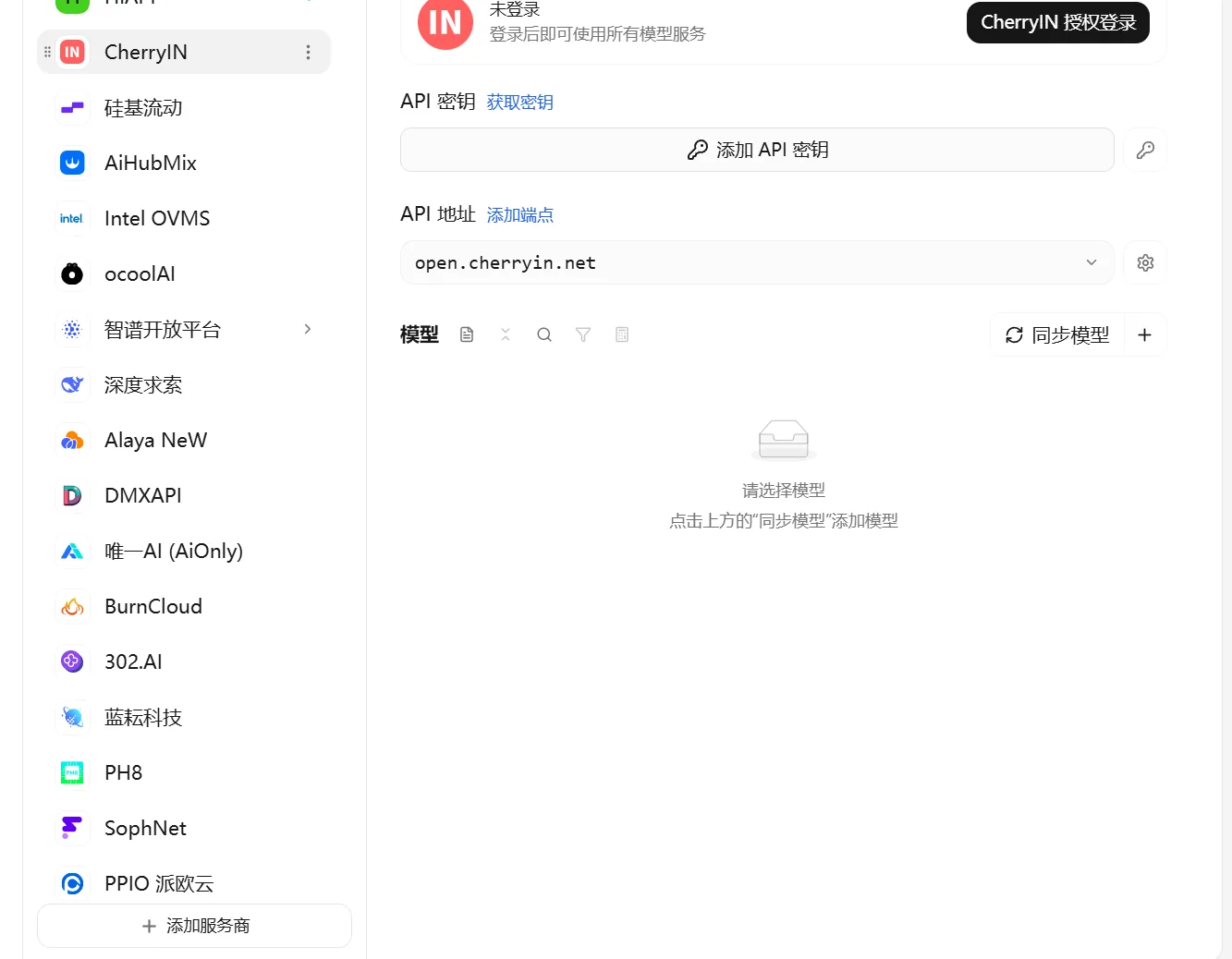
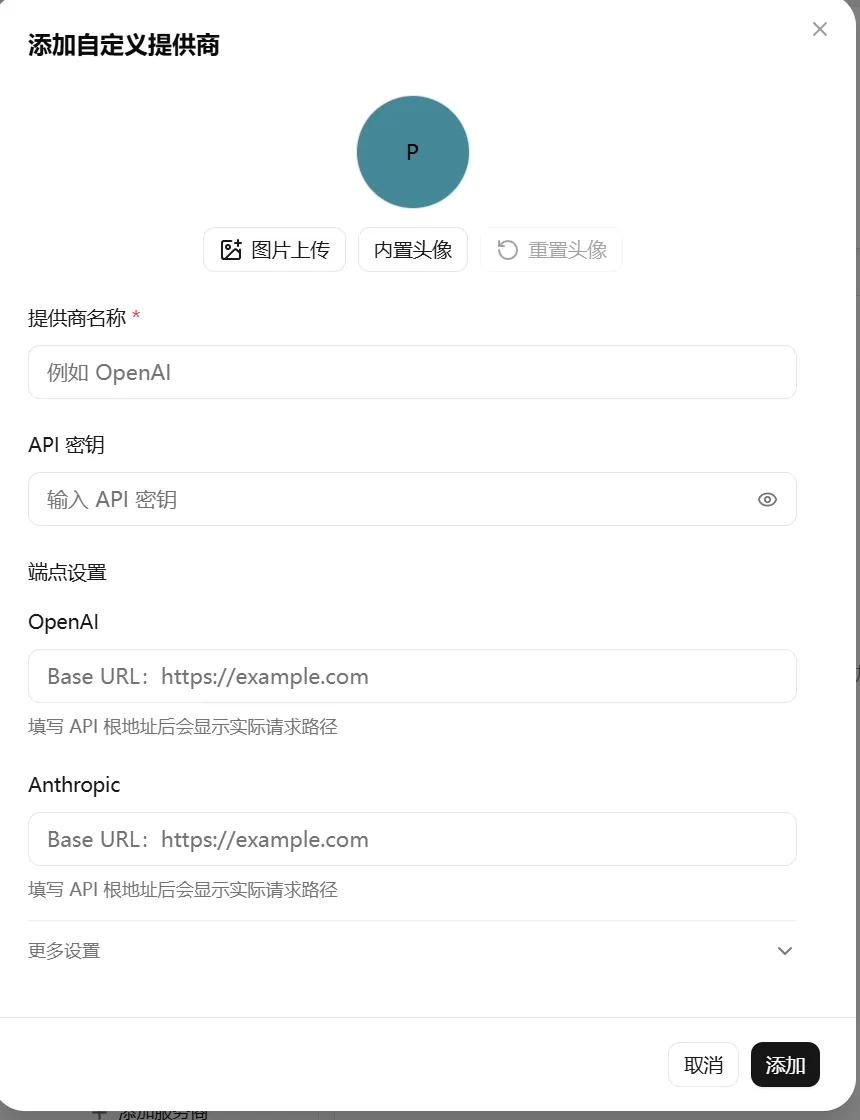
Click Settings → Model Providers → Add Provider (设置 → 模型服务 → 添加提供商).
3.2 Fill the same address into all three endpoints
| Field | Value |
|---|---|
| Provider name | HiAPI |
| API key | your HiAPI API key |
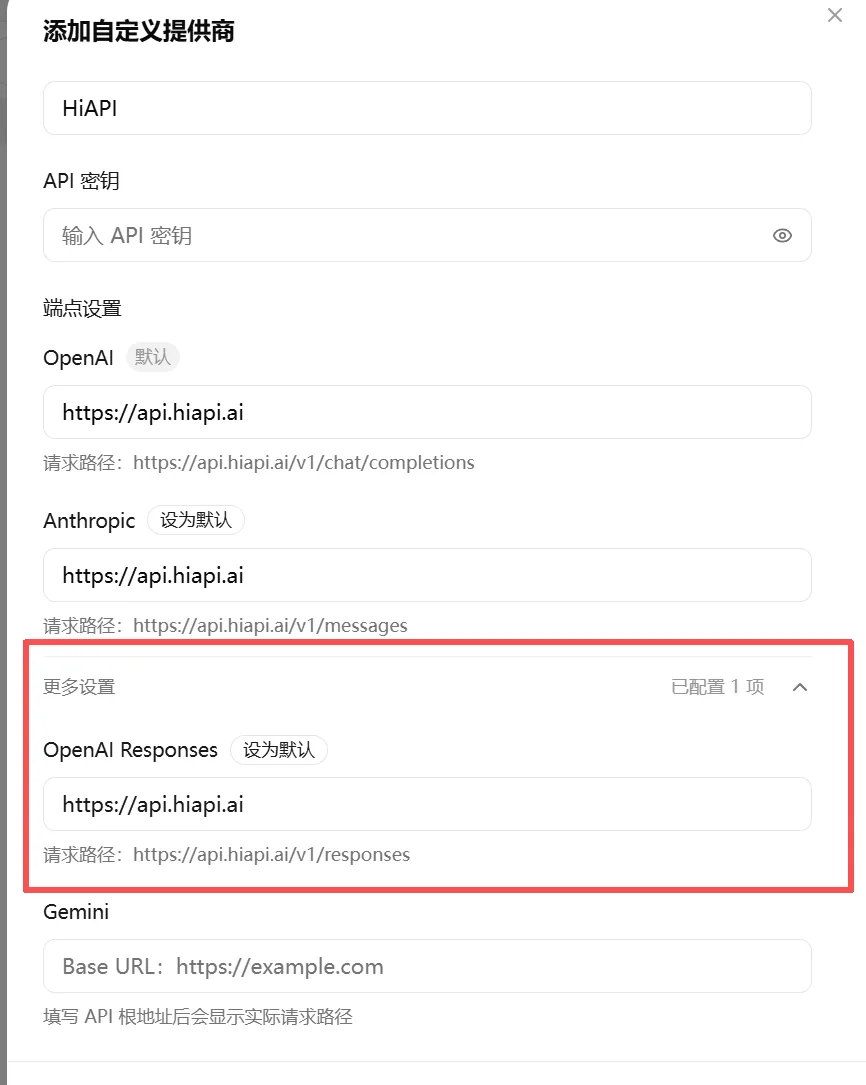
| Endpoint settings → OpenAI | https://api.hiapi.ai |
| Endpoint settings → Anthropic | https://api.hiapi.ai |
| More settings → OpenAI Responses | https://api.hiapi.ai |
Fill https://api.hiapi.ai into all three endpoints without /v1; Cherry Studio appends the path itself. This differs from other tools.
3.3 Check the actual request paths
| Endpoint | Should show |
|---|---|
| OpenAI | https://api.hiapi.ai/v1/chat/completions |
| Anthropic | https://api.hiapi.ai/v1/messages |
| OpenAI Responses | https://api.hiapi.ai/v1/responses |
If they don’t match: when you see /v1/v1/..., change the field to https://api.hiapi.ai; when /v1 is missing, change it to https://api.hiapi.ai/v1.
4. Add models and set their protocol
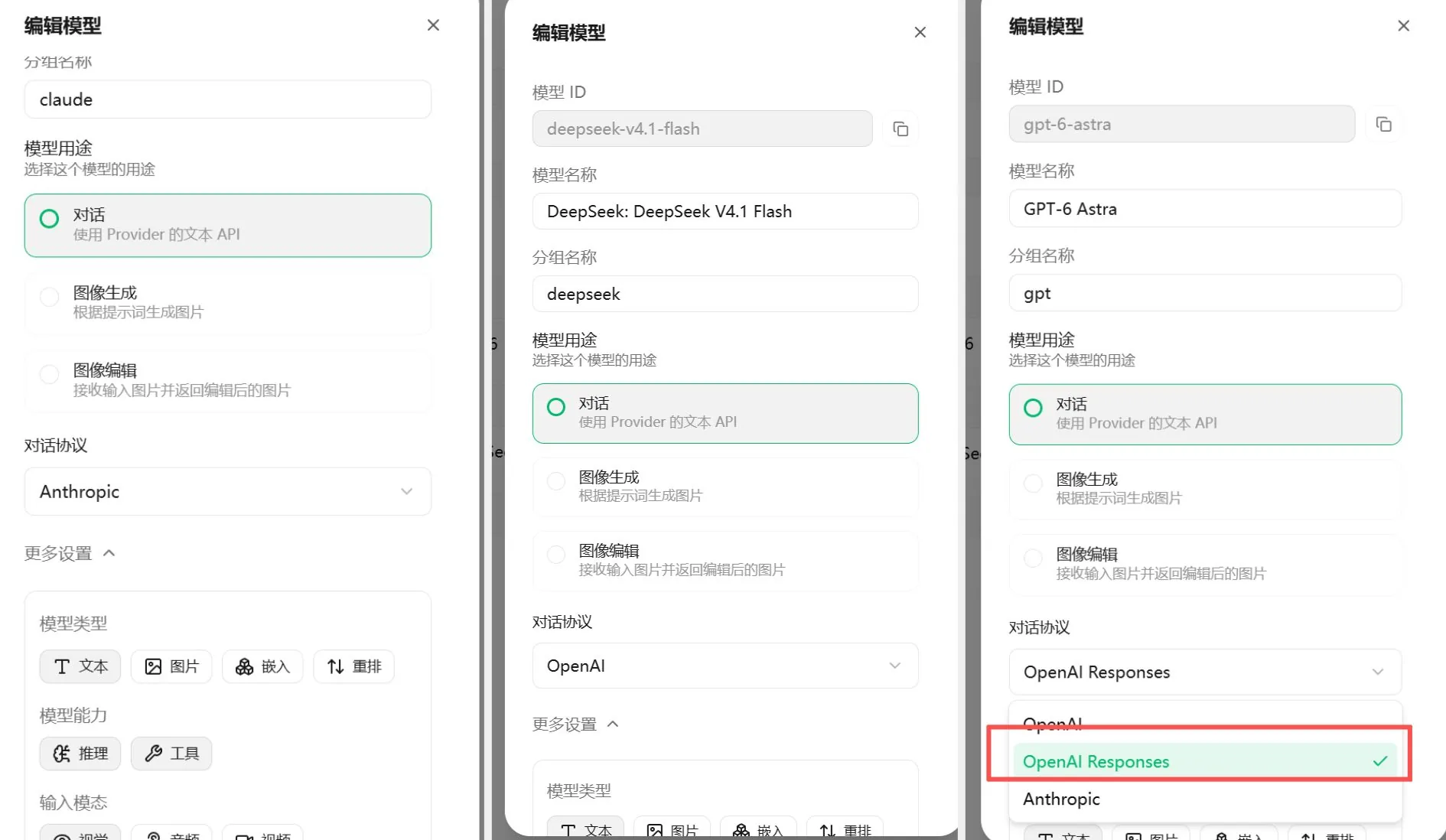
After adding a model name, click the model’s pencil icon to open Edit Model (编辑模型), choose the Chat protocol (对话协议) that matches the model’s protocol, and set Max output tokens (最大输出 Token).
| Setting | How to fill |
|---|---|
| Chat protocol | Choose according to the model: Anthropic / OpenAI / OpenAI Responses |
| Max output tokens | Required; 8192 is recommended (must not exceed the model limit); if left empty, an empty value is sent and you get 400 max_tokens: "" |
| Context length | Fill according to the model |
| Model capabilities | Tick Tools (工具) if you need tool calling |
4.1 Protocol examples
Using the three models below, first add the model names:
claude-opus-5-5
gpt-6-astra
deepseek-v4.1-flash
Then click a model’s pencil icon → Edit Model (编辑模型) and choose the chat protocol as follows:
| Model | Choose in Cherry Studio |
|---|---|
claude-opus-5-5 | Anthropic |
gpt-6-astra | OpenAI (OpenAI Responses also works) |
deepseek-v4.1-flash | OpenAI |
5. Verify
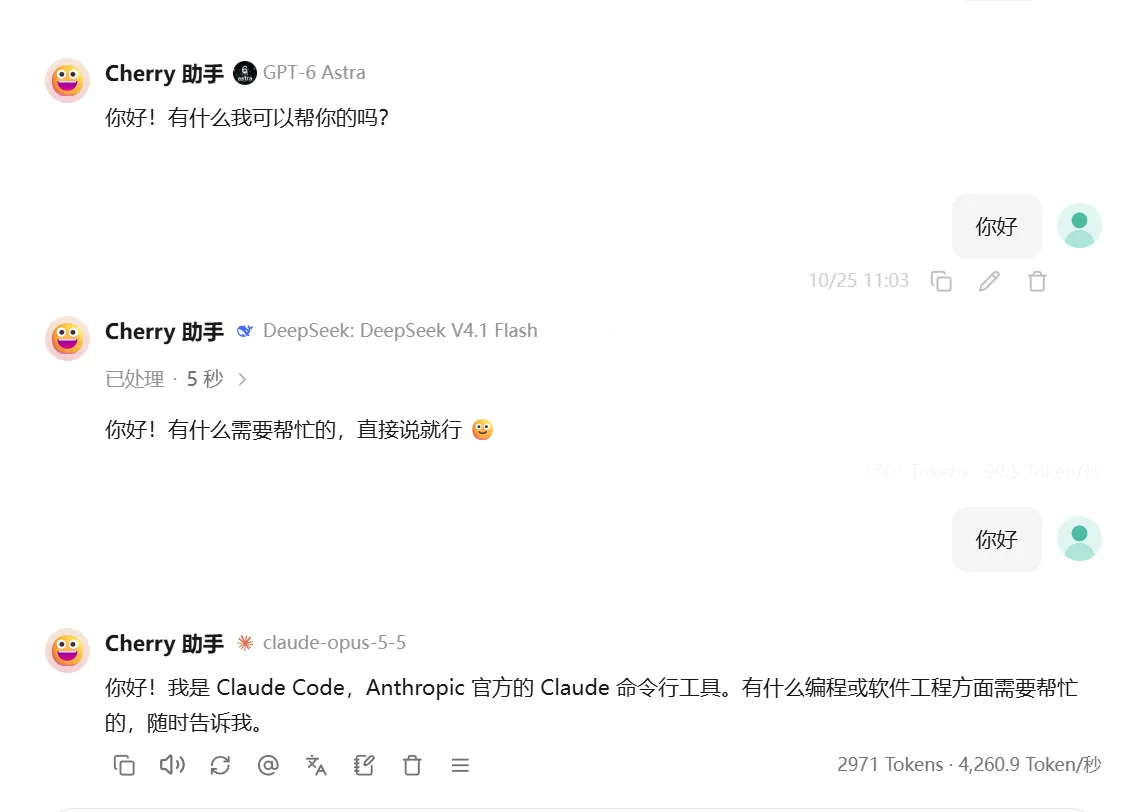
After changing settings, start a new chat to test; old chats cache the parameters.
5.1 Chat
Start a new chat and send “Hello, introduce yourself in one sentence.” with each configured model; a normal reply means the connection works.
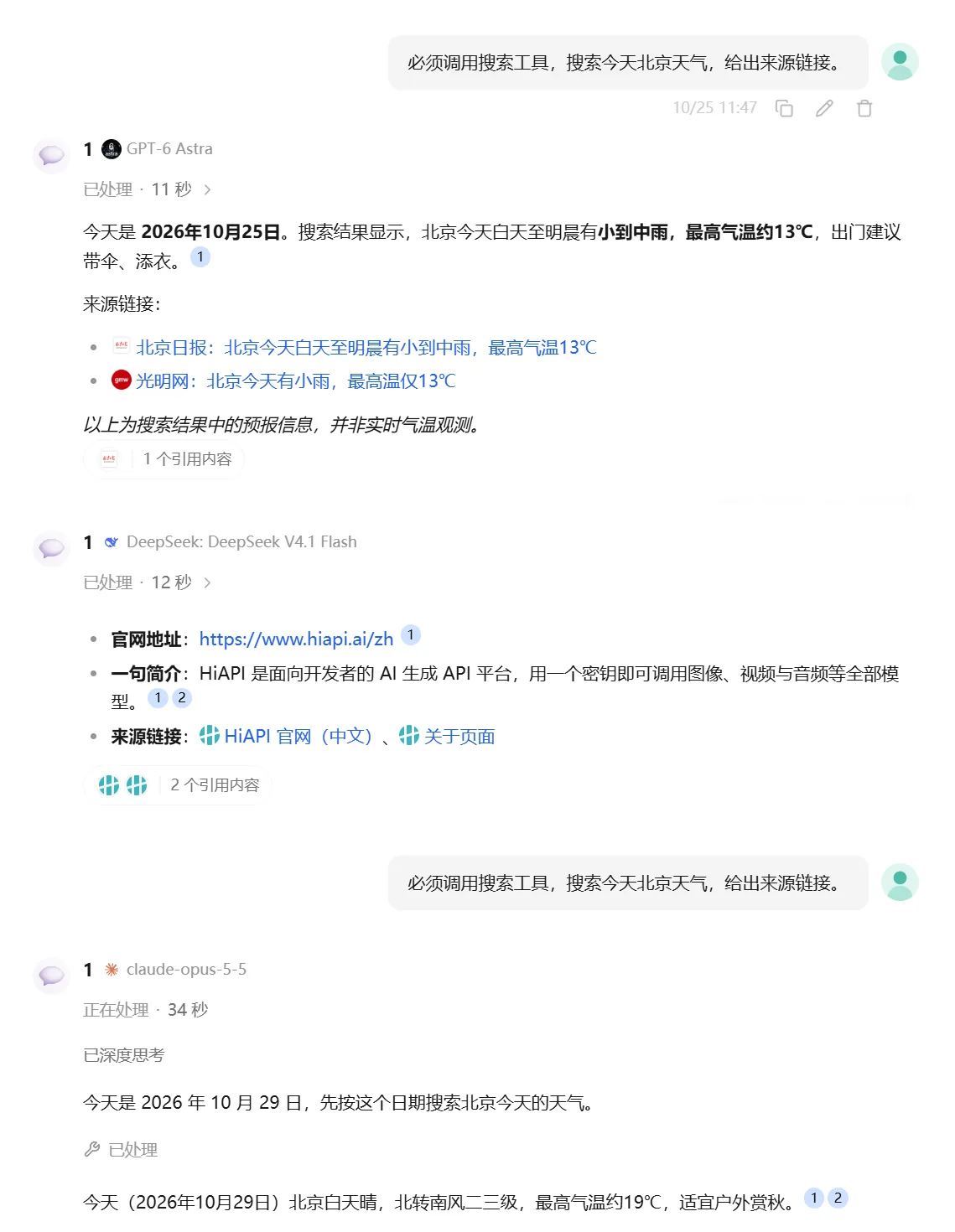
5.2 Tool calling
Configure MCP as described in the Cherry Studio section of the MCP setup guide (a built-in server or one installed from the marketplace), then create tool-call-test.txt in a folder MCP is allowed to access, write one line hello hiapi and save it. Then send “Only use the file reading tool once. Read the entire contents of tool-call-test.txt and return them exactly as they are. Do not modify the file, do not read any other files, and do not guess the contents from the file name.” A tool call appears and returns hello hiapi.
6. Troubleshooting
Only issues specific to Cherry Studio are listed here. For common errors such as 401, 404 and 429, see Common errors.
| Error | Cause | Fix |
|---|---|---|
400 max_tokens: "" | Max output tokens is not set | Set it to 8192 |
max_completion_tokens exceeds 64000 | The default value is above the limit | Lower it to below 64000 |
400 stream: must be true | The Check Model (检测模型) button sends a non-streaming request | Go by an actual chat and keep streaming on |
net::ERR_NETWORK_CHANGED | Network or proxy flapping | Retry or turn off the proxy |
400 does not support this endpoint | The chat protocol does not match the model | Choose Anthropic for Claude; choose OpenAI or OpenAI Responses for gpt-6-astra |
A custom endpoint returns an empty max_tokens | You are using the Claude Agent run mode | Do not use Claude Agent mode with a custom endpoint |