
On this page
OpenCode
Import with CC Switch or edit the config file to use DeepSeek, Claude and other models in OpenCode through HiAPI.
OpenCode is an open-source AI coding tool that runs in the terminal. You can connect it to HiAPI with a CC Switch import or by editing the config file manually; choose one of the two. The steps below use deepseek-v4.1-flash as the example; HiAPI uses the OpenAI Chat Completions protocol. This tutorial was verified on Windows 11 with OpenCode 1.19.4. Prepare a HiAPI API key before you start; if you import with CC Switch, first install a version that supports OpenCode as described in CC Switch install and one-click import.
1. Install OpenCode
On Mac / Linux, run this in a terminal:
curl -fsSL https://opencode.ai/install | bash
If you already have Node.js (see Node.js setup), you can also install with npm. On Windows, use the install script above inside WSL, or run this in a local terminal:
npm install -g opencode-ai
After installing, reopen the terminal and check the version:
opencode --version
Seeing the version number is enough.
2. Configure HiAPI
Option 1: one-click import with CC Switch
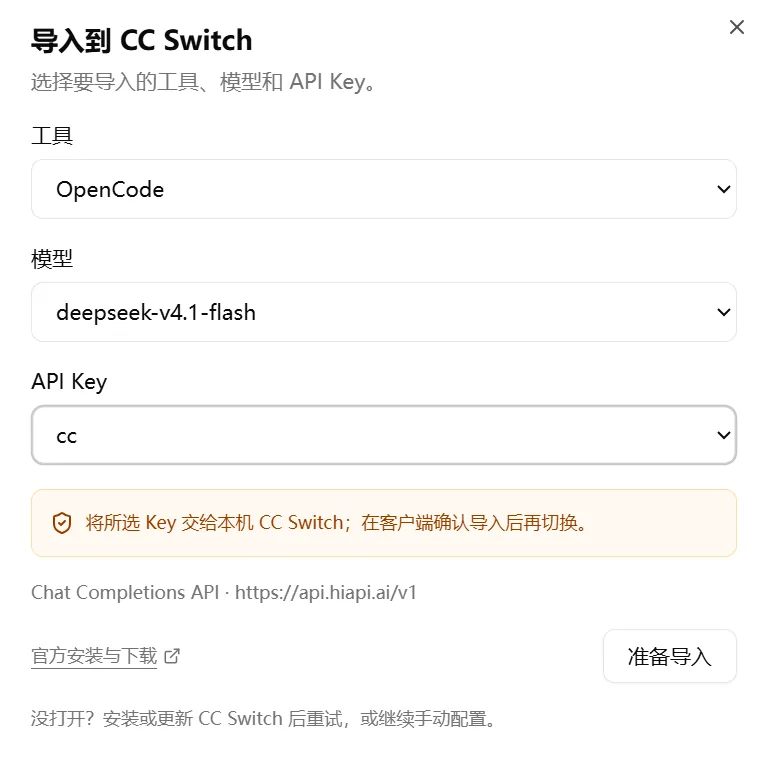
- Open the HiAPI OpenCode connect page, choose the model and HiAPI API key, and click Prepare import.
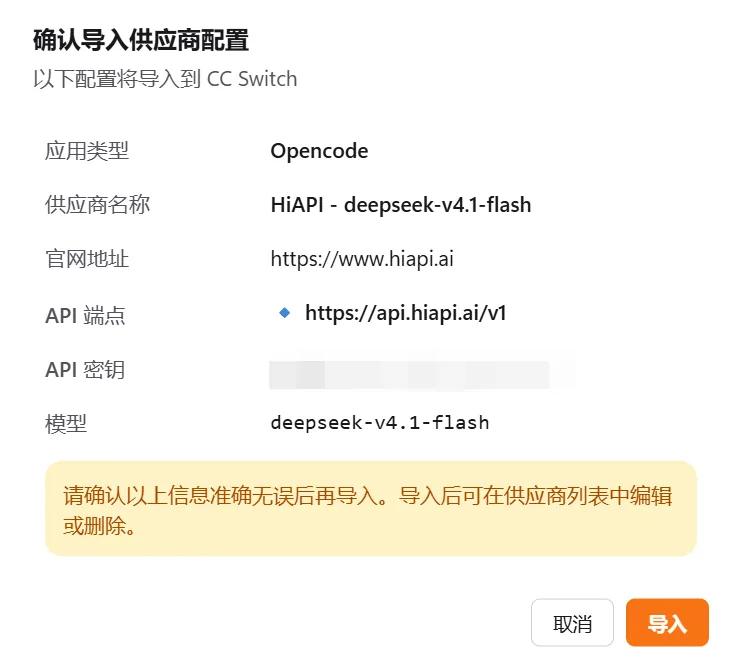
- In the “Confirm provider import” window in CC Switch, check the items below, then click Import:
| Field | Expected value |
|---|---|
| App type | OpenCode |
| API endpoint | https://api.hiapi.ai/v1 |
| Model | The same model name you chose on the connect page |
| API key | The HiAPI API key you chose, filled in and hidden |
Option 2: edit the config file manually
Open the global config file ~/.config/opencode/opencode.json and add a HiAPI provider (OpenAI Chat Completions protocol). Create the file if it doesn’t exist; if you already have other configuration, only merge the provider.hiapi and model fields below. Set the Base URL to https://api.hiapi.ai/v1, without adding /chat/completions.
{
  "$schema": "https://opencode.ai/config.json",
  "provider": {
    "hiapi": {
      "npm": "@ai-sdk/openai-compatible",
      "name": "HiAPI",
      "options": {
        "baseURL": "https://api.hiapi.ai/v1",
        "apiKey": "{env:HIAPI_API_KEY}"
      },
      "models": {
        "deepseek-v4.1-flash": {
          "name": "DeepSeek V4.1 Flash"
        },
        "claude-opus-5-5": {
          "name": "Claude Opus 5.5"
        }
      }
    }
  },
  "model": "hiapi/deepseek-v4.1-flash"
}
{env:HIAPI_API_KEY} is how OpenCode reads an environment variable; leave it as is. Then set that variable in the terminal, replacing YOUR_HIAPI_API_KEY with your HiAPI API key and keeping the quotes:
export HIAPI_API_KEY="YOUR_HIAPI_API_KEY"
$env:HIAPI_API_KEY = "YOUR_HIAPI_API_KEY"
The environment variable only applies to the current terminal, so start OpenCode in the same terminal after setting it; if you reopen the terminal, set it again, or add it to your shell startup file (such as ~/.zshrc) to make it permanent.
The example sets hiapi/deepseek-v4.1-flash as the default model. To switch models, change both the model definition under provider.hiapi.models and the model field.
3. Verify
Go to your project directory and start OpenCode in the terminal where you set the environment variable:
opencode
Type /models and choose a model under the HiAPI provider, for example deepseek-v4.1-flash. Send “Hello, introduce yourself in one sentence.” A normal reply means the connection works.

The provider name may differ between the two import methods; just check the currently selected provider, model name and Base URL. You can also confirm in Request logs in the HiAPI console that requests go through HiAPI.
4. Troubleshooting
Only issues specific to OpenCode are listed here. For common errors such as 401, 404 and 429, see Common errors.
| Error | Cause | Fix |
|---|---|---|
No HiAPI model in /models | The provider configuration was not loaded, or the models field doesn’t contain this model | Check the syntax and model definitions in opencode.json; if you used CC Switch, confirm the import worked, then restart OpenCode |
| CC Switch does not open after clicking Prepare import | CC Switch is not installed, or the current version doesn’t support this import flow | Install or update CC Switch and retry, or use the manual configuration instead |
| Requests still go to the original provider | The current session has not switched to the HiAPI model | Use /models to choose a model under the HiAPI provider, then send a test message |
| It says the API key is missing | The terminal starting OpenCode did not read the environment variable | Confirm the variable name is HIAPI_API_KEY and start OpenCode in the same terminal where you set it |