On this page
Node.js setup
Install Node.js and npm. Claude Code, Codex CLI, Pi, DeepSeek Harness and other command-line tools need it first.
Claude Code, Codex CLI, Pi and DeepSeek Harness are installed with npm, and OpenCode can be too, so install Node.js first. The steps below use a Mac; Windows is covered separately. Skip this page if you already have LTS 22.19 or later.
1. Download Node.js
- Open the Node.js download page and choose LTS, 22.19 or later.
- On a Mac, click the Apple menu → About This Mac to check the chip: M series uses ARM64, Intel uses x64. On the download page, find Or get a prebuilt Node.js, choose macOS, and click macOS Installer (.pkg). Do not choose Source Code.
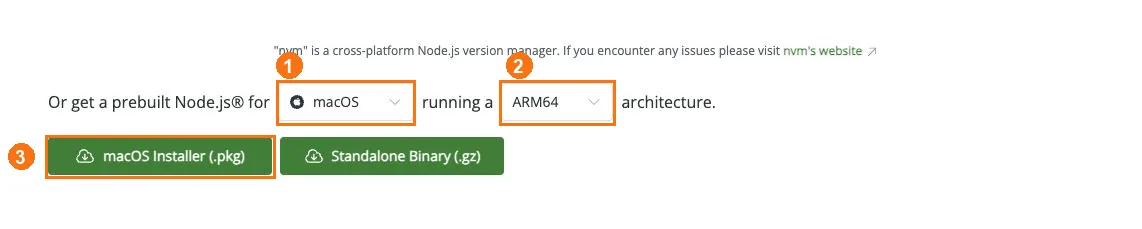
① Choose macOS; ② choose ARM64 or x64 for your chip; ③ click macOS Installer (.pkg).
2. Install Node.js
In Finder → Downloads, double-click the .pkg, click Continue → Install, then Close.
Windows: on the download page, choose Windows and your architecture, download the .msi and follow the installer.
3. Check the install
On a Mac, press ⌘ Space, search for Terminal and open it (close any terminal that was open before the install and reopen it); on Windows, open a new PowerShell. Run each line:
node --version
npm --version
You should see a version number for both Node.js and npm.
In Windows PowerShell, write the npm / npx commands in the tutorials that follow as npm.cmd / npx.cmd; you do not need to change the execution policy.
Then go back to the guide for the tool you are setting up, for example Codex CLI, Pi or DeepSeek Harness.