
On this page
Pi
Add HiAPI in models.json to use DeepSeek in Pi through HiAPI.
Pi can connect to HiAPI through models.json. The steps below use deepseek-v4.1-flash as the example; this tutorial was verified on Mac with Pi 1.3.0. On Windows, install Git Bash first (step 3).
1. Install Node.js
Install LTS 22.19 or later as described in Node.js setup, and skip it if you already have it. Then run the two commands below in a terminal; seeing version numbers is enough:
node --version
npm --version
In Windows PowerShell, write the npm / npx commands later in this guide as npm.cmd / npx.cmd.
2. Install Pi
Run each line in a terminal:
npm install -g --ignore-scripts @earendil-works/pi-coding-agent@1.3.0
pi --version
Seeing 1.3.0 is enough. On Windows PowerShell, use npm.cmd install -g --ignore-scripts @earendil-works/pi-coding-agent@1.3.0 and pi.cmd --version.
3. Install Git Bash first on Windows (skip on Mac)
- Open the Git for Windows download page, download the installer for your architecture and run it. Keep the install directory as
C:\Program Files\Git, choose the recommended PATH option Git from the command line and also from 3rd-party software, and click Install → Finish. Skip this if you already have Git Bash. - Close the old PowerShell window, reopen it and confirm the Bash path:
& 'C:\Program Files\Git\bin\bash.exe' --version
Seeing a GNU bash version is enough. If you installed elsewhere, find the actual bin\bash.exe in File Explorer and replace the path in the command.
- Pi usually finds Git Bash automatically. Only if it still says Bash cannot be found after starting should you open
%USERPROFILE%\.pi\agent\settings.jsonin Notepad (back up an existing file first), add or update theshellPathfield and keep the other fields:
{
  "shellPath": "C:\\Program Files\\Git\\bin\\bash.exe"
}
Use your actual install path and write backslashes twice. In Save as, choose “All files”, UTF-8, file name settings.json, then reopen Pi after saving.
4. Get a HiAPI API key
Prepare a key as described in Get an API Key, click the copy icon next to the key, and copy the full HiAPI API key; you will need it in step 7.
5. Open the model config file
On a Mac, run each line in a terminal (an existing models.json is backed up automatically first):
mkdir -p "$HOME/.pi/agent"
if [ -f "$HOME/.pi/agent/models.json" ]; then cp "$HOME/.pi/agent/models.json" "$HOME/.pi/agent/models.json.bak-$(date +%Y%m%d-%H%M%S)"; fi
nano "$HOME/.pi/agent/models.json"
Windows PowerShell:
New-Item -ItemType Directory -Force "$env:USERPROFILE\.pi\agent"
if (Test-Path "$env:USERPROFILE\.pi\agent\models.json") { Copy-Item "$env:USERPROFILE\.pi\agent\models.json" "$env:USERPROFILE\.pi\agent\models.json.bak-$(Get-Date -Format yyyyMMdd-HHmmss)" }
notepad "$env:USERPROFILE\.pi\agent\models.json"
If you have set PI_CODING_AGENT_DIR, edit models.json in that directory; if not, use the default directory above.
6. Add the DeepSeek configuration and save
- Write the content below into models.json (do not run it line by line in the terminal). For a new file, paste all of it; if the file exists, only merge
hiapi-deepseekinto the existingproviders, keep other providers, and leave exactly one top-levelproviders.
{
  "providers": {
    "hiapi-deepseek": {
      "baseUrl": "https://api.hiapi.ai/v1",
      "api": "openai-completions",
      "apiKey": "${HIAPI_API_KEY}",
      "models": [
        {
          "id": "deepseek-v4.1-flash",
          "name": "DeepSeek V4.1 Flash (HiAPI)",
          "api": "openai-completions",
          "reasoning": true,
          "input": [
            "text"
          ],
          "contextWindow": 1000000,
          "maxTokens": 384000,
          "thinkingLevelMap": {
            "minimal": null,
            "low": "low",
            "medium": null,
            "high": "high",
            "xhigh": null,
            "max": "max"
          },
          "compat": {
            "thinkingFormat": "deepseek",
            "maxTokensField": "max_tokens",
            "supportsReasoningEffort": true
          }
        }
      ]
    }
  }
}
- In
apiKey,${HIAPI_API_KEY}is how Pi reads an environment variable; leave it as is and set the key in the next step. Use double quotes and commas in the JSON, no trailing comma after the last item, and no comments.
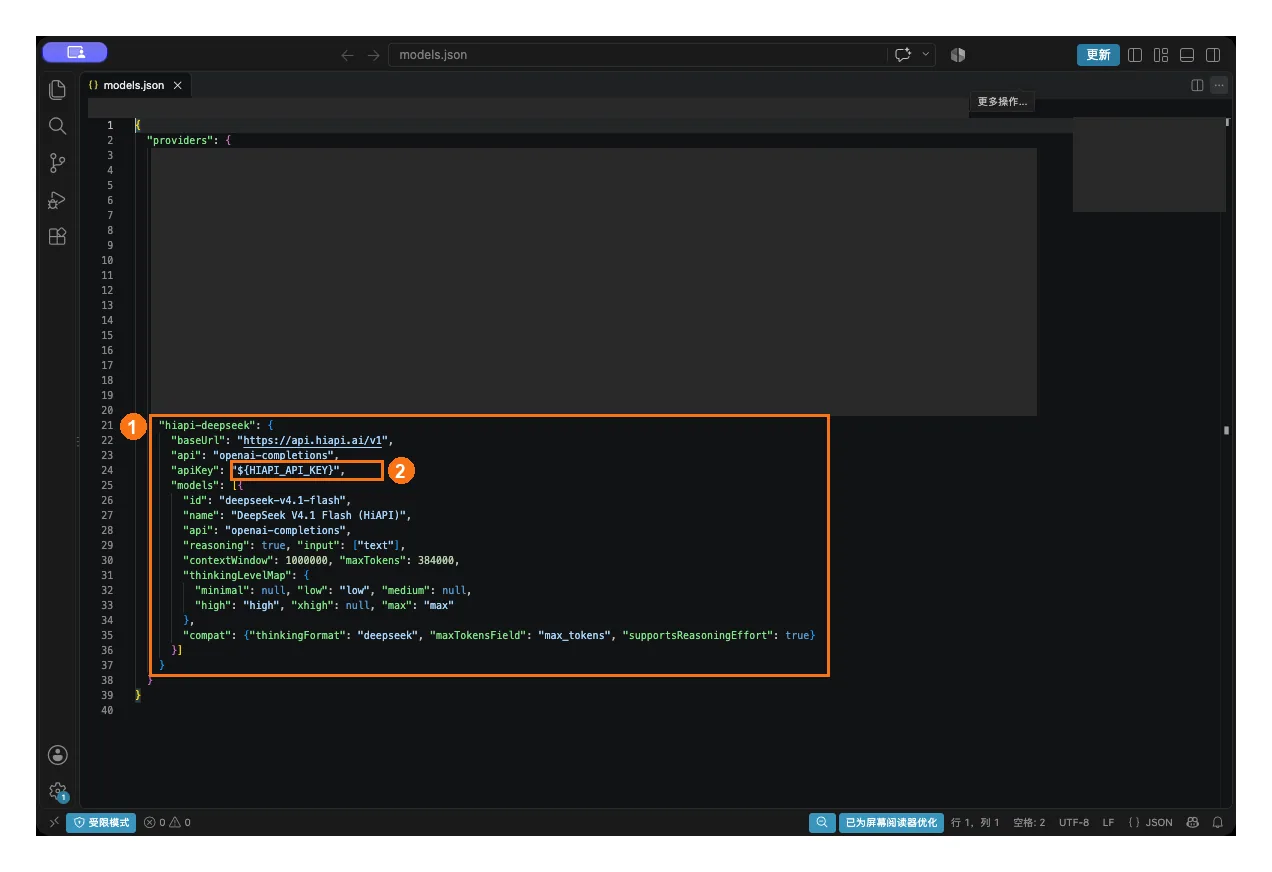
① Add the full hiapi-deepseek object under providers; ② keep the environment variable placeholder in apiKey. Other providers already in the screenshot can stay.
- Save: in Mac nano press Ctrl+O → Enter → Ctrl+X; in Windows Notepad choose Save as, “All files”, UTF-8, and name the file exactly
models.json, not.json.txt.
7. Set the API key and start Pi
- On a Mac, run this in the same terminal where you will start Pi (replace
YOUR_HIAPI_API_KEYwith your HiAPI API key and keep the quotes):
export HIAPI_API_KEY="YOUR_HIAPI_API_KEY"
- Go to your project folder and start Pi, or create an empty directory first:
mkdir -p "$HOME/hiapi-project"
cd "$HOME/hiapi-project"
pi
Windows PowerShell:
$env:HIAPI_API_KEY="YOUR_HIAPI_API_KEY"
New-Item -ItemType Directory -Force "$env:USERPROFILE\hiapi-project"
Set-Location "$env:USERPROFILE\hiapi-project"
pi.cmd
- The environment variable only applies to the current terminal; set it again after closing the terminal. With HiAPI you do not need to run
/loginin Pi.
8. Choose a model and verify
- In the Pi input box, type
/modeland press Enter, search forhiapi, use the arrow keys to select DeepSeek V4.1 Flash (HiAPI) (providerhiapi-deepseek), and press Enter.
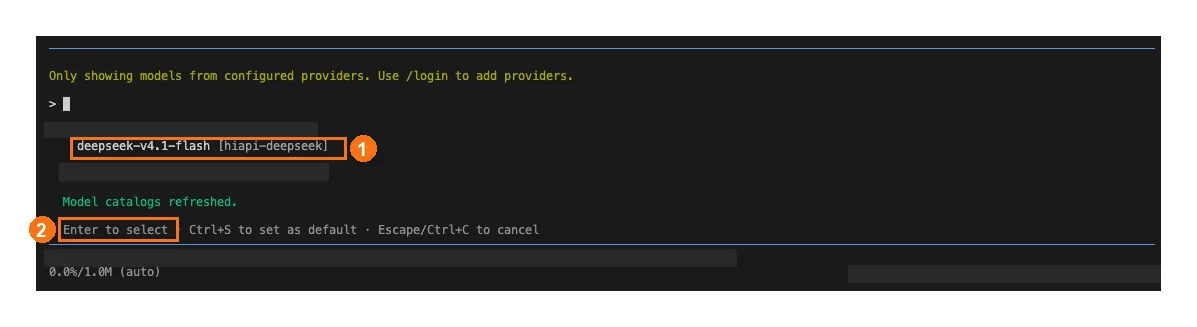
① Move to the DeepSeek row with the arrow keys; ② press Enter to select it.
- Type
/thinkingand press Enter, choose one of off / low / high / max and press Enter; for a first try, choose low.
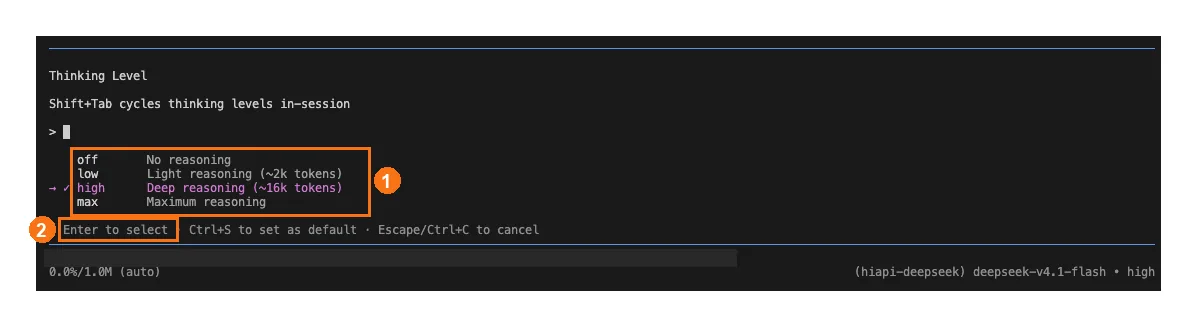
① Choose one of off, low, high, max; ② press Enter to apply it to the current session.
-
Enter only applies to the current session; to make this level the default for future sessions, press Ctrl+S as the menu suggests.
-
Send “Hello, introduce yourself in one sentence.” A normal reply means the connection works. If Request logs in the HiAPI console shows this request, it is going through HiAPI.
Troubleshooting
Only issues specific to Pi are listed here. For common errors such as 401, 404 and 429, see Common errors.
| Symptom | Cause | Fix |
|---|---|---|
hiapi cannot be found in /model | models.json has a format error, or is not in the directory Pi reads | Check the quotes and commas in the JSON; if you set PI_CODING_AGENT_DIR, edit models.json in that directory |
| 401 | The terminal starting Pi has not set HIAPI_API_KEY | Set the environment variable in the same terminal before starting; set it again after closing the terminal |
| Windows says Bash cannot be found | Pi did not find Git Bash | Install Git Bash as in step 3; if it still can’t find it, set shellPath |