
On this page
Claude Desktop
Fill in HiAPI under the third-party inference settings in developer mode to use Claude models in the Claude desktop app through HiAPI.
Developer mode in the Claude desktop app has a third-party inference setting (Configure third-party inference). Fill in the HiAPI address and key to use Claude models through HiAPI. The steps below use claude-opus-5-5 as the example; this tutorial was verified on Windows 11 with Claude Desktop 4.29.0. Your client version needs to include this settings entry, and you need a HiAPI API key ready.
1. Prepare the client
Open the Claude desktop app and stay on the sign-in page while you finish the configuration below.
If you are already signed in to a Claude account, sign out first, then fully quit and reopen the client and confirm it shows the sign-in page. Do not sign in before configuring third-party inference.
2. Enable developer mode
Click Help → Troubleshooting → Enable developer mode. On Windows, Help is in the menu at the top left of the window; on Mac, it is in the menu bar at the top of the screen.
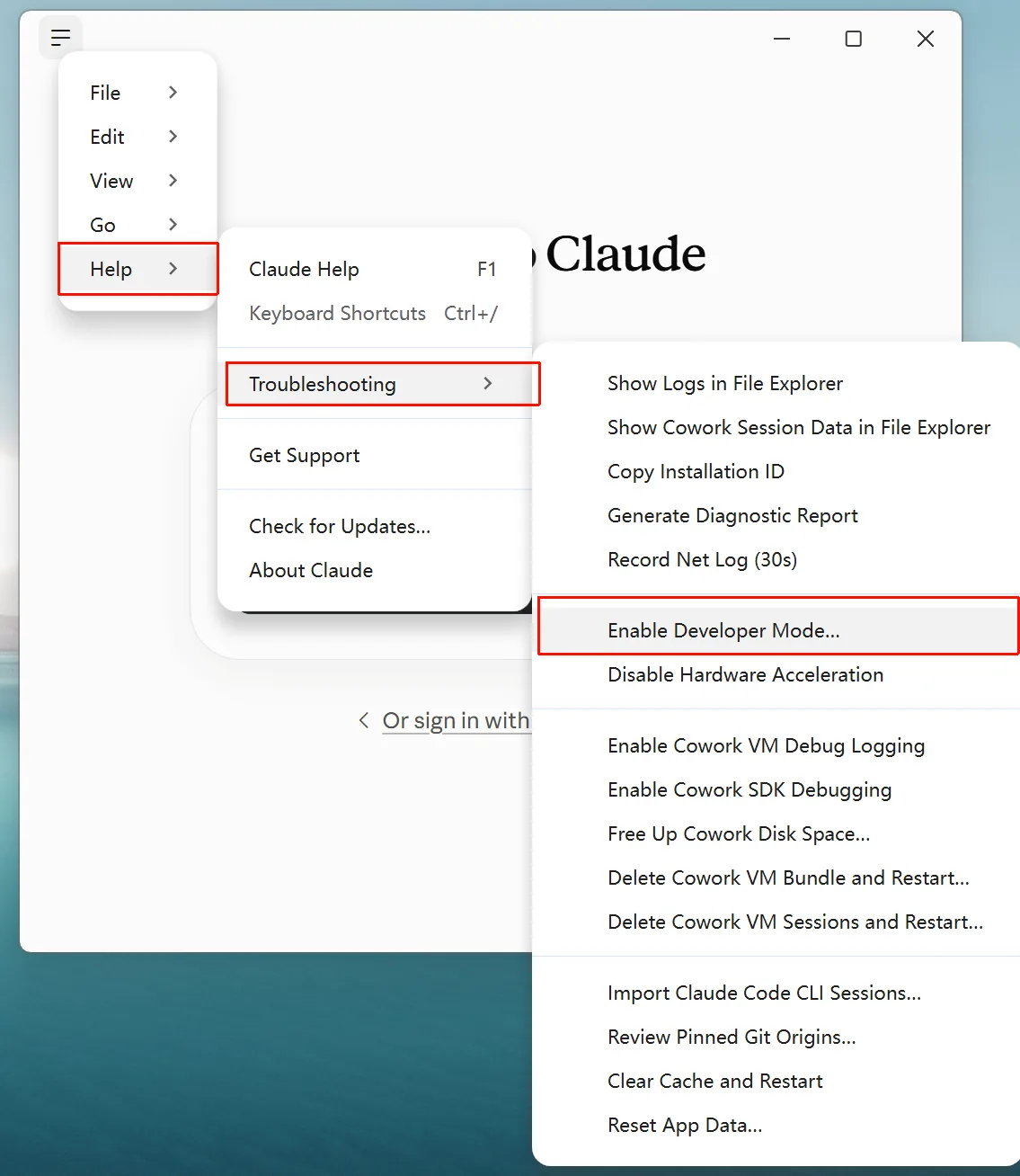
After enabling it, a Developer menu appears in the menu bar. If it does not appear, restart the client and check again.
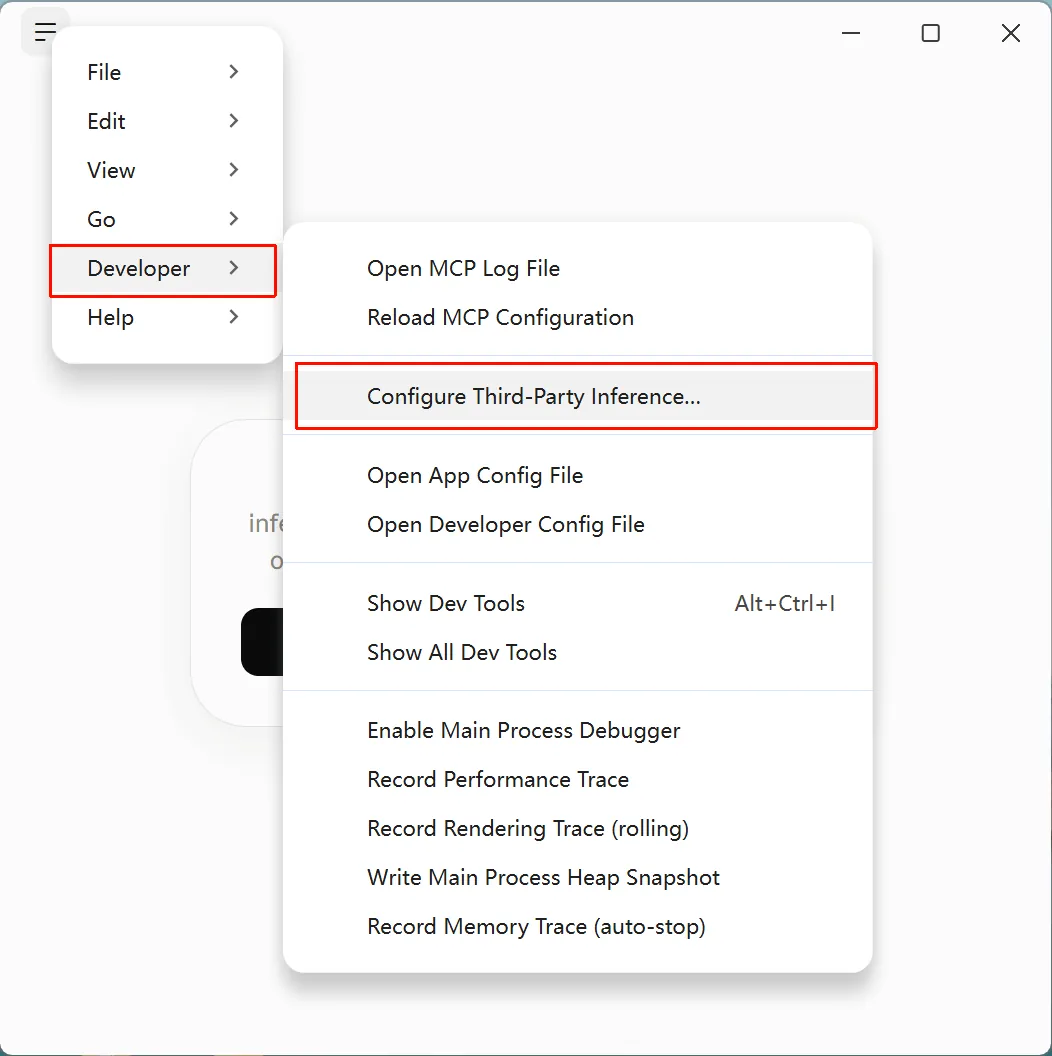
The third-party inference settings are in the Developer menu: enable developer mode first, then open Configure third-party inference.
3. Configure third-party inference
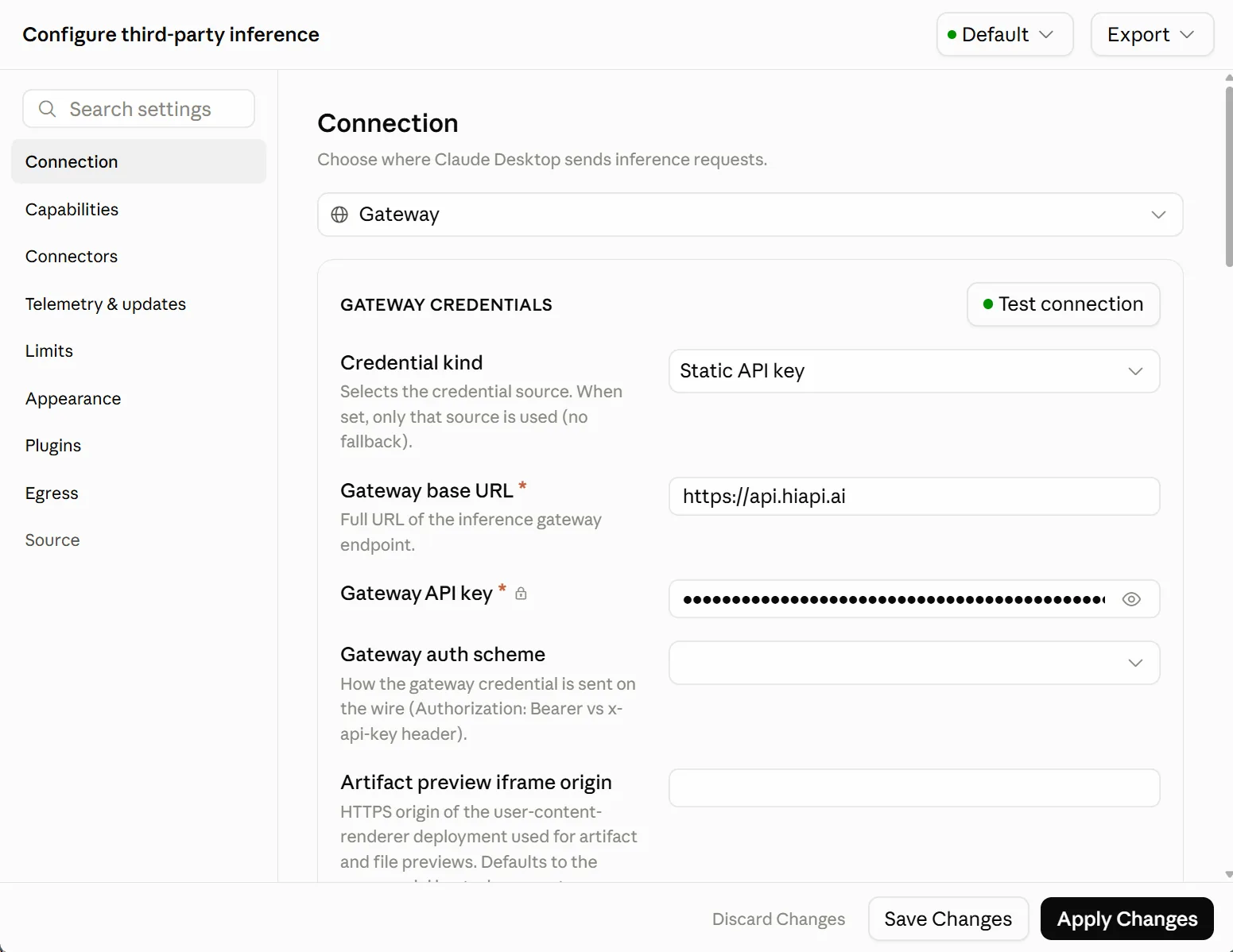
Open Developer → Configure third-party inference, choose Connection on the left, and fill in the table below:
| Field | Value |
|---|---|
| Connection | Gateway |
| Credential kind | Static API key |
| Gateway base URL | https://api.hiapi.ai (without /v1; the client appends the path itself) |
| Gateway API key | your HiAPI API key |
| Gateway auth scheme | Leave empty to use the client’s default Authorization: Bearer |
| Artifact preview iframe origin | Leave empty |
If the Connection page has a Model list field, add the model you want to use, for example claude-opus-5-5; if it doesn’t, run the connection test directly.
Save and apply the configuration
- Click Test connection and wait until the client shows the connection test passed.
- Click Apply Changes to apply the configuration.
- Fully quit the Claude desktop app, then reopen it.
The connection test only checks the gateway configuration. After applying, still confirm with an actual chat that the model can be called.
4. Verify
Once the configuration takes effect, the client opens the chat interface. Choose the configured model, for example claude-opus-5-5, and send “Hello, introduce yourself in one sentence.” A normal reply means the connection works.

You can also check Request logs in the HiAPI console to confirm the request goes through HiAPI. If the sign-in page is still showing or there is no reply, work through the troubleshooting section below.
To connect external tools or data sources, use Connectors (MCP); see the Claude Desktop section of the MCP setup guide.
5. Troubleshooting
Only issues specific to Claude Desktop are listed here. For common errors such as 401, 404 and 429, see Common errors.
| Error | Cause | Fix |
|---|---|---|
| Connection test failed | Wrong Gateway base URL, an invalid HiAPI API key, or a network problem | Confirm the Gateway base URL is https://api.hiapi.ai without /v1; check the key and the network |
| Still shows the sign-in page after restarting | The third-party inference configuration was not applied, or the client still keeps the original sign-in state | Confirm you signed out of the original account and clicked Apply Changes, then fully quit and reopen the client |
| No Developer menu in the menu bar | Developer mode is not enabled, or this version does not have the feature | Check developer mode under Help → Troubleshooting, and confirm your client version supports third-party inference |
| 404 / model not available | The model name is wrong, or the Gateway base URL has an extra path | Check the model name in the text model list; the Gateway base URL should be https://api.hiapi.ai |