
On this page
Hermes
Add a HiAPI custom endpoint with the built-in Hermes setup wizard to use Claude, GPT, DeepSeek and other text models in Hermes through HiAPI.
Hermes is an open-source agent from Nous Research. Its built-in hermes model wizard can add HiAPI as a custom endpoint, so you don’t need a third-party management tool. The steps below use claude-opus-5-5 as the example; this tutorial was verified on Windows with Hermes 0.22.5.
1. Install Hermes
1.1 Requirements
| Item | Requirement |
|---|---|
| OS | Windows 10/11, macOS, Linux (native Windows support needs v0.14+; use WSL2 on older versions) |
| Git | Installed |
| Linux / macOS | curl; Linux also needs xz-utils |
| Hardware | 2 cores and 8 GB or more recommended |
| Context | Hermes requires a model context of at least 64K tokens |
1.2 Windows (PowerShell)
Skip the setup wizard and only configure the model after installing:
& ([scriptblock]::Create((irm https://hermes-agent.nousresearch.com/install.ps1))) -SkipSetup
Standard install (opens the setup wizard):
iex(irm https://hermes-agent.nousresearch.com/install.ps1)
1.3 macOS / Linux
curl -fsSL https://hermes-agent.nousresearch.com/install.sh | bash -s -- --skip-setup
1.4 Verify the install
Reopen the terminal and run:
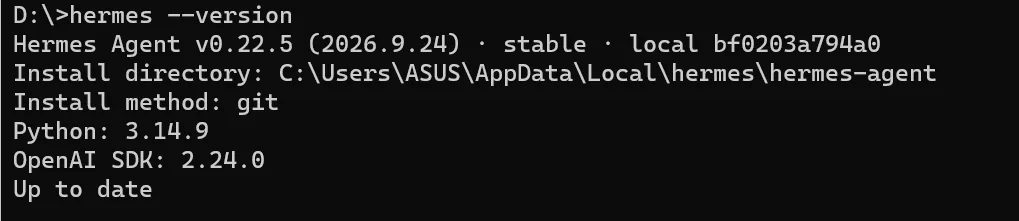
hermes --version
Seeing the version number is enough; continue once there is output.
1.5 Other installation methods
| Method | Notes |
|---|---|
| Docker | Image nousresearch/hermes-agent |
| Desktop installer | Provided officially; download for your system |
| From source | Python 3.10+ |
The install script and version requirements follow the official Hermes installation docs.
2. Configure the HiAPI endpoint
Hermes has two model-related commands with different purposes; don’t mix them up:
| Command | Where to run it | What it does |
|---|---|---|
hermes model | Terminal (outside a session) | Add a new provider, enter an API key, configure a custom endpoint |
/model | Inside a session | Only switch between already configured models; cannot add new ones |
To add HiAPI, use hermes model, so exit the session first (Ctrl+C or /quit).
2.1 Run the setup wizard
hermes model
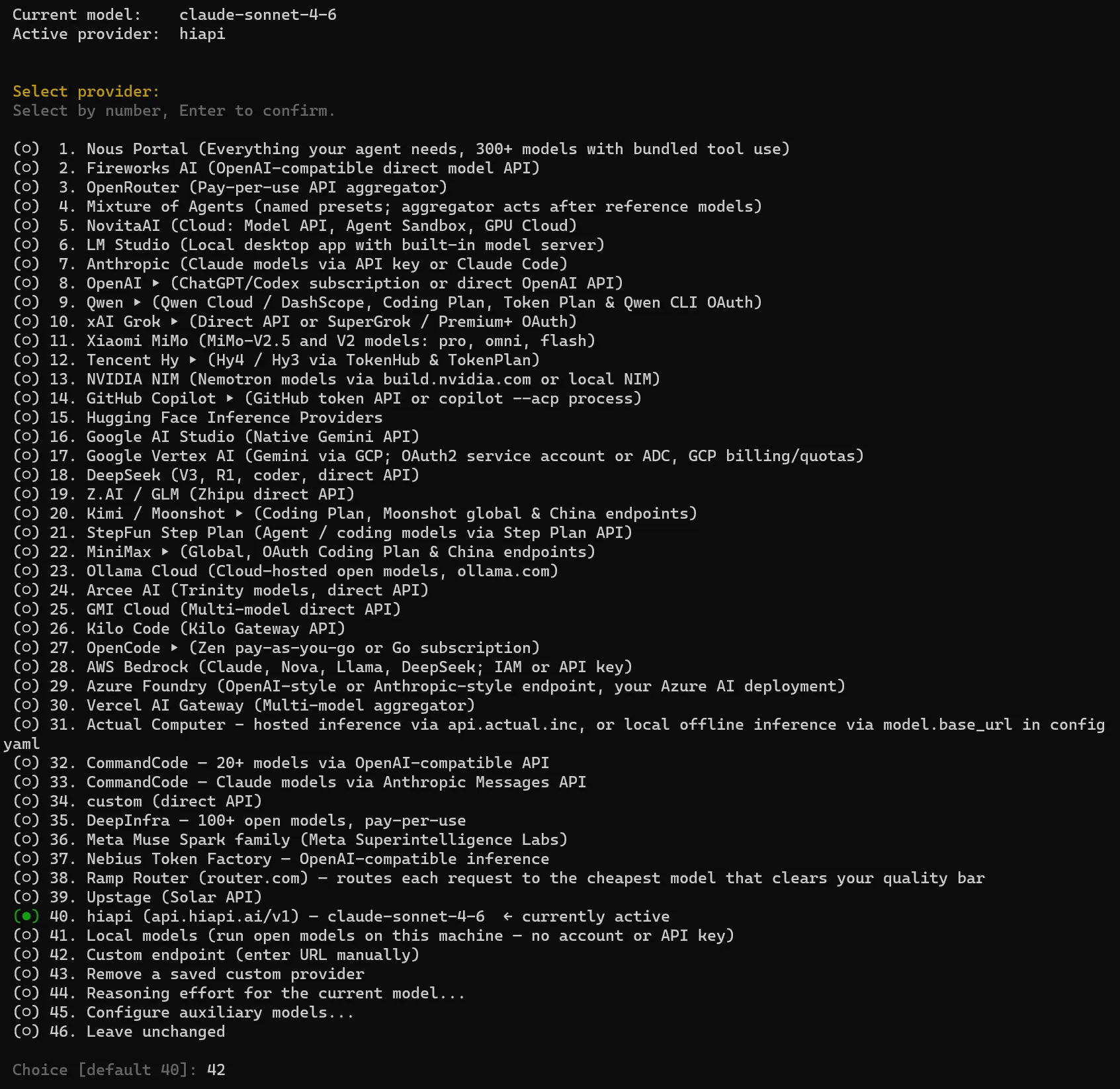
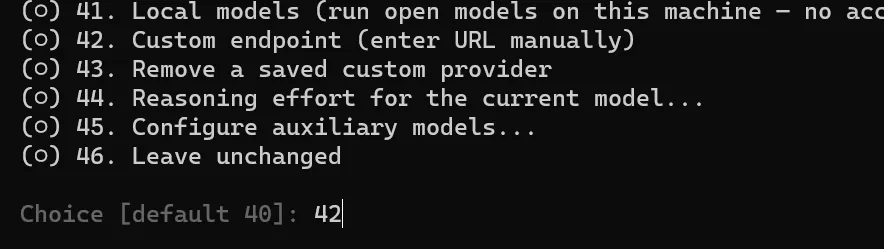
Choose Custom endpoint (self-hosted / VLLM / etc.) (some versions show Custom endpoint (enter URL manually)).
2.2 Fill in each prompt
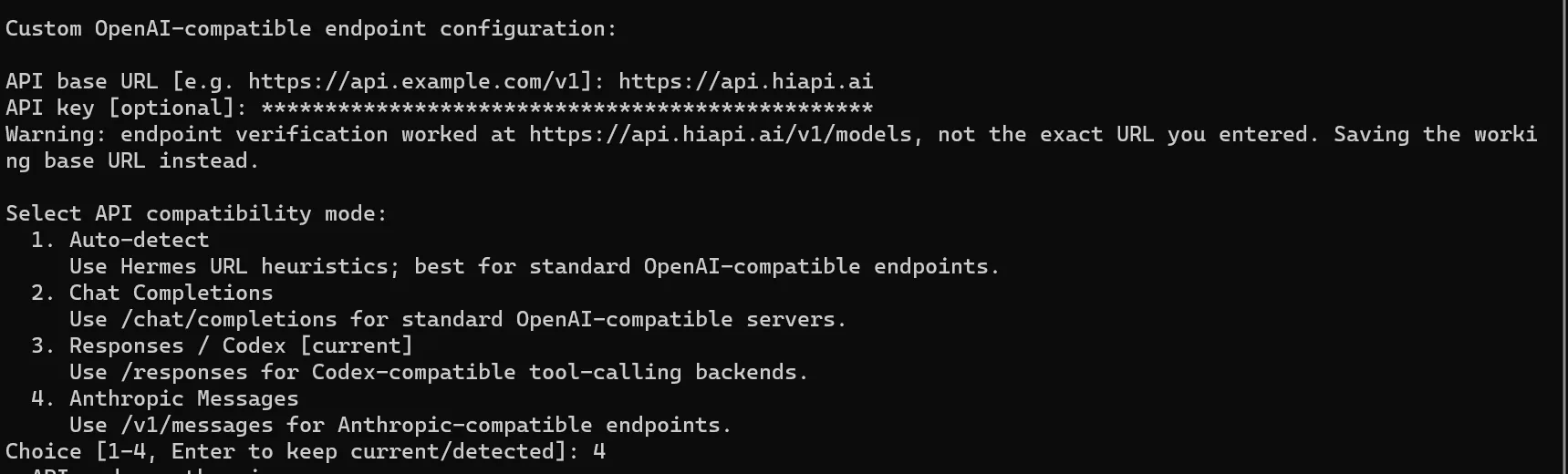
For Claude models, choose Anthropic Messages as the API compatibility mode. With claude-opus-5-5 as the example:
| Prompt | Value |
|---|---|
| API base URL | https://api.hiapi.ai |
| API key | your HiAPI API key |
| API compatibility mode | Anthropic Messages |
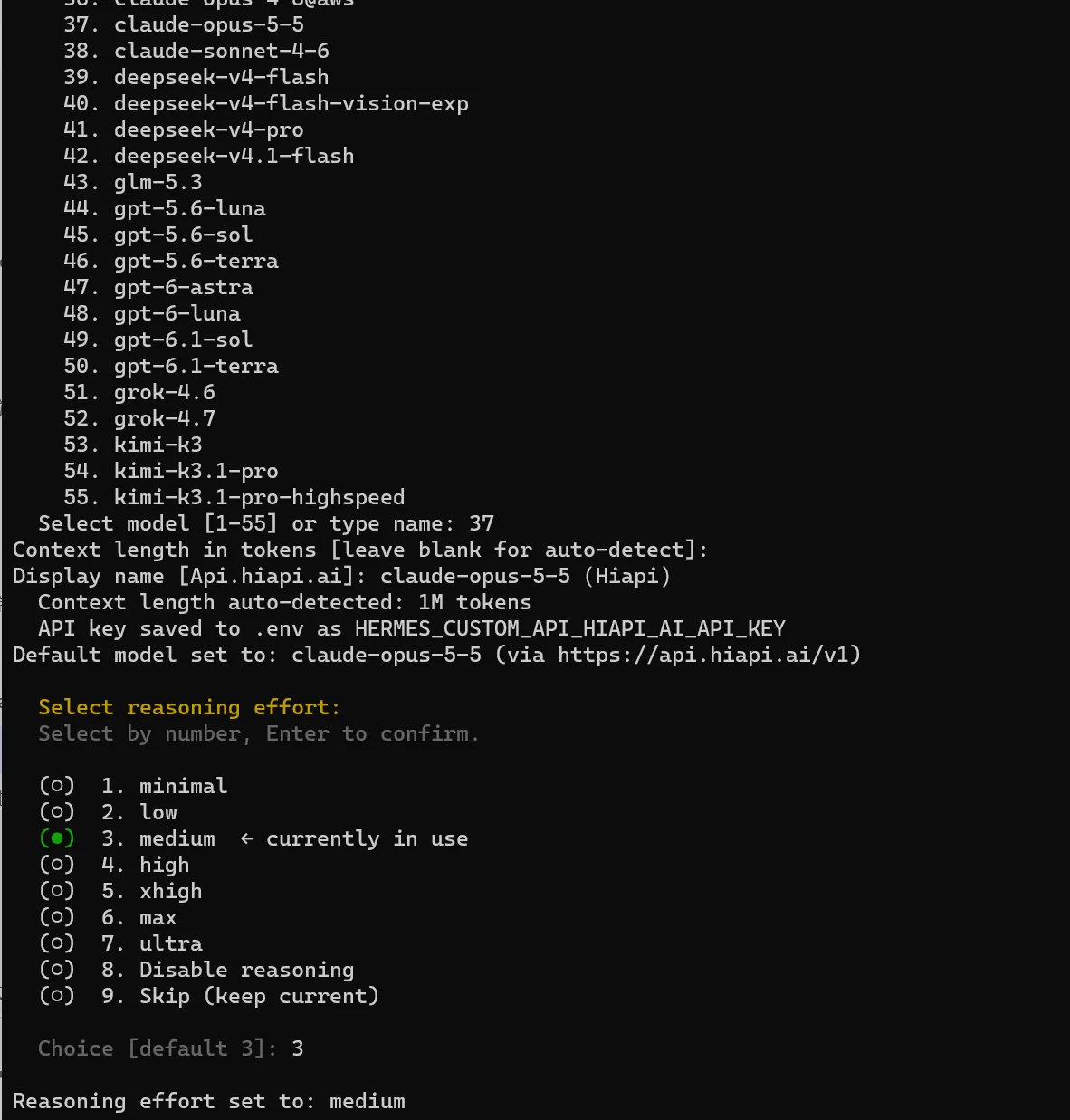
| Model name | claude-opus-5-5 (pick it from the list or type it directly) |
| Context length | Press Enter; it is detected automatically |
| Display name | A name you’ll recognize, for example HiAPI |
| Reasoning effort (if it appears) | Press Enter to keep the default |
In Anthropic Messages mode, set the API base URL to the root address https://api.hiapi.ai without /v1; Hermes appends /v1/messages itself. The HiAPI API key is hidden or shown as asterisks while you type it; paste it and press Enter.
2.3 Connect GPT, DeepSeek and other models
For GPT, DeepSeek and other models, fill the other items as in the table above, change only the two below, and replace Model name with the matching model name. Note that the address here includes /v1.
| Prompt | Value |
|---|---|
| API base URL | https://api.hiapi.ai/v1 |
| API compatibility mode | Chat Completions |
The combinations tested for this tutorial are: Anthropic Messages for Claude, Chat Completions for GPT and DeepSeek. If a model does not support the chosen protocol, you get a 400.
2.4 Switch to another model
To switch models under the same endpoint, type this directly in a session:
/model custom:<model-id>
Or run hermes model again to change the default model. When switching to another model, find the model name in the text model list and confirm its context is at least 64K. More options for custom endpoints are in the Hermes custom endpoint docs.
3. Manual configuration (optional)
The manual configuration below works for GPT, DeepSeek and other models that use Chat Completions; for Claude, use the hermes model wizard above. If you can’t use the wizard, edit ~/.hermes/config.yaml directly (base_url must include /v1):
model:
  default: <model-id>
  provider: custom
  base_url: https://api.hiapi.ai/v1
  api_key: YOUR_HIAPI_API_KEY
You can also use an environment variable instead of a plaintext key; key_env is how Hermes reads an environment variable, so leave it as is:
model:
  default: <model-id>
  provider: custom
  base_url: https://api.hiapi.ai/v1
  key_env: HIAPI_API_KEY
Then write this in ~/.hermes/.env:
HIAPI_API_KEY=YOUR_HIAPI_API_KEY
Replace YOUR_HIAPI_API_KEY with your HiAPI API key. After changing the configuration, start a new session with /new or restart Hermes before testing.
4. Verify
4.1 Chat
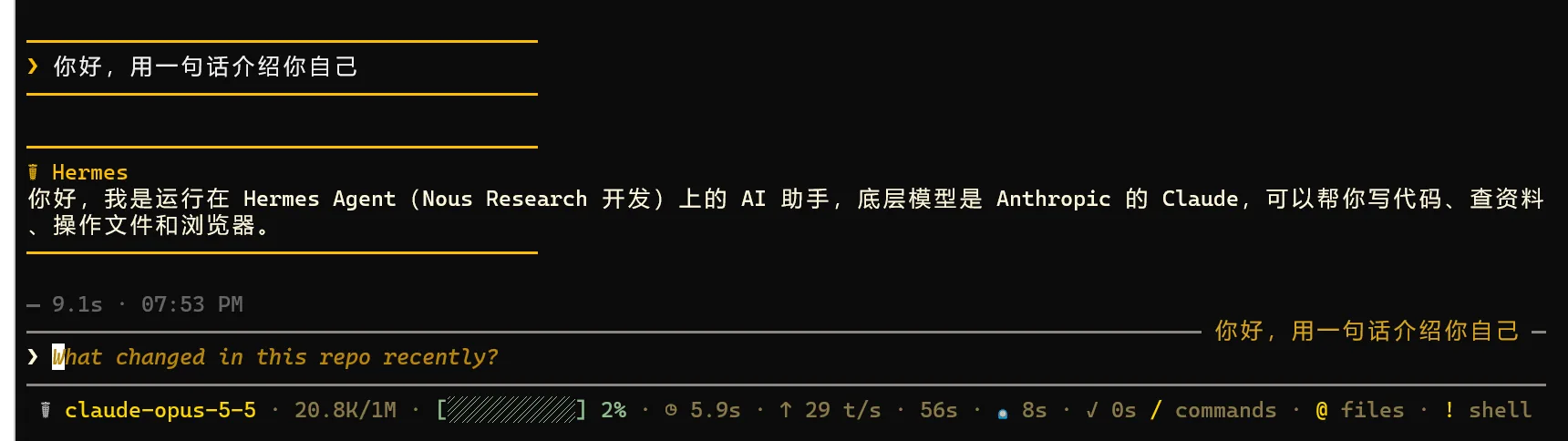
Open Hermes, confirm it uses the HiAPI provider, and send “Hello, introduce yourself in one sentence.” A normal reply means the connection works.
4.2 Tool calling
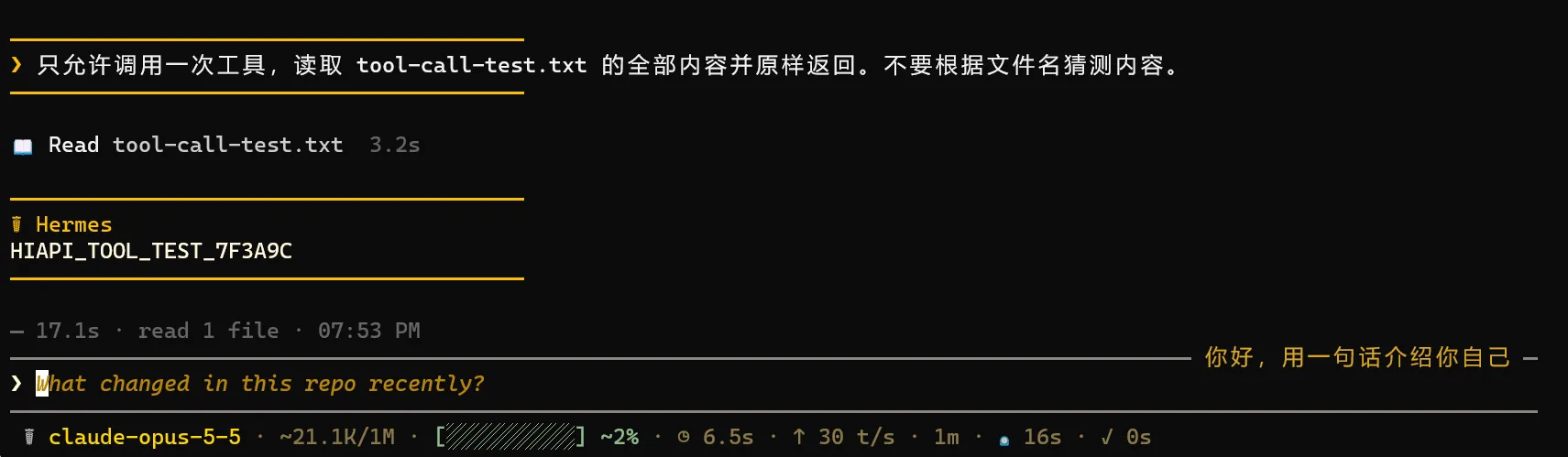
First create tool-call-test.txt in the folder where you start Hermes, write one line hello hiapi and save it. Then send “Only call a tool once. Read the entire contents of tool-call-test.txt and return them exactly as they are. Do not guess the contents from the file name.” Confirm that a tool call appears and returns hello hiapi.
5. Troubleshooting
Only issues specific to Hermes are listed here. For common errors such as 401, 404 and 429, see Common errors.
| Error | Cause | Fix |
|---|---|---|
hermes: command not found | The terminal was not reopened after installing, so PATH has not taken effect | Reopen the terminal; if that doesn’t help, run the install script again |
| The install script reports missing curl / xz-utils | Dependencies are missing on Linux | Run apt install curl xz-utils (or your package manager) |
400 This model does not support this endpoint | The protocol and model don’t match | Run hermes model again: choose Anthropic Messages for Claude, Chat Completions for GPT and DeepSeek |
| 404 | base_url has an extra or missing /v1 | For Claude (Anthropic Messages) use https://api.hiapi.ai; for GPT and DeepSeek (Chat Completions) use https://api.hiapi.ai/v1 |
| 401 | The HiAPI API key is wrong | Paste it again, with no spaces before or after |
| It says the context is too small | The model context is below 64K | Switch to a model with a context of at least 64K |
HiAPI is missing in /model | It has not been added with hermes model | Exit the session and run hermes model to add it |
| Configuration changes don’t take effect | The old session is cached | Start a new session with /new, or restart Hermes |
This page only covers text models; for tool capabilities see the MCP guide.